
Toggl 2.0 organizes work through five building blocks: Clients, Projects, Tasks, Tags, and Time Logs. These labels are yours to define — a "Project" can represent a client engagement, an internal initiative, or something else based on your team's workflow. If you only need one or two of these categories, that’s not an issue: task and project are optional on a time log, and a description alone is enough to log time by default (a workspace admin can make project, task, or description mandatory via required fields).
Data hierarchy in a workspace
- Clients
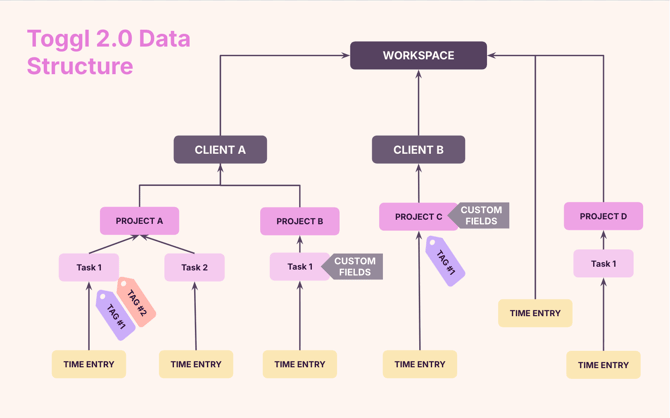
Can be associated with multiple projects. Clients can't be directly associated with time entries. In reports, all projects related to a client are grouped together.
Only one client can be added to a single project. One project may contain multiple tasks and time logs. Start/end dates, time estimates, fixed fees, and other features are defined on the project level. Projects without dates and estimates will still appear in reports, but won't show on the Timeline or count toward capacity.
Subdivisions of a project. They show up on a person's Timeline and Calendar, and are what capacity planning is built on. A task can have an assignee, start/end dates, a time estimate, priority, and status.
A task can have subtasks, but subtasks are flat (a subtask can't have its own subtask). Time, estimates, and status are independent between a task and its subtasks — nothing rolls up between them.
- Tags
Labels attached to tasks and projects, not to time entries. Used for extra categorization — activity type, billing status, location, work category, etc. Show up as filters in reports and the Timeline view.
The object that contains the time information. Time logs can be directly associated with tasks and project, but not clients (that connection is made through projects). Admins can set up required fields for a project, task, or description. Billable status can be assigned on the time log, independent of the task or project it's attached to. Each log can represent logged time (something that happened) or planned time (something scheduled), shown together on the Calendar view.
Additional elements to consider
- Custom fields
Alongside Tags, Toggl 2.0 (Premium and above) adds Custom Fields — admin-defined metadata attached to Projects and to Tasks. Custom Fields are admin-curated and built for consistent, reportable categorization — billing codes, cost centers, region, and similar. Custom Field values are filterable in reports. See Project-Level Custom Fields and Task-Level Custom Fields.
A Project can also be set to recur on a schedule (weekly, bi-weekly, monthly, quarterly, or annually) instead of being rebuilt each time — each new period gets its own budget, with unused time or overruns carried over according to a rollover policy you choose.
Visual representation of the Toggl 2.0 data structure
Categorizing your work
It's worth deciding upfront how your team will classify work — that choice is what you'll later be able to filter, group, and report on.
A simple way to picture the hierarchy: a Time Log is a Paper, a Task is an Envelope that holds papers (and, unlike in Toggl Track, can also sit loose outside any folder as a personal to-do), a Project is a Folder that holds envelopes and papers, and a Workspace is the Drawer that holds it all. Clients are labels stuck on folders — each folder gets only one.
If your finance or admin team uses internal codes, consider building them into your naming conventions for Projects, Clients, and Tags (e.g. "Acme Inc. (AI489289)") — it makes projects and tasks easier to find, and reports easier to filter down to a specific kind of activity.
Once you've settled on categories, admins can bulk-import clients, projects, tasks, tags, members, time entries, and Custom Field values (Premium and above) from a CSV — including exports from other tools. See Universal CSV Importer, Project-Level Custom Fields and Task-Level Custom Fields.
How this compares to Toggl Track
Toggl Track's data structure is a strict funnel: Client → Project → Task → Time Entry, with tags living on the time entry and user input only happening at the entry level. Toggl 2.0 keeps the same five objects but changes two things: tags move up to the task/project level instead of the time entry, and the time entry can carry a project, a task, both, or neither, with only a start time required.
Toggl 2.0 also adds a capability Toggl Track doesn't have: a Unified Time Model that merges planned time and logged time into the same object that can represent a plan, a time log, or both. Billable status works differently too — in Toggl Track, it lives only at the task or project level, while in Toggl 2.0 it can be set per time log, independent of the task or project it's attached to.
A few other concepts exist in Toggl 2.0 with no Toggl Track equivalent: a task can stand alone as a personal to-do with no project assigned, custom task Statuses drive a Kanban-style Board view, and Milestones mark key dates directly on the Timeline.
The relationship between Organizations and Workspaces
As in Toggl Track, the Organization sits above the Workspace in Toggl 2.0's data hierarchy. Most accounts have a one-to-one relationship between Organization and Workspace, though on certain plans it's possible to create multiple workspaces within a single Organization.
Administrative and legal elements — like the subscription — are tied to the Organization. Clients, projects, tasks, tags, and time logs all live at the Workspace level. Access within a workspace is role-based — commonly simplified to Admin, Manager, Member, and Guest. Guest is a Starter+ paid feature, not available on the Free plan. Custom Roles are Enterprise-only. See Guest Role in Toggl 2.0 and Custom Roles in Toggl 2.0.