
What are Goals?
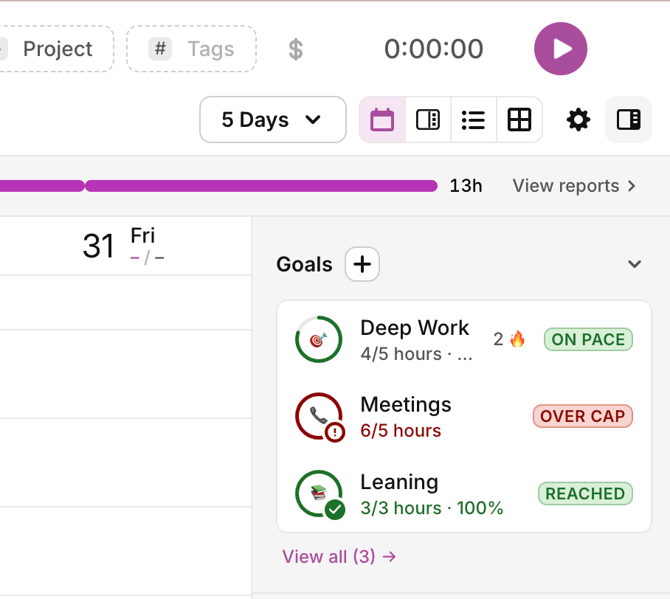
Goals are recurring time targets you set for yourself and track against as you work. Instead of finding out at the end of the week that a client, a project, or your deep work got squeezed out, you see where you stand on your Timer page while you're tracking.
A goal links to the work that should count toward it — projects, tasks, tags, or clients — and every time entry matching that scope automatically counts. You never log progress manually.
You can set a goal to be either:
- At least — a minimum you want to hit (e.g. at least 5 hours of billable work every day)
- Less than — a cap you don't want to exceed (e.g. less than 5 hours of meetings every week)
Common examples:
- At least 5 hours of billable work, weekdays
- At least 2 hours on your main project, every day
- Less than 5 hours of meetings, every week
- At least 10 hours of deep work, every week
Note: Goals are personal. Each goal belongs to you alone — only you can see it, and only you track against it. There are no team or shared goals in Toggl 2.0.
Note: You can have up to 4 active goals at a time. Archived goals don't count toward the limit, and archiving a goal frees a slot.
Where to find Goals
Goals live in two places:
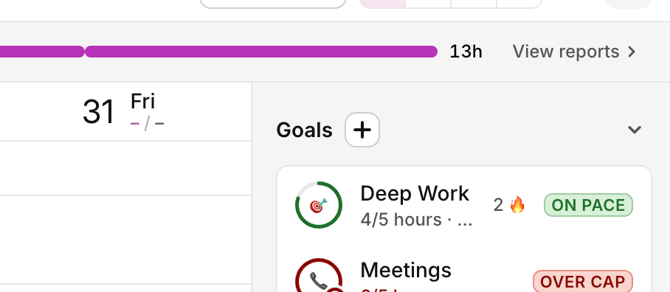
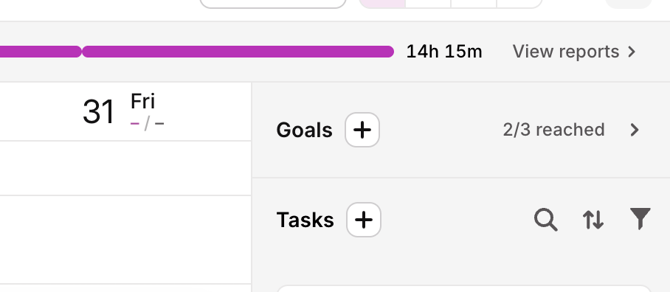
The Goals widget — at the top of the Timer page side panel, above your tasks. It shows all your active goals with their current progress, and it's where you'll spot a goal drifting off track without leaving what you're doing. Click the heading to collapse it; when collapsed it still shows a summary (e.g. 2/4 reached).
The Goals page — click View all in the widget, or open Goals from the navigation. This is the full view: summary stats, every active goal, and your archived goals.
Creating a goal
Click the + button in the Goals widget header, or New goal on the Goals page.
If you don't have any goals yet, the widget shows an example goal — click it to open the creator pre-filled, then adjust it.
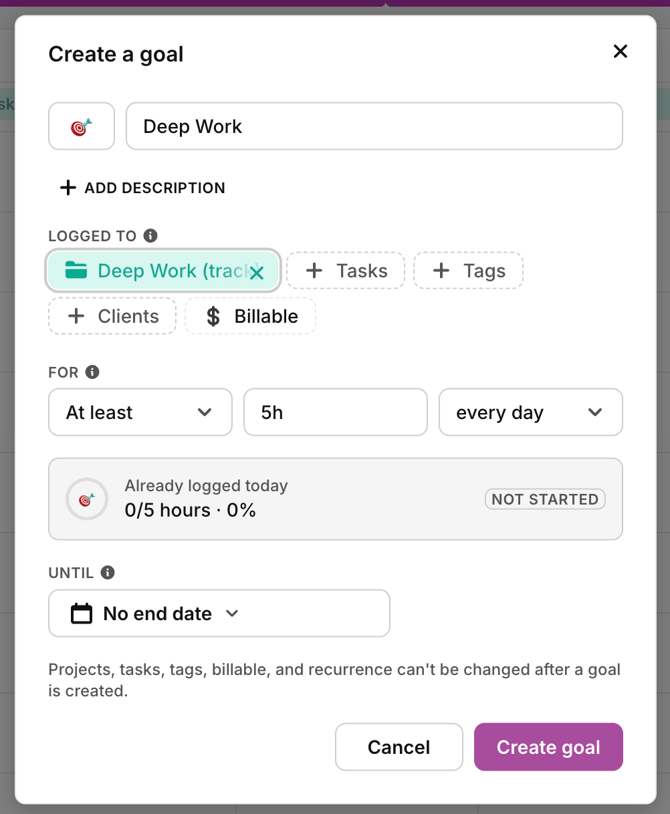
1. Icon and name
Pick an emoji icon and give the goal a name. The icon is how you'll recognise the goal at a glance in the widget — e.g. 💼 Billable hours, 🧠 Deep work, 📞 Meetings.
Optionally, click Add description for a longer note about what the goal is for.
2. Logged to
Choose what counts toward the goal. You can combine:
| Option | What it counts |
|---|---|
| Projects | All time logged to these projects, including their tasks |
| Tasks | Specific tasks only |
| Tags | Time entries carrying these tags |
| Clients | All work for these clients |
| Billable | Restrict to billable only, or non-billable only |
Note: If you leave this empty, all of your tracked time counts toward the goal — useful for a "track at least 6 hours a day" goal, but rarely what you want for anything more specific.
Note: Filtering by billable / non-billable is a paid-plan feature. On free plans the option shows an upgrade prompt.
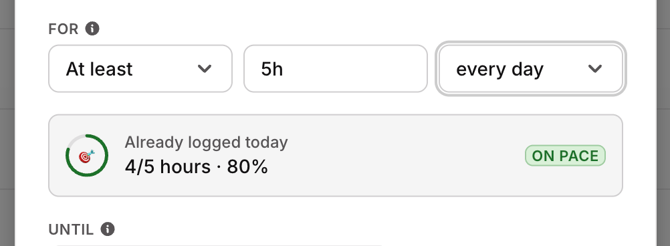
3. For
Set the shape of the target:
- At least or Less than
- The amount — typed as a duration. Bare numbers are read as hours, so typing
3means 3 hours. - How often it resets — every day, weekdays, every week, or every month
The target can't be longer than the period it resets in (you can't ask for 30 hours in a single day).
4. On (weekly goals only)
For every week goals, choose which days count. Time logged on unselected days doesn't count toward the goal. All seven days are selected by default.
5. Until
Set an end date, or leave it as No end date to keep the goal running indefinitely.
6. Create
Before you create it, the modal shows how the goal will stand the moment it exists — including any time you've already logged this period. If that already puts you over the line, you'll see "This goal will start already reached" (or "…over its cap").
Click Create goal.
Note: After a goal is created, projects, tasks, tags, clients, billable, and recurrence can't be changed. You can still edit the name, icon, description, target amount, at-least/less-than, and end date. To change the scope or recurrence, duplicate the goal and adjust the copy, or create a new one.
Reading your progress
Each goal row shows a progress ring, how much you've logged against the target, and a state badge.
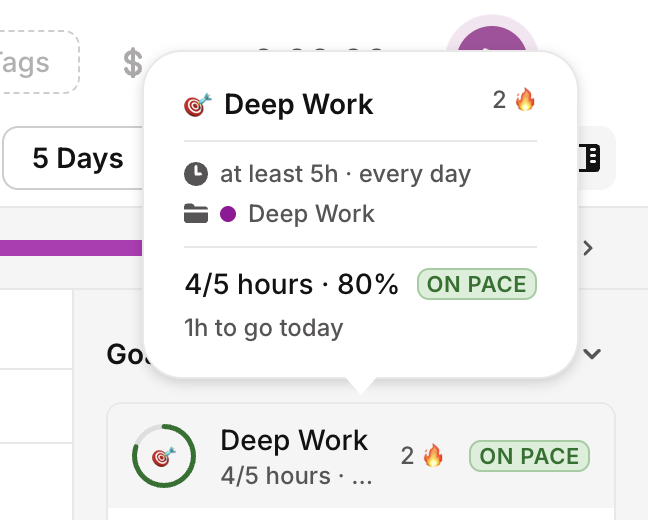
While the period is running
These are provisional — they tell you whether you're pacing well, not whether you've succeeded yet.
| State | Colour | What it means |
|---|---|---|
| Not started | Grey | Nothing logged toward this goal yet this period |
| On pace | Green | Your progress is keeping up with how much of the period has passed |
| Behind | Orange | You're lagging noticeably behind the pace needed (at least goals) |
| At risk | Orange | You're burning through the cap faster than the period is passing (less than goals) |
| Reached | Green | You've hit the target (at least goals) |
| Over cap | Red | You've gone past the cap (less than goals) |
When the period ends
The result is banked and the badge becomes final:
| State | Colour | Applies to |
|---|---|---|
| Reached | Green | At least — you hit the target |
| Missed | Red | At least — you didn't |
| Kept under | Green | Less than — you stayed within the cap |
| Exceeded | Red | Less than — you went over |
Note: A cap goal is never "reached" mid-period — staying under it is the win, and it's confirmed quietly when the period rolls over. A cap with zero time logged is healthy, not "Not started".
Note: Progress is calculated from your tracked time on Toggl's servers, so it's the same on every device. It updates automatically as you track — no refresh needed.
Streaks and celebrations
Every period you meet a goal extends its streak, shown as a 🔥 count on the goal row. Miss a period and the streak resets.
When you cross the target on an at least goal, a celebration appears with your result, your streak, and a Share button that generates an image you can post or save.
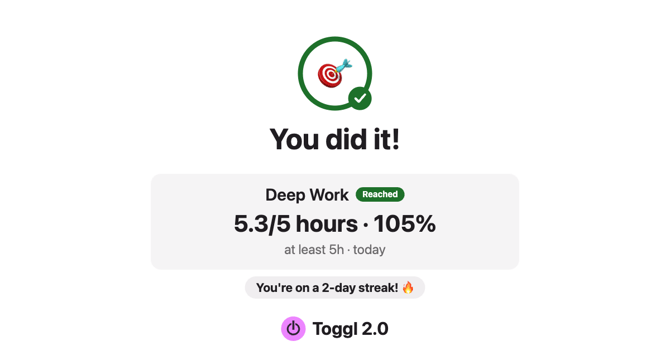
Note: Cap goals never celebrate. A goal that's already satisfied the moment you create it shows as Reached but doesn't trigger a celebration.
The Goals page
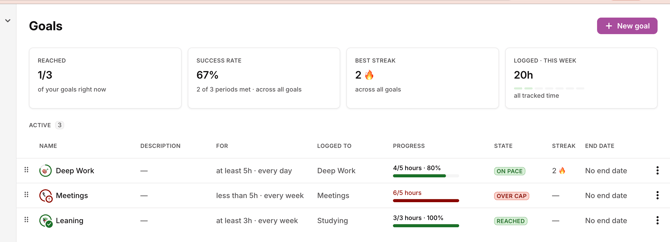
At the top, four summary cards:
- Reached — how many of your goals are currently in a good state
- Success rate — how many periods you've met, out of how many have completed
- Best streak — your longest run, with your current streak alongside
- Logged — time tracked this period
Click a goal to focus the stats on that goal alone; click Clear to go back to all goals.
Below, your goals in a table: Name, Description, For (the target definition), Logged to (the scope), Progress, State, Streak, and End date. Drag the handle on the left of a row to reorder your active goals — the widget follows the same order.
Archived goals sit in their own section below, 10 per page.
Managing goals
Open the ⋮ menu on any goal row:
| Action | What it does |
|---|---|
| Edit goal | Change name, icon, description, target, at least/less than, end date |
| Duplicate | Create a copy you can adjust — the way to "change" a locked scope or recurrence |
| Archive | Stop tracking the goal and free up an active slot. History is kept. |
| Unarchive | Bring it back (only if you have a free slot) |
| Delete | Permanently remove the goal and its streak history |
Note: Deleting a goal never touches your time entries — only the goal and its history are removed.
Note: If you're already at 4 active goals, New goal, Duplicate, and Unarchive are disabled until you archive or delete one.
Examples
Protect your billable hours
You're a freelancer and want to make sure billable work doesn't get eaten by admin.
- Name: 💼 Billable hours
- Logged to: Billable only
- For: At least · 5h · weekdays
You'll see by mid-afternoon whether the day is going to land, instead of finding out on Friday.
Protect deep work on one project
You have a strategic project that keeps losing to reactive work.
- Name: 🧠 Deep work
- Logged to: (your project)
- For: At least · 10h · every week
- On: Mon–Fri
Cap your meeting time
You want a hard signal when meetings are taking over the week.
- Name: 📞 Meetings
- Logged to: (your Meetings project, or a
meetingtag) - For: Less than · 5h · every week
The goal turns At risk while you're burning the budget too fast, and Over cap once you cross it.
Frequently asked questions
Who can see my goals?
Goals are personal. Only you see your own goals and progress — nobody else in your workspace does, including admins.
Can I set a goal for my team, or for someone else on it?
No. Goals in Toggl 2.0 are individual targets only. There are no team goals, and goals can't be assigned to other people.
Does time I tracked before creating the goal count?
Yes — for the current period. If you create a daily goal at 3pm, the time you already logged today that matches the scope counts toward it. The creator shows you this before you confirm.
Which apps support Goals?
The web app and the desktop app. Mobile support isn't available yet.
Why can't I change a goal's projects or how often it repeats?
Those define what the goal has been measuring, so changing them would invalidate its history and streak. Use Duplicate to create a version with a different scope or recurrence.
What happens if I delete a time entry that counted toward a goal?
Progress recalculates automatically — the goal reflects your actual tracked time at all times.
What if my week doesn't start on Monday?
Weekly goals follow the week start set in your settings.
Why can't I create a fifth goal?
There's a limit of 4 active goals, so the widget stays glanceable. Archive one to free a slot — archived goals keep their history and can be brought back.