
Overview
The Jira integration lets you sync your Jira projects, issues, and labels into Toggl.
Once connected, your Jira projects appear as Toggl projects, issues become tasks, and labels become tags, all kept in sync automatically. During setup you can choose what comes in: switch off entity types you don't need, or use a JQL filter to limit which issues are imported. By default everything is imported.
When something changes in Jira (like a new issue being created), it shows up in Toggl 2.0 near-instantly. This means your team can plan and track work in Toggl 2.0 without manually recreating their Jira data.
The integration is set up by a workspace admin and includes an optional step to import Jira users so that issue assignments carry over into Toggl.
The sync is one-way: from Jira to Toggl. Changes made in Toggl are not pushed back to Jira.
Feature Availability
Available on Premium plans only.
How It Maps
| Jira | Toggl |
|---|---|
| Project | Project |
| Issue | Task |
| Label | Tag |
| Assignee | Task assignee (requires user import) |
Each imported project and task includes a link back to the original item in Jira.
Setup
How to Connect Jira
- In the Admin Settings, go to Integrations and connect Jira
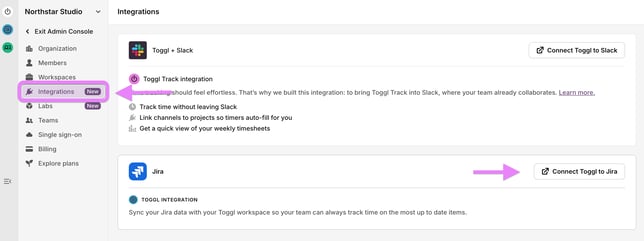
2. Authorize Toggl in Atlassian by selecting your workspace and accepting
-1.png?width=670&height=377&name=Bildschirmfoto%202026-03-12%20um%2014_56_15%20(1)-1.png)
3. You are redirected back to Toggl
How to Import Users from Jira
After connecting, Toggl prompts you to import members. This step is optional but recommended: without it, task assignments will not sync.
- Follow the link to your Jira user directory and export your users as a CSV
- You'll receive an email from Atlassian with the CSV download
- Back in Toggl, upload the CSV. Toggl identifies the users and their email addresses
- Select the users you want to import and continue
Important: If you skip the user import, projects and tasks will still sync, but they will not be assigned to users in Toggl.
How to Choose What Gets Imported
On the last step of the setup wizard, before the first sync starts, you can limit what comes into Toggl. Both options below work the same way in the Admin Console and in Toggl settings, and they work together: the JQL filter decides which issues Jira sends, and the entity switches decide which of the resulting projects, tasks, and tags are saved. For example, if your query matches issues but the Tasks switch is off, the projects still come in and the issues don't.
Entity types
The last wizard step shows three switches: Projects, Tasks, and Tags. All start on. You can turn off the ones you don't need, and at least one always stays on.
JQL filter
Above the entity tabs there is a box where you can write a JQL query. Click Apply filter and the Projects and Tasks counts update, so you can see what will be imported before you finish. Leaving the box empty imports everything.
- If Jira rejects the query (bad syntax, or a project or value that doesn't exist), Toggl shows Jira's own error message. You can't finish setup until the query is fixed.
- If the query is valid but currently matches nothing, Toggl warns you to double-check names and keys. You can still continue.
- If the query matches more issues than one sync can handle, Toggl warns you with both numbers. You can still continue.
- The Tags count never changes: Jira labels are always imported for the whole account.
How to Start the Sync
- Review the mapping overview showing what will be imported
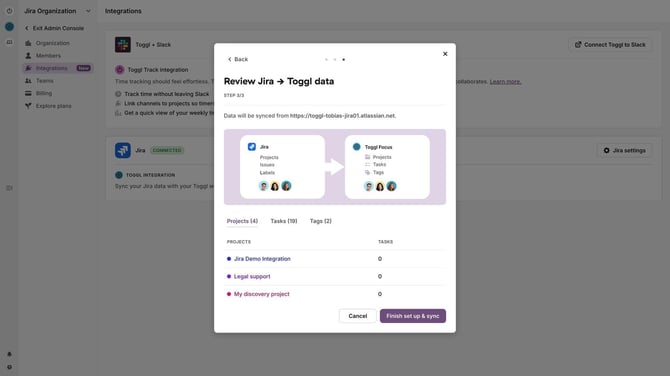
- Confirm and start the sync
- Check the sync log to verify everything imported correctly
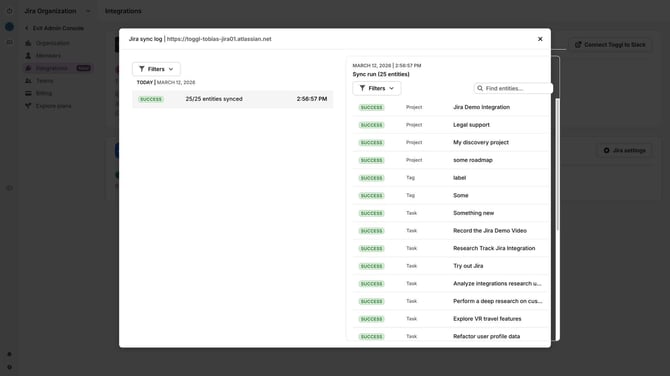
Once complete, your projects, tasks, and tags appear in Toggl.
Ongoing Sync
After the initial import, new issues created in Jira sync to Toggl automatically and near-instantly, including project assignment. Remember that the sync is one-way — only changes in Jira are reflected in Toggl, not the other way around.
If Your Import Filter Stops Working
A JQL filter that worked at setup can stop working later. Two things can happen:
- Jira rejects the query, for example because a field it uses was removed. The next sync fails, and the integration card changes from Connected to Sync stopped, showing Jira's error. Click Fix filter to open the query pre-filled and correct it.
- The query still works but matches nothing, for example because a project was renamed or deleted, a sprint closed, a label was removed, or access was lost. Jira reports no error in this case, so Toggl watches for it: after 24 hours with no matches, the card shows Sync stopped with "filter no longer matches any issues" and the same Fix filter option. If matching issues come back sooner, nothing happens.
In both cases, the corrected query must work in the preview before you can save. Saving an empty box removes the filter, and syncing continues without it.
Tracking Time on Jira Issues
The Toggl browser extension lets you track time directly from Jira without leaving your current workflow. When the Jira integration is set up, the extension automatically fills in the correct project, task title (including the Jira task identifier), and any synced tags — so you don’t have to think about metadata.
There are three ways to log time from Jira:
- Presets — Click a preset (e.g. 30 minutes) to open an overlay pre-filled with the start and end time for that duration. The project, task title, and tags are assigned automatically.
- Play button — Start a live timer on any Jira issue. When you stop and open the extension, the time entry already has the correct project and task assigned.
- Drag — Drag to select a custom duration (e.g. 3 hours). This opens the same overlay as presets, pre-filled with the selected time range and all metadata auto-assigned.
All time tracked through the extension is synced to Toggl 2.0 with the correct metadata — no manual entry required.
Edge Cases & Considerations
- User import is required for assignment sync. If users are not imported, tasks sync without assignees.
- One-way sync only. Data flows from Jira to Toggl. Creating or editing tasks in Toggl does not update Jira.
- Import settings are chosen during setup only. Nothing removes items already imported, so changing the entity switches or filter later would leave stale projects and tasks behind. There are two exceptions: fixing a filter that stopped syncing, and editing a filter that has never matched anything. In the second case the integration card says "This import filter hasn't matched any issues yet" and offers Edit filter, since nothing was imported under it.