
Pair your phone with Toggl 2.0 by scanning a QR code — no password typing on the phone. Takes under a minute, and you approve the sign-in from a device you're already logged in on, so it stays secure.
Who this is for: Anyone signing in to the Toggl 2.0 mobile app — whether you already use Toggl 2.0 in your browser or you're brand new and setting up both at once.
You'll need: Toggl 2.0 open in a browser where you're already signed in, and the Toggl 2.0 app installed on your phone.
Before you start
You'll move between two screens:
- Your computer (browser) shows the QR code, then asks you to approve the new device.
- Your phone (app) scans the code, then shows a short confirmation code to match.
The key security step is in the middle: both screens show the same short code, and you only approve if they match.
Step 1 — Open the QR code on your computer
- In your browser, open Toggl 2.0 and make sure you're signed in.
- In the bottom-left of the sidebar, click Download apps.
- In the panel that opens, under On your devices, click Sign in on your phone.
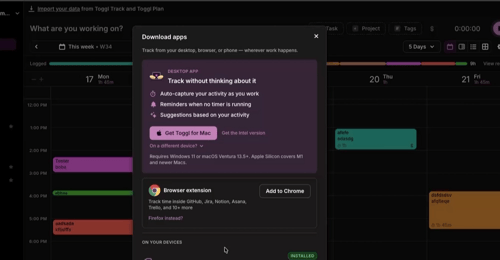
- On the Add a device page, click Add a device.
- A QR code appears under Scan to sign in. Leave this open — you'll scan it next.
The code expires after ~5 minutes. If it runs out, click Add a device again for a fresh one.
Step 2 — Scan it with the Toggl 2.0 app
- Open the Toggl 2.0 app on your phone.
- On the welcome screen, tap Log in with QR code (under "Already using Toggl 2.0 in your browser?").
- Tap the QR scan icon next to the code field and point your camera at the QR code on your computer.
No camera? Type the 8-digit code from your computer into the Your code field and tap Go.
Step 3 — Match the code and approve
After scanning, each screen shows a short confirmation code.
- On your phone: "Almost there" with the code and "Waiting for you to approve on your computer."
- On your computer: "Approve this device?" with the device type and the same code.
Check the two codes are identical, then on your computer click Approve.
Only click Approve if the codes match exactly. If they don't — or you didn't start this sign-in — click Deny. This check is what stops someone else signing in as you.
The approval screen also shows the requesting device's IP address. Treat it as private — don't share screenshots of it outside Toggl.
Step 4 — You're in
Once you approve, your computer shows Device paired and your phone signs in automatically — no password needed.
Troubleshooting
- The QR code expired before I scanned it The code lasts ~5 minutes. On the Add a device page, click Add a device again for a fresh QR and 8-digit code.
- My camera won't scan the code Skip scanning. Find the 8-digit code under the QR image, type it into the Your code field in the app, and tap Go.
- The confirmation codes don't match Don't approve. Click Deny and start again with a fresh QR code. Mismatched codes mean the request on your screen isn't the one from your phone.
- My phone says "Waiting for you to approve" but nothing happens Approval happens on your computer, not your phone. Switch to your browser and click Approve. If that screen never appeared, the code likely expired — tap Start over on the phone and begin again.
- I'm a brand-new user — can I still use this? Yes. As long as you're signed in to Toggl 2.0 in a browser, you can pair your phone this way and skip typing your password on mobile.