
Connect your Google or Outlook calendar to see your scheduled events alongside your tracked time, and turn those events into time entries automatically.
This article covers how the calendar works in the current version of Toggl 2.0, how to log time from calendar events, and how to set up rules that classify events for you.
What's changed: Calendar events and tracked time share one calendar. You can categorize an event before logging it, or use matching rules under Settings → Connected calendars to categorize recurring events automatically.
Connect your calendar
- Open Settings → Connected calendars → External calendar integrations.
- Select Add Google Calendar or Add Outlook Calendar.
- Authorise the connection when prompted.

After a few seconds, your calendar events appear on your calendar as planned entries.
Log time from a calendar event
You have two ways to turn calendar events into tracked time.
Log an event manually
- Open the planned calendar event.
- Use Link to to choose a task or project, and add tags and billable status if you need them. The billable control only appears if your plan and role allow it.
- Select Log time when ready.
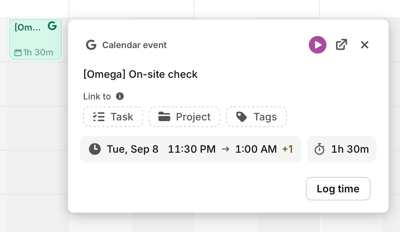
The event's title becomes the time entry's description. If your workspace requires a field that is still empty, the full time entry editor opens instead, and you can fill in the missing fields (and edit the description) there.
When you assign a project, the entry updates to that project's colour so you can see your classified time at a glance. The event and its log appear as a single combined block rather than two stacked entries.
Auto-track your calendars
Go to Settings → Connected calendars. You can also open it from the gear on the Calendar page.
-
To auto-track every calendar at once: select Auto-track time from all enabled calendars, above your calendar connections. Select it again to turn auto-track off everywhere.
-
To auto-track one calendar: under External calendar integrations, find the calendar and turn on its Auto-track time switch. Each calendar’s switch overrides the all-calendars setting.
If some of your calendars auto-track and others don’t, the checkbox shows a mixed state, for example On for 2 of 3 calendars. Selecting it while it’s mixed turns auto-track on for all of them.
The checkbox only changes calendars that are switched on. A switched-off calendar keeps its own auto-track setting. The checkbox also changes only the calendars you have now. Calendars added to the connection later use the connection’s default.
If some calendars can’t be updated, Toggl names them and shows Try again. Try again retries only those calendars. Your other changes are kept.
You need permission to manage calendar integrations to change auto-track. Admins, Managers and Members have it by default.
Past events from the current week (from your week start until now) are logged automatically. Events from earlier weeks are not logged automatically. Log those manually if you need them.
From then on, each event is logged once it has started, for its full scheduled length. Auto-tracked events are logged when Toggl syncs your calendar, which happens when you open Toggl or return to it. If you don't open Toggl before the week ends, that week's events stay as planned entries; log them manually if you need them.
If a task has its own Auto-log time setting turned off, events matched to that task are not auto-tracked, even when auto-track is on for the calendar.
Show or hide a calendar
You can hide a connected calendar’s events without disconnecting it.
- Go to Settings → Connected calendars → External calendar integrations.
- Select the chevron next to the account to show its calendars.
- Under View calendars, turn the switch off for the calendar you want to hide.
A message confirms that the events are hidden from your calendar. When a calendar is hidden:
- Its upcoming planned events are removed from your calendar.
- Its past planned events are hidden from your calendar and left out of the planned totals.
- Time you’ve already logged from its events stays on your calendar and in your reports.
Turn the switch back on to show the calendar again. Its past planned events reappear, and upcoming events sync back in.
Hiding a calendar applies to the calendar on web and desktop. The mobile app still shows its past planned events. Other places that use planned time, such as the Daily Brief email, may still include them.
If you hide every calendar on an account, the account row shows All hidden.
Workspaces with required fields:
If your workspace requires a project, task or tags on time entries, auto-track logs an event only when Toggl can fill those fields. A matching rule fills them. Toggl can also reuse the project, task and tags from time you logged with the same or a similar description in the last 3 months, and a matched task can supply its tags. Events that cannot be filled are not logged. Log them manually, or add a matching rule for recurring meetings. A required description is always filled from the event title
Classify events automatically with matching rules
Matching rules match calendar events by keyword and set a task or project, tags and billable status for you. A rule applies to every connected calendar. Rules are personal: they apply only to you, in the current workspace.
Create a rule
- Go to Settings → Connected calendars → Matching rules.
- Select Add rule, or edit an existing rule, and enter the keyword to match.
- Optionally choose a task or project, add tags, and set billable status. A rule can contain only tags and/or billable status; a task or project is optional.
- Save the rule.
How matching works
- Matching isn't case-sensitive and looks for whole words in the event title. A rule for "sync" matches "Team sync" but not "Syncing".
- Adding a rule with the same keyword as an existing rule replaces the existing rule.
- Repeating tasks can't be used in a rule. Turn the repeat off on the task to pick it.
- When you save a rule, it fills empty fields on upcoming planned events that aren't logged yet, and matching events are logged with those details from then on. Time you've already logged is not changed, and deleting a rule doesn't undo details it has already applied.
Rules are ideal for recurring events. For example, a rule matching "Prep" can send every daily prep event to a specific project, while a rule matching a teammate's name can classify your 1:1s as meetings.
Turning auto-track off and on again
Turning auto-track off and on again doesn't change time you've already logged. When you turn it back on, events from the current week that have started and aren't logged yet are logged using your current rules.
This works the same whether you use Auto-track time from all enabled calendars or a calendar’s own switch.
Removing a calendar
When you remove a connected calendar on web or desktop, Toggl asks what to do with your existing entries:
- Remove upcoming planned entries: planned entries from this calendar in the future are deleted. Past time logs and planned time stay.
- Keep everything (selected by default): all entries stay on your calendar, but they stop syncing.
Your past, already-logged time entries are not affected by removing a calendar.
Disconnecting permanently removes the calendar history Toggl imported. If you add the same calendar back later, only about the most recent 60 days of events are imported again.
On mobile, Disconnect calendar doesn't ask: it removes the upcoming planned entries from that calendar. To stop seeing a calendar’s events without losing its history, hide it instead (see Show or hide a calendar). Hiding a calendar also hides its past planned events. Removing it doesn’t.
Multiple calendars
You can connect more than one calendar. Turn auto-track on for all of them with Auto-track time from all enabled calendars, or set it per calendar so different calendars behave differently. Matching rules apply across all of them. Everything above works the same way regardless of which calendar an event came from.
If your calendar stops syncing
When Google or Outlook access expires or is revoked, a tile with a red dashed border appears on the Calendar grid (web and desktop): Google not syncing or Outlook not syncing, with a Reconnect button.
One click opens that provider's consent screen and returns you to the calendar. Existing entries and permissions are kept. The tile clears itself once the calendar is connected again; it can't be dismissed.
If more than one calendar is broken, reconnecting the first one reveals the next.
The tile is only on the Calendar grid. List and Timesheet don't show it; use Settings → Connected calendars → External calendar integrations instead (red Not syncing badge and Reconnect).
The mobile app has no Reconnect button or Not syncing badge. Reconnect from Settings on web or desktop.
Only people who can manage calendar integrations see Reconnect (by default, Admins, Managers and Members). Everyone else should ask someone who can.