
What are Required Fields?
Required Fields is a workspace-level setting that lets admins mark certain task and time log fields as mandatory. When enabled, users must fill in all required fields before they can create or save a task or time log.
This feature mirrors the Required Fields functionality from Toggl Track, now available in Toggl 2.0.
Who can configure Required Fields?
Only workspace admins and organization admins can enable or disable required fields. Regular members cannot change these settings but must comply with them when creating or editing tasks and time logs.
How to enable Required Fields
- Go to Settings in your workspace
- Navigate to the Required Fields section
- Toggle on the fields you want to make mandatory
- Click Save
Currently supported required fields:
For tasks
- Tags - require users to select at least one tag when creating a task
- Project - require users to assign a project to each task
For time logs
- Project - require users to assign a project to each time log
- Task - require users to assign a task to each time log
- Time log description -require users to add description to each time log
- Tags - require at least one tag on each time log. A time log counts as tagged if it has its own tags or if its task has tags, so a time log on a tagged task already meets the requirement.
More field types (priority, estimate, billable state and Custom Fields) are planned for future releases.
What happens when Required Fields are enabled
Creating tasks
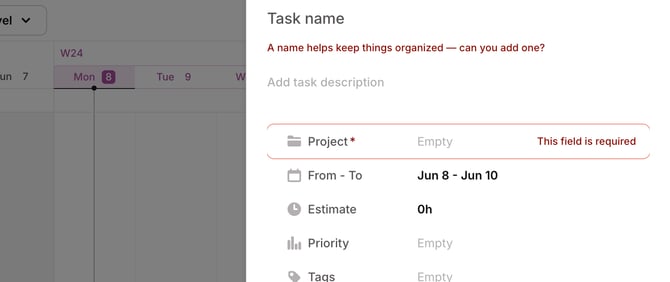
Users will see required fields marked with an asterisk (*). The task cannot be saved until all required fields are filled in. Empty required fields are highlighted with an error state.
Creating and editing time logs
Time logs follow the same rules: a time log can't be saved until every required field is filled in. This applies everywhere you edit time logs, including bulk edit and the timesheet – any change that would leave a time log without a required field (for example, removing its last tag when Tags are required) is blocked.
Subtasks
Required fields validation also applies to subtasks. A subtask cannot be created without filling in the required fields.
Browser extension
The browser extension supports required fields. If required fields are set, users must fill them out in the extension.
Tasks and time logs created before enabling Required Fields
Tasks and time logs that were created before required fields were turned on remain editable without filling in the newly required fields. However, starting a time log on older tasks will fail until the required fields are added.
Older time logs can still be edited, but a required field that already has a value can't be cleared – for example, if Tags are required, you can't remove the tags from an older time log.
Time logs synced from Toggl Track don’t need tags, but the same rule applies: if a synced time log has tags, you can’t remove all of them.
Required tags on time logs
When Tags is required for time logs:
- Starting or logging time: the Start / Log time button is disabled until the time log has a tag, either its own or from its task. Hover over the button to see what’s missing.
- Timesheet and bulk edit: changes that would leave a time log with no tags can’t be saved.
- Removing tags from a time log: you can swap a time log’s tags, but you can’t remove the last one.
- Removing tags from a task: if time logs get their tags from a task, you can’t remove that task’s last tag. Keep at least one tag on the task, or add tags to those time logs first.
- Deleting a tag: if deleting a tag would leave some time logs with no tags, the delete is blocked. You’ll see how many time logs would be affected. Choose Merge into another tag to move them onto a different tag. If you can’t manage tags, ask someone who can to do the merge.
Planned time isn’t checked. The requirement applies when the time is logged.
Important notes
- Premium feature: Required Fields is available on the Premium plan and above. If your workspace is on the Free or Starter plan, you will not see this option in Settings.
- Mobile app and browser extension: required tags on time logs are checked up front in the web app. On mobile and in the browser extension the requirement is still enforced, but you’ll only find out when the time log is saved. If a time log is refused there, add a tag in the web app.
- API and bulk operations: Saving a time log without a required tag returns
422 required_fields_missing(bulk_required_fields_missingfor bulk edits). Removing all tags from an older or Track-synced time log returns422 required_fields_deletion. Deleting a tag, or removing tags from a task, in a way that would leave time logs with no tags returns409 would_leave_time_entries_without_tags.
{
  "error": "required_fields_missing",
  "error_description": "Please fill in all required field(s) to proceed: task 1: tags; task 3: tags"
}
FAQ
-
Can I make different fields required for different projects?
Not currently. Required fields are configured at the workspace level and apply to all tasks across all projects. Project-level required fields may be considered in future iterations.
-
What happens if I turn off a required field after it was enabled?
The constraint is removed immediately. Users can create and edit tasks and time logs without that field going forward. Existing tasks and time logs are not affected.
-
Will this affect tasks and time logs created by integrations or the AI assistant?
Yes. The backend enforces required fields on all task and time log creation endpoints. Integrations and AI-generated tasks and time logs that don't include the required fields will receive a validation error and need to be updated to include them.
-
Can regular members see which fields are required?
Yes. Required fields are visually indicated in the task and time logs creation flow (asterisks, error borders). Members just cannot change which fields are required.
-
If a time log’s task has tags, does the time log need its own?
No. A time log on a tagged task already meets the requirement.
-
Why can’t I delete a tag?
Tags are required in your workspace, and some time logs only have that tag. Merge it into another tag instead.