---
title: Recurring Projects in Toggl 2.0
description: Recurring projects Toggl 2.0
---
[Skip to content](https://docs.toggl.com/set-up-a-recurring-project-in-toggl-2-0#main-content)
English
Show submenu for translations
[](https://docs.toggl.com/?hsLang=en)
Open main navigation
Close main navigation
- English
Show submenu for translations
- [Go to Toggl](https://focus.toggl.com/)
[Go to Toggl](https://focus.toggl.com/)
How can we help you?
- There are no suggestions because the search field is empty.
1. [Toggl 2.0 Knowledge Base](https://docs.toggl.com/?hsLang=en)
2. [Using Toggl, page by page](https://docs.toggl.com/using-toggl-page-by-page?hsLang=en)
3. [Projects](https://docs.toggl.com/using-toggl-page-by-page?hsLang=en#projects)
# Recurring Projects in Toggl 2.0
## Recurring projects let you repeat the same project structure on a schedule. You can define how often the project repeats, how budgets roll over, and how each new period starts.
### Before you begin
Your project or project template should include the core information you want repeated:
- Project members
- Tasks and assignees
- Time estimates
- Fixed fee, if relevant
- Milestones or dated tasks, if you want them to appear on the timeline
Learn more about [project templates](https://docs.toggl.com/project-templates-in-toggl-2-0?hsLang=en).
---
### To create a recurring project
There are two paths: turn Recurring on an existing project, or create a new series from a reusable template. The template stays in the template list, so you can repeat it for each client.
#### From an existing project
1. Open the project you want to repeat.
2. Make sure the members, tasks, estimates, and fees you want included are on it.
3. On Overview, turn on Recurring.
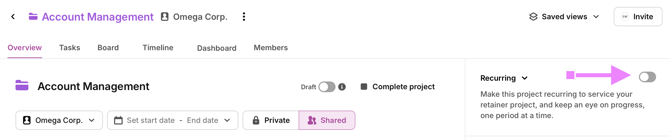
4. In the Make this project recurring dialog, set the cadence, budget, and rollover (same fields as below).
5. Click Make recurring.
#### From a project template
##### Option A — from the template picker
1. Open Projects.
2. Click New Project, then Start from template.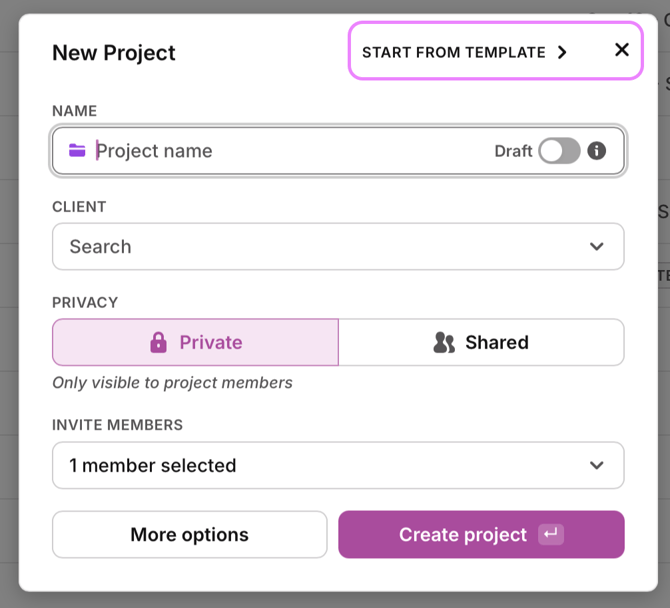
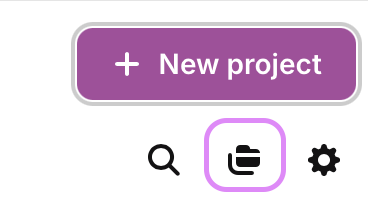
3. Or click the templates icon on the Projects header (Manage project templates)
4. Choose a template.
5. Check Use as recurring project. One-off start and end dates are hidden; recurrence dates are set in the next dialog.
6. Click Continue.
7. In the Create recurring project from template dialog, set the cadence, budget, and rollover.
8. Click Create recurring project.
##### Option B — from the template itself
1. Click the templates icon on the Projects header (Manage project templates)
2. Click the three dots menu (⋯) next to the template you want to use.
3. Select Edit
4. Click the three dots menu (⋯) next to the template name
5. Select Create recurring project from template.
6. Set the cadence, budget, and rollover, then click Create recurring project.
In either dialog, set:
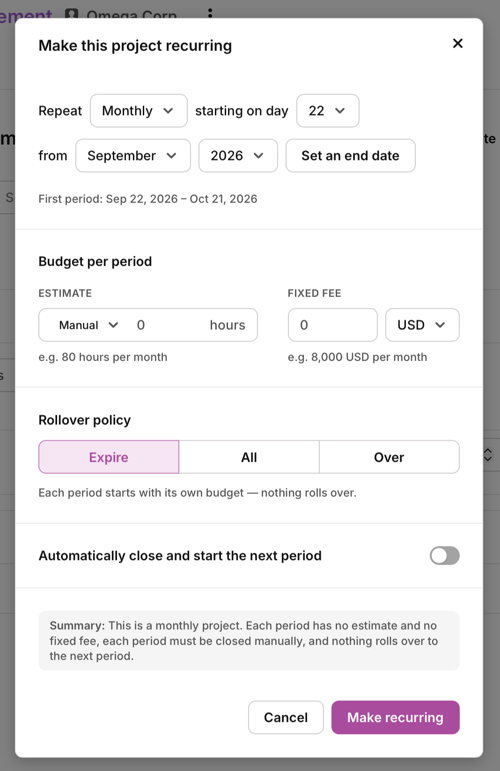
- Repeat: Weekly, Work week, Two-week, Monthly, Quarterly, or Yearly
- The day each period should start
- Optionally Set an end date
- Budget per period for time estimates and fixed fee
- Rollover policy:
- Expire: each new period starts fresh
- Roll over everything: unused time carries over, and overruns are deducted from the next period
- Only deduct overruns: only extra time spent is deducted from the next period
- Optionally Automatically close and start the next period
---
### What happens next
- The original project template is unchanged. The recurring project is a separate series.
- The first period needs to be started manually. This ensures any last edits to the recurring project’s default tasks are included before the cycle begins.
- The period overview shows task and member breakdowns, estimate tracking, completed tasks, and fixed fee for the period.
- Tasks with dates and milestones can appear on the timeline based on their relative dates from the period start.
- You can add one-off tasks to a specific period, but they do not carry over automatically into future periods.
- Edits to the recurring project’s default tasks only affect periods that have not been started yet. Edits to the original project template do not apply to recurring projects already created from it.
- A recurring project’s header menu does not include Create project from template. To start another series, open the original template and choose Create recurring project from template.
---
### Estimate suggestions
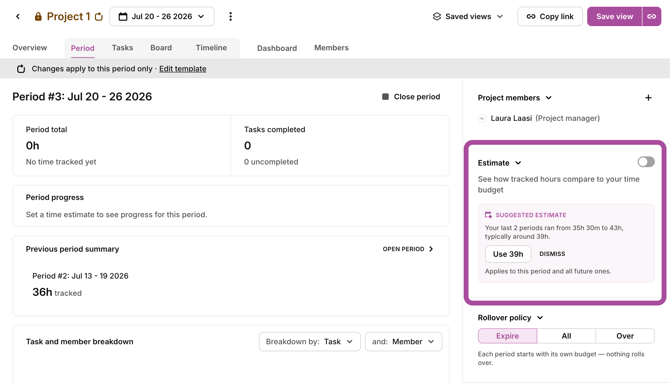
Once two periods of the recurring project have been marked as Completed, you will see an estimate suggestion based on how much time has been tracked for those two periods.
---
### End a recurring project
To stop the recurrence, set the end period. This closes the period and prevents the project from appearing in future project lists.
### Frequently Asked Questions
**Can I reuse one template for several recurring clients?**
Yes. Use Use as recurring project or Create recurring project from template each time. The template stays in the template list.
- [Getting started](https://docs.toggl.com/getting-started?hsLang=en#main-content)
- [Start here](https://docs.toggl.com/getting-started?hsLang=en#start-here)
- [Quickstart Guides](https://docs.toggl.com/getting-started?hsLang=en#quickstart-guides)
- [Set up your Workspace](https://docs.toggl.com/getting-started?hsLang=en#set-up-your-workspace)
- [Toggl Guides for Toggl Track and Toggl Plan users](https://docs.toggl.com/getting-started?hsLang=en#toggl-guides-for-toggl-track-and-toggl-plan-users)
- [Using Toggl, page by page](https://docs.toggl.com/using-toggl-page-by-page?hsLang=en#main-content)
- [Timer](https://docs.toggl.com/using-toggl-page-by-page?hsLang=en#timer)
- [Reports](https://docs.toggl.com/using-toggl-page-by-page?hsLang=en#reports)
- [Projects](https://docs.toggl.com/using-toggl-page-by-page?hsLang=en#projects)
- [Tasks](https://docs.toggl.com/using-toggl-page-by-page?hsLang=en#tasks)
- [Timeline](https://docs.toggl.com/using-toggl-page-by-page?hsLang=en#timeline)
- [Members](https://docs.toggl.com/using-toggl-page-by-page?hsLang=en#members)
- [Approvals](https://docs.toggl.com/using-toggl-page-by-page?hsLang=en#approvals)
- [Time Off](https://docs.toggl.com/using-toggl-page-by-page?hsLang=en#time-off)
- [Profile Settings](https://docs.toggl.com/using-toggl-page-by-page?hsLang=en#profile-settings)
- [Admin Settings & Security](https://docs.toggl.com/admin-settings-security?hsLang=en#main-content)
- [Workspace Setup](https://docs.toggl.com/admin-settings-security?hsLang=en#workspace-setup)
- [Tracking & Rates](https://docs.toggl.com/admin-settings-security?hsLang=en#tracking-rates)
- [Single Sign-on](https://docs.toggl.com/admin-settings-security?hsLang=en#single-sign-on)
- [Subscription & Billing](https://docs.toggl.com/subscription-billing?hsLang=en)
- [Toggl Apps](https://docs.toggl.com/toggl-apps?hsLang=en#main-content)
- [Mobile](https://docs.toggl.com/toggl-apps?hsLang=en#mobile)
- [Desktop](https://docs.toggl.com/toggl-apps?hsLang=en#desktop)
- [Browser Extension](https://docs.toggl.com/toggl-apps?hsLang=en#browser-extension)
- [API & Integrations](https://docs.toggl.com/api-integrations?hsLang=en)
- [Troubleshooting & FAQs](https://docs.toggl.com/troubleshooting-faqs?hsLang=en#main-content)
- [My Toggl Acount](https://docs.toggl.com/troubleshooting-faqs?hsLang=en#my-toggl-acount)
- [Common Questions](https://docs.toggl.com/troubleshooting-faqs?hsLang=en#common-questions)
Copyright © 2026. Toggl. [Privacy Policy](https://toggl.com/legal/focus/privacy/)