
Here's how to setup SSO if Microsoft Entra ID is your identity provider.
- Sign in to Microsoft Entra ID with a Global Admin account.
- Create a new Enterprise Application and name it "Toggl."
- On the Overview tab, select Set up single sign-on, then choose SAML.
- Use the values from your Toggl SSO profile to fill in the new application's fields. Note: For Identity Provider–initiated login, append
?toggl_product=focusto the Reply URL field.
- Under Attributes & Claims, change the Unique User Identifier to
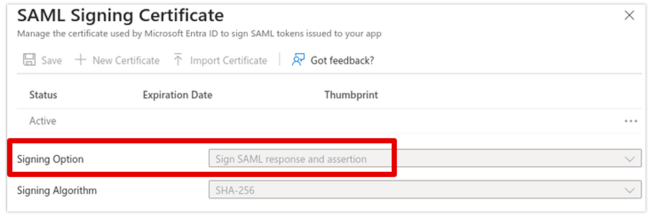
user.mail(instead ofuser.userprincipalname). - Under SAML Certificates, in the Token signing certificate section, set Signing Option to either Sign SAML Response and Assertion or Sign SAML Response — avoid the assertion-only option, as it can cause issues.
- Add the individual users or groups who should have access under Users and groups.
