---
title: Setting up SSO for Google Workspace
description: How to connect Google Workspace as your identity provider for Toggl 2.0 single sign-on.
---
[Skip to content](https://docs.toggl.com/setting-up-sso-for-google-workspace#main-content)
English
Show submenu for translations
[](https://docs.toggl.com/?hsLang=en)
Open main navigation
Close main navigation
- English
Show submenu for translations
- [Go to Toggl](https://focus.toggl.com/)
[Go to Toggl](https://focus.toggl.com/)
How can we help you?
- There are no suggestions because the search field is empty.
1. [Toggl 2.0 Knowledge Base](https://docs.toggl.com/?hsLang=en)
2. [Admin Settings & Security](https://docs.toggl.com/admin-settings-security?hsLang=en)
3. [Single Sign-on](https://docs.toggl.com/admin-settings-security?hsLang=en#single-sign-on)
# Setting up SSO for Google Workspace
## Follow these steps if Google Workspace is your identity provider.
Here's how to setup SSO for Google Workspace.
1. In the Google Workspace Admin console, select **Apps**. 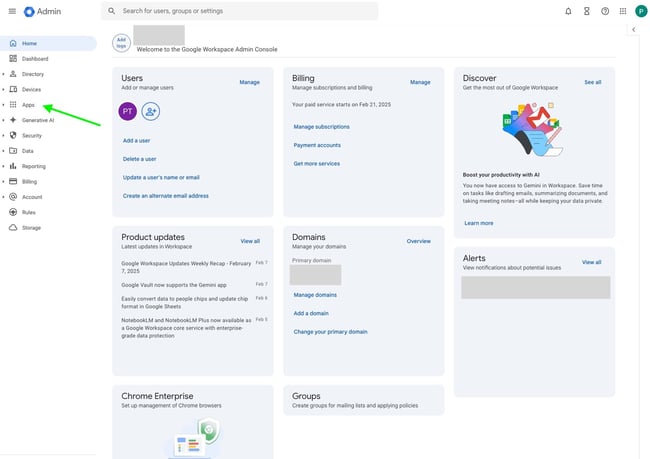``
2. Go to **Overview**, then the **Web and Mobile Apps** tile. 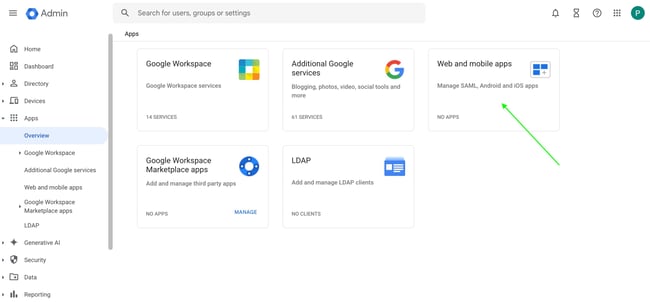``
3. Open the **Add app** dropdown and choose **Add custom SAML app**. 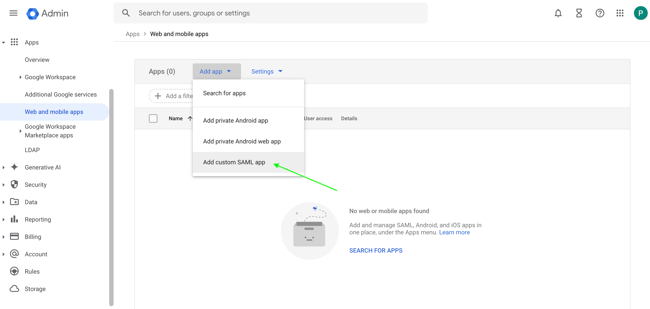``
4. Give the app a name, description, and logo — your team will see these in their app list — then click **Continue**. 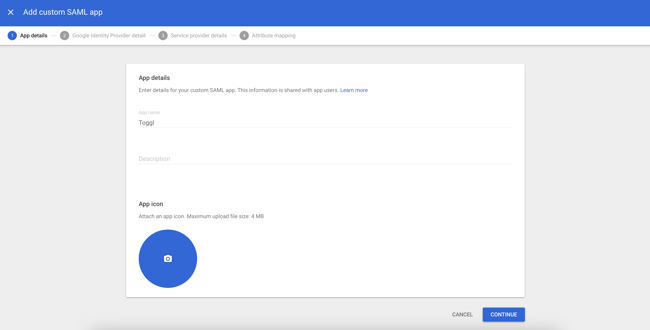``
5. You'll be shown an **SSO URL**, **Entity ID**, and a **certificate**. Keep this tab open — you'll need these values shortly. 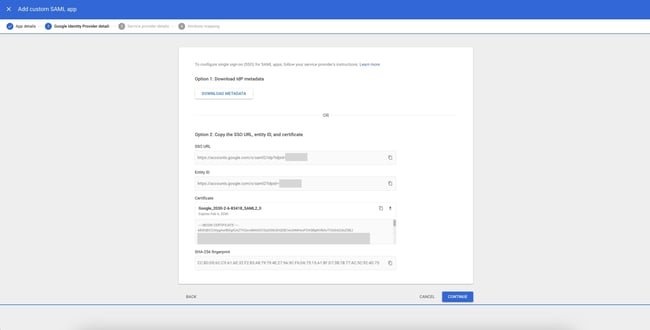``
6. In a new tab, go to Admin settings → Organization → Single sign-on in Toggl 2.0, click New SSO profile, and set the SSO profile name and email domain. Note the **ACS URL** and **Entity ID** shown here too. 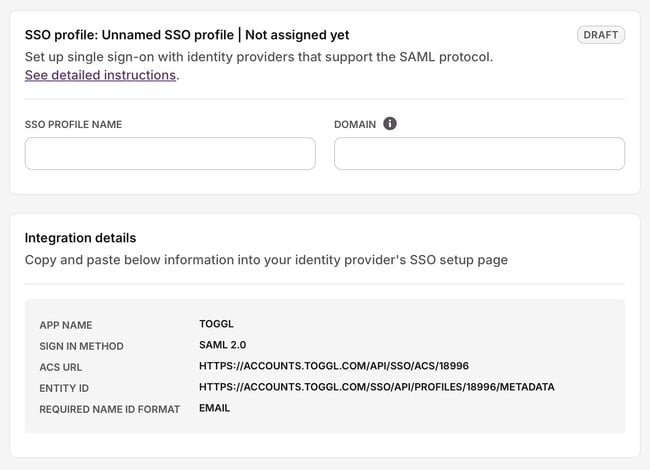``
7. Scroll down in the Toggl SSO profile and fill in the values you got from Google Workspace.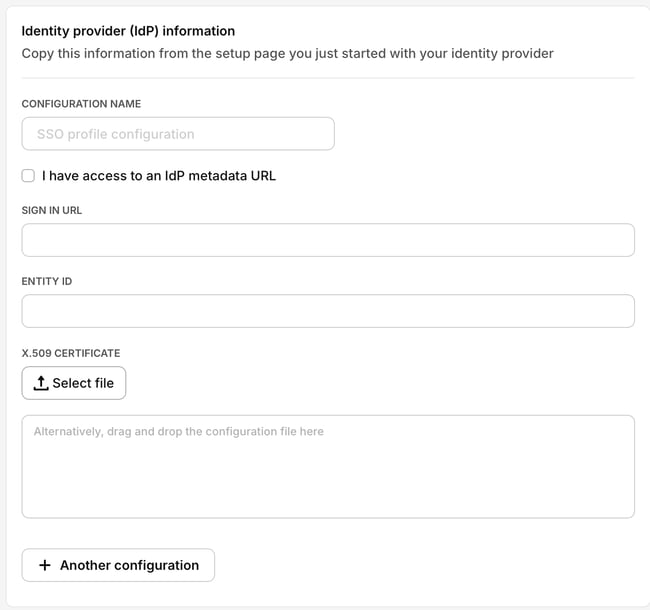``
8. Click **Submit for Review**.
9. Back in Google Workspace, enter the values from Toggl. Tick **Signed response**, set **Name ID Format** to **EMAIL**, and set **Name ID** to **Basic Information → Primary email**. Click **Continue**. **Note:** For Identity Provider–initiated login, append `?toggl_product=focus` to the **ACS URL** field. 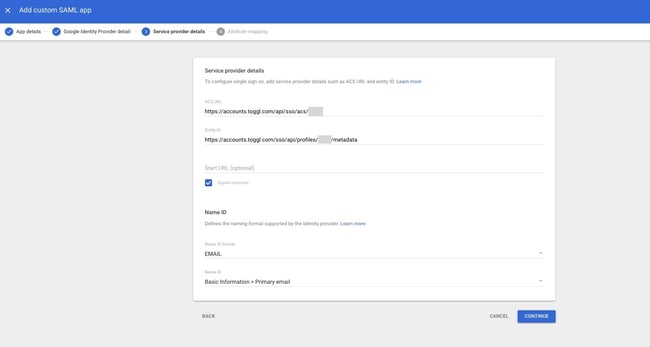``
10. On the next screen, click **Finish** — no attribute mapping is needed.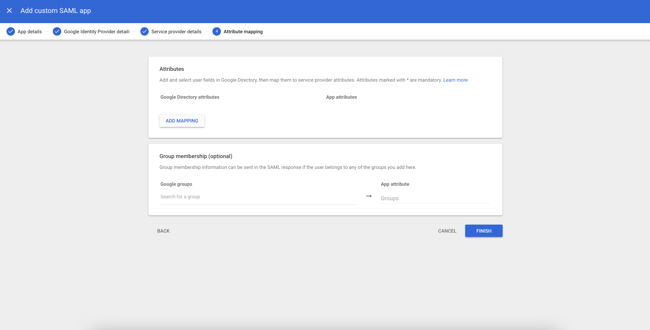``
11. Assign users to the new app, or enable it for everyone. 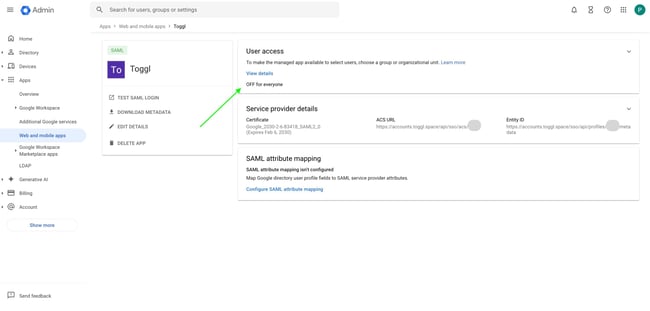``
12. Configuration's done — Toggl's team will verify the domain and notify you by email.
- [Getting started](https://docs.toggl.com/getting-started?hsLang=en#main-content)
- [Start here](https://docs.toggl.com/getting-started?hsLang=en#start-here)
- [Quickstart Guides](https://docs.toggl.com/getting-started?hsLang=en#quickstart-guides)
- [Set up your Workspace](https://docs.toggl.com/getting-started?hsLang=en#set-up-your-workspace)
- [Toggl Guides for Toggl Track and Toggl Plan users](https://docs.toggl.com/getting-started?hsLang=en#toggl-guides-for-toggl-track-and-toggl-plan-users)
- [Using Toggl, page by page](https://docs.toggl.com/using-toggl-page-by-page?hsLang=en#main-content)
- [Timer](https://docs.toggl.com/using-toggl-page-by-page?hsLang=en#timer)
- [Reports](https://docs.toggl.com/using-toggl-page-by-page?hsLang=en#reports)
- [Projects](https://docs.toggl.com/using-toggl-page-by-page?hsLang=en#projects)
- [Tasks](https://docs.toggl.com/using-toggl-page-by-page?hsLang=en#tasks)
- [Timeline](https://docs.toggl.com/using-toggl-page-by-page?hsLang=en#timeline)
- [Members](https://docs.toggl.com/using-toggl-page-by-page?hsLang=en#members)
- [Approvals](https://docs.toggl.com/using-toggl-page-by-page?hsLang=en#approvals)
- [Time Off](https://docs.toggl.com/using-toggl-page-by-page?hsLang=en#time-off)
- [Profile Settings](https://docs.toggl.com/using-toggl-page-by-page?hsLang=en#profile-settings)
- [Admin Settings & Security](https://docs.toggl.com/admin-settings-security?hsLang=en#main-content)
- [Workspace Setup](https://docs.toggl.com/admin-settings-security?hsLang=en#workspace-setup)
- [Tracking & Rates](https://docs.toggl.com/admin-settings-security?hsLang=en#tracking-rates)
- [Single Sign-on](https://docs.toggl.com/admin-settings-security?hsLang=en#single-sign-on)
- [Subscription & Billing](https://docs.toggl.com/subscription-billing?hsLang=en)
- [Toggl Apps](https://docs.toggl.com/toggl-apps?hsLang=en#main-content)
- [Mobile](https://docs.toggl.com/toggl-apps?hsLang=en#mobile)
- [Desktop](https://docs.toggl.com/toggl-apps?hsLang=en#desktop)
- [Browser Extension](https://docs.toggl.com/toggl-apps?hsLang=en#browser-extension)
- [API & Integrations](https://docs.toggl.com/api-integrations?hsLang=en)
- [Troubleshooting & FAQs](https://docs.toggl.com/troubleshooting-faqs?hsLang=en#main-content)
- [My Toggl Acount](https://docs.toggl.com/troubleshooting-faqs?hsLang=en#my-toggl-acount)
- [Common Questions](https://docs.toggl.com/troubleshooting-faqs?hsLang=en#common-questions)
Copyright © 2026. Toggl. [Privacy Policy](https://toggl.com/legal/focus/privacy/)