
Here's how to setup SSO for Google Workspace.
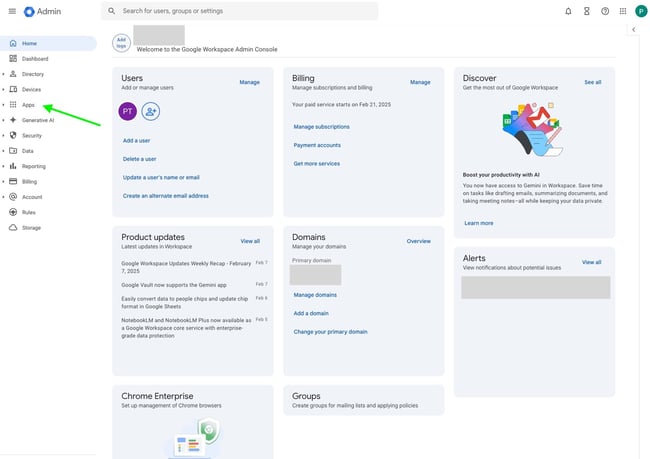
- In the Google Workspace Admin console, select Apps.
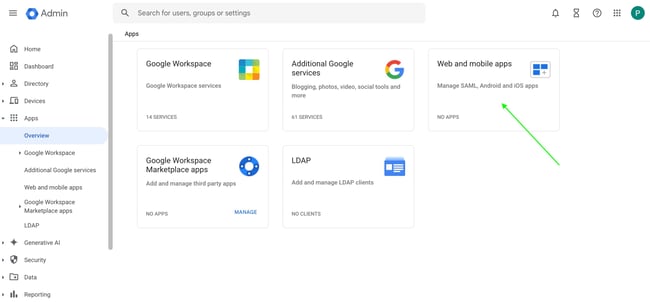
- Go to Overview, then the Web and Mobile Apps tile.
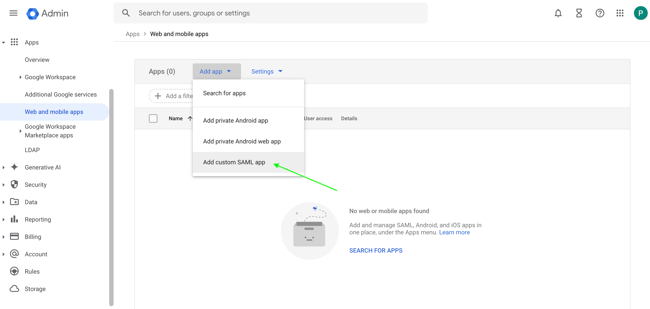
- Open the Add app dropdown and choose Add custom SAML app.
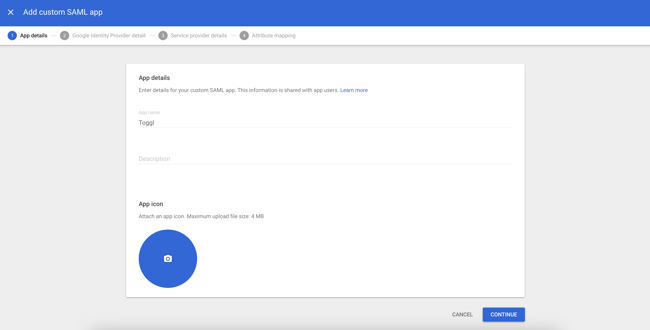
- Give the app a name, description, and logo — your team will see these in their app list — then click Continue.
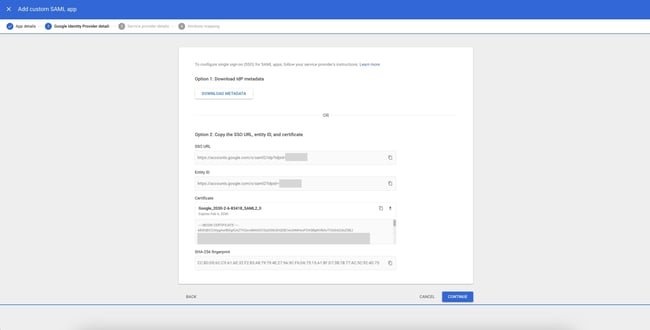
- You'll be shown an SSO URL, Entity ID, and a certificate. Keep this tab open — you'll need these values shortly.
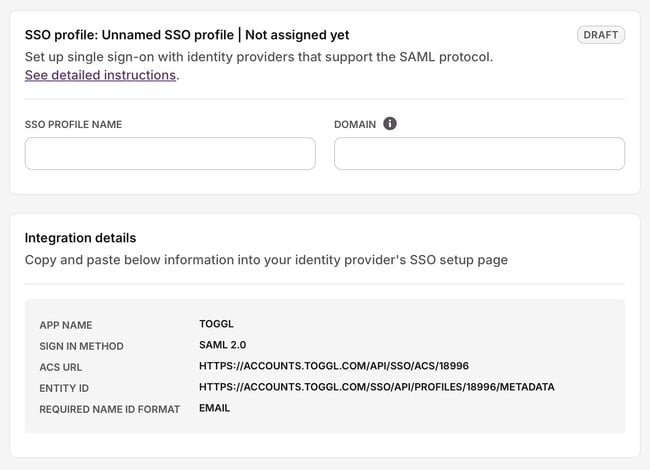
- In a new tab, go to Toggl 2.0's Admin Console > Single Sign On, click Create SSO profile, and set the profile name and company domain. Note the ACS URL and Entity ID shown here too.
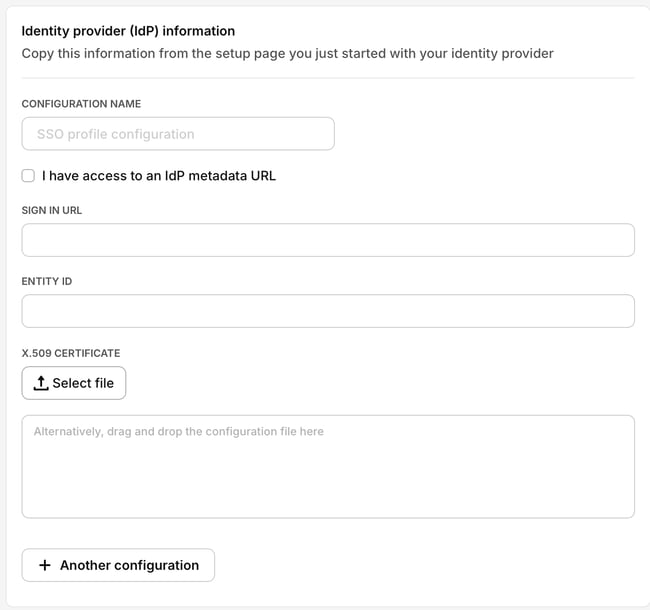
- Scroll down in the Toggl SSO profile and fill in the values you got from Google Workspace.
- Click Submit for Review.
- Back in Google Workspace, enter the values from Toggl. Tick Signed response, set Name ID Format to EMAIL, and set Name ID to Basic Information → Primary email. Click Continue. Note: For Identity Provider–initiated login, append
?toggl_product=focusto the ACS URL field.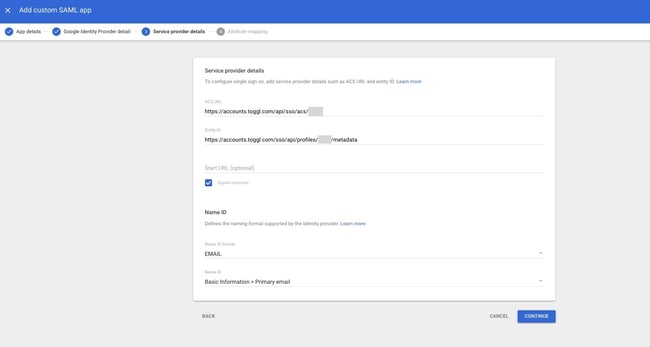
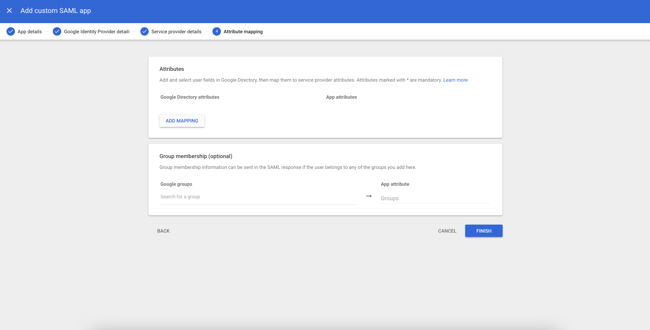
- On the next screen, click Finish — no attribute mapping is needed.
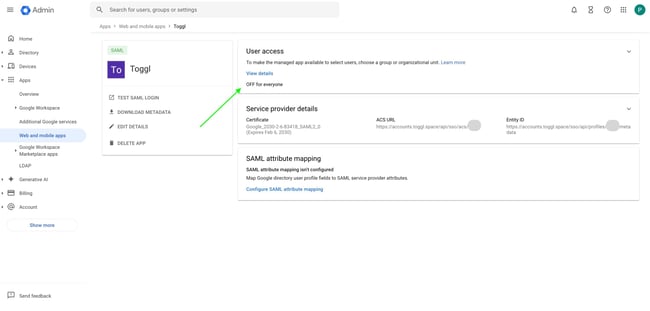
- Assign users to the new app, or enable it for everyone.
- Configuration's done — Toggl's team will verify the domain and notify you by email.