
Two-factor authentication adds a second verification step each time you sign in with a password. Once enabled, you'll be asked for a time-based code from your authenticator app or password manager after entering your credentials. Note that 2FA only applies to password-based logins — accounts using Google sign-on, Apple sign-on, Single Sign-On (SSO), or Passkeys will not be prompted for a code.
Organization admins: you can require 2FA for everyone in your organization who logs in with email and password. Go to Admin settings → Organization → Overview → Organization security and compliance and turn on Enforce 2FA. It takes effect the next time each member logs in.
Password resets now require a second factor. If your account has recovery codes, resetting your password takes one extra step: you'll need to enter your authenticator code or a recovery code before the new password takes effect. A reset no longer turns 2FA off.
If you enabled 2FA before recovery codes existed, your reset flow hasn't changed yet — you won't be asked for anything extra until you collect your codes from Settings & Preferences. So it's normal for your reset experience to look different from a colleague's.
Enabling 2FA
- Go to Settings & Preferences.
- Under the Password actions section, toggle on two-factor authentication.
- A QR code will appear. Open your authenticator app and scan it — or, if you're using a password manager, copy the displayed key directly into its TOTP/2FA section.
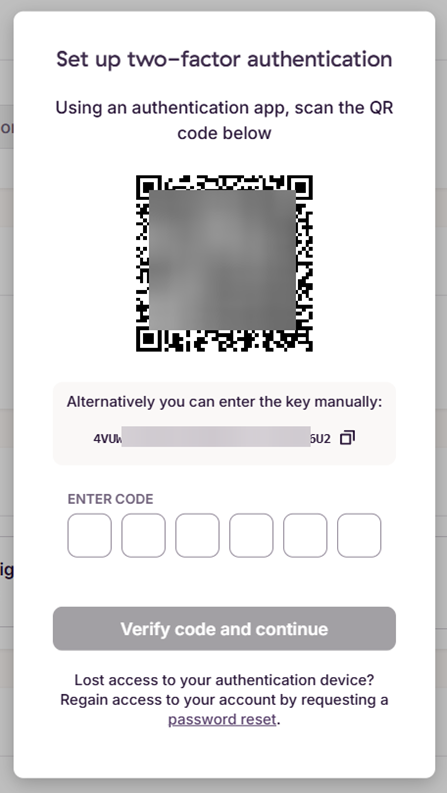
- Enter the code generated by your app and click Verify code and continue.
- You'll be shown six recovery codes — save these somewhere safe now. They're shown this one time only, and Toggl can't display or recover them for you afterward.
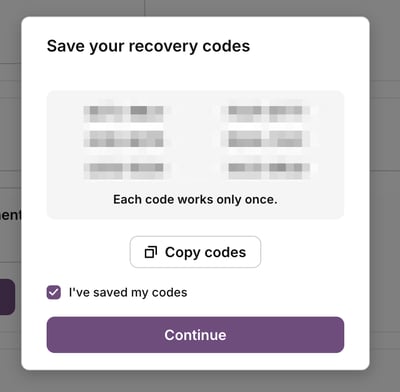
- A confirmation message will appear once 2FA is active on your account.
Recovery codes
Recovery codes are a backup way to sign in if you ever lose access to your authenticator app or device.
- You get six codes, each in the format
XXXX-XXXX. - A recovery code can be entered instead of your 6-digit app code at login — you'll still need your email and password as usual.
- Each code works once. After it's used, it won't work again.
- Codes are shown only once, at the moment they're generated. Toggl stores only a one-way hash, so support can't look them up or show them to you again — save them somewhere secure as soon as you see them.
- Turning 2FA off deletes your codes. Turning it back on issues a brand new set of six.
Already had 2FA enabled before recovery codes existed? You won't have a set yet. Go to Settings & Preferences, find the link under the 2FA section, and generate your codes whenever it suits you. It's a link you choose to click, not an automatic prompt — since the codes only display once, the timing is up to you. If you've already generated a set, that link won't create a new one; your existing codes stay valid and won't be shown again.
Signing in with a recovery code
If you can't access your authenticator app:
- Enter your email and password as normal.
- When asked for your authenticator code, choose the option to use a recovery code instead.
- Enter one of your six codes.
That code is now spent and can't be reused. As with password attempts, repeated incorrect codes will temporarily lock the account.
Supported authenticator apps and password managers
Any TOTP-compatible app will work. Some popular options:
- 1Password
- Bitwarden Authenticator
- Keeper
- NordPass
- LastPass
- Google Authenticator
Tip: Some password managers label this feature as "TOTP" (time-based one-time passcode) — that's the standard we use, so you're in the right place.
Turning off 2FA
- Go to Settings & Preferences.
- Scroll to the 2FA section under Password actions.
- Toggle Disable 2FA sign-in to off.
- You'll be asked to enter your current 2FA code to confirm the change.
Note: Turning 2FA off deletes any recovery codes tied to your account. If you turn 2FA back on later, you'll get a fresh set of six.
Frequently asked questions
I've lost access to my 2FA device — what do I do?
Sign in using one of your six recovery codes instead of your authenticator code — see Signing in with a recovery code above. A password reset will not disable 2FA or help you bypass it, so don't rely on that route.
If you don't have your recovery codes either, there's no self-service way back in — contact Support.
I'm not being asked for a 2FA code when I log in.
This is expected behaviour if your account uses Google sign-on, Apple sign-on, SSO, or Passkeys. Two-factor authentication is only triggered when you sign in with an email address and password. If you log in via one of those other methods, the 2FA step will be skipped even if it's enabled on your account.
I closed the window without saving my recovery codes — can I see them again?
No, codes are shown only once by design and can't be retrieved afterward. If you still have access to your authenticator app, turn 2FA off and back on to generate a fresh set of six.
It says I already have recovery codes — I don't remember getting them.
A set was likely issued earlier, possibly when 2FA was first enabled on the account. Your existing codes are still valid and won't be reissued or shown again — if you no longer have them saved, treat it the same as losing your codes.
My recovery code was rejected.
Each code only works once — you may be reusing a code that's already been spent, or there's a typo. Try one of the other five.
I'm locked out after too many attempts.
Repeated incorrect codes or passwords temporarily lock the account, the same as with password attempts. Wait for the lock to clear, then try again with a code you haven't used yet.
My password reset asked for a code, but my colleague's didn't.
This is expected. Anyone who enabled 2FA before recovery codes existed keeps the older reset flow — no extra step — until they generate their codes in Settings & Preferences. Once they do, their reset flow will match everyone else's.
I reset my password and 2FA is still turned on — is that a bug?
No, that's intended. Password resets no longer disable 2FA — that's the core of this change. Use a recovery code if you don't have access to your authenticator device.