---
title: Sharing Reports
description: Share a Toggl report with people in your workspace, or publish a link anyone can open on Premium and Enterprise, and what each recipient can see and change.
---
[Skip to content](https://docs.toggl.com/sharing-reports#main-content)
English
Show submenu for translations
[](https://docs.toggl.com/?hsLang=en)
Open main navigation
Close main navigation
- English
Show submenu for translations
- [Go to Toggl](https://focus.toggl.com/)
[Go to Toggl](https://focus.toggl.com/)
How can we help you?
- There are no suggestions because the search field is empty.
1. [Toggl 2.0 Knowledge Base](https://docs.toggl.com/?hsLang=en)
2. [Using Toggl, page by page](https://docs.toggl.com/using-toggl-page-by-page?hsLang=en)
3. [Reports](https://docs.toggl.com/using-toggl-page-by-page?hsLang=en#reports)
# Sharing Reports
## Share a report with members, teams or everyone in your workspace, or, on Premium and Enterprise, publish a link that anyone can open. Every shared report has rolling or fixed dates, plus a Lock dates switch that decides whether recipients can look at other periods through your eyes. This guide covers how to set both, what recipients see, and how public links behave.
On Starter and above, you can share a report with other people in your workspace: individual members, whole teams, or everyone in the workspace. On Premium and Enterprise, a workspace admin can also publish a link that anyone can open, including people who are not logged in and not in the workspace. In both cases the recipient sees the report through your eyes, with the same data you see, without rebuilding the filters.
This is useful when a report only makes sense with a specific set of filters applied, or when someone needs a number they cannot normally pull on their own.
### How to share a report
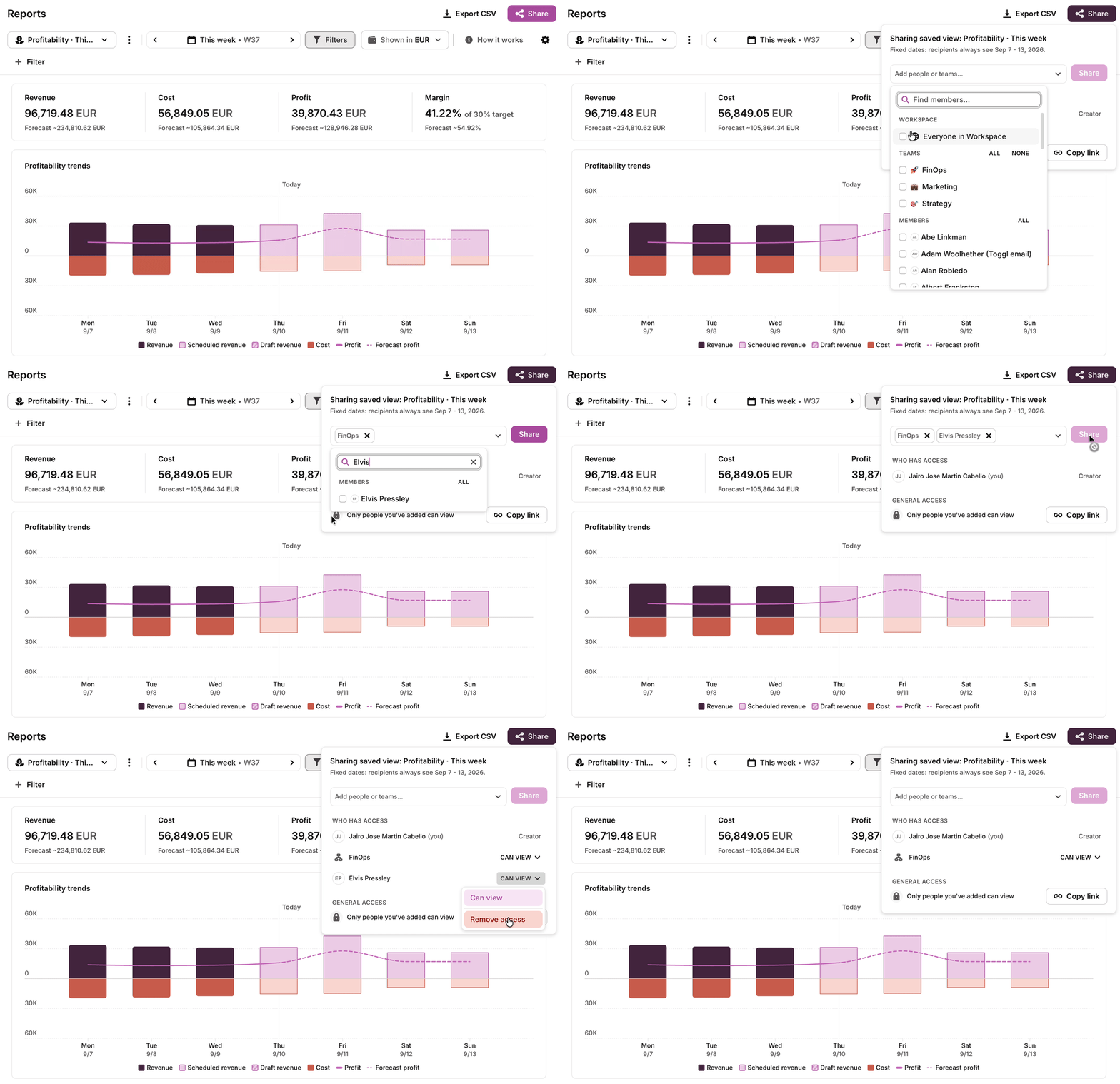
1. Open the report you want to share and set it up the way you want it seen: date range, filters, cog settings, currency, chart grouping, table grouping, and chart columns. For dates that move forward with the calendar, pick a preset such as This week or Last month. For dates that stay the same, pick a custom range. See [Rolling or fixed dates.](https://docs.toggl.com/sharing-reports#rolling-or-fixed-dates)
2. Open the sharing options at the top of the report.
3. Choose who you want to share it with: specific members, one or more teams, or everyone in the workspace.
4. Confirm. The people you picked can now open the report.
5. Once the report is shared, the Lock dates switch appears in the same Share window. It is on by default. See [Lock or unlock dates](https://docs.toggl.com/sharing-reports#Lock-or-unlock).
### Rolling or fixed dates
The report’s date range decides whether its dates roll or stay fixed. The Share window shows which one applies.
- **Rolling dates:** a preset such as This week or Last month. Share shows “Rolling dates: \[range\] today, moving forward with the calendar.” Each time someone opens the report, it shows the current period. A This week report opened on Wednesday 7 October shows 5–11 October. Opened on Tuesday 13 October, it shows 12–18 October.
- **Fixed dates:** a custom range such as 1–30 September. Share shows “Fixed dates: \[range\].” The report shows that range every time it is opened.
To change a shared report’s dates, change the date range on the saved view, then choose Save to this view. If the report was shared with fixed dates and you switch it to a preset, Toggl warns you first: “This view is shared with fixed dates. Once you save, the shared report’s dates will move forward with the calendar.” This also changes the dates on the report’s public link, if it has one.
To see which dates each of your shared reports uses, open Reports → Shared reports → Shared by me and check the Dates column:
- Rolling · \[range\]: rolling dates.
- Locked · \[range\]: fixed dates with Lock dates on.
- The range on its own: fixed dates with Lock dates off.
### Lock or unlock dates
Lock dates decides whether recipients can look at other periods with your data. It doesn’t change whether the dates roll or stay fixed.
- **Locked (default):** recipients see only the report’s own dates through your eyes. If they pick other dates, they leave the shared report and see their own data, under their own permissions. A Back to shared report button takes them back.
- **Unlocked:** recipients can pick any other period and still see it through your eyes, including data they couldn’t normally see. A banner reminds them they are looking at a different period from the report’s own dates.
Before you unlock, remember that recipients can then see your data for any period, not only the one you shared.
| Dates | Lock | Opened Wed 7 Oct | Opened Tue 13 Oct | Can recipients pick other dates and still see your data? |
| --- | --- | --- | --- | --- |
| Rolling (This week) | Locked | 5–11 Oct | 12–18 Oct | No. Other dates show their own data |
| Fixed (5–11 Oct) | Locked | 5–11 Oct | 5–11 Oct | No. Other dates show their own data |
| Rolling (This week) | Unlocked | 5–11 Oct | 12–18 Oct | Yes |
| Fixed (5–11 Oct) | Unlocked | 5–11 Oct | 5–11 Oct | Yes |
People who open a public link can never pick other dates, even when Lock dates is off.
### What recipients see
Recipients see the report **through the owner's eyes**. They get the exact same data the owner would see, including data they would not normally have access to. Everything the owner set is carried over:
- Dates: rolling or fixed, as you set them
- Filters
- Cog settings
- Currency
- Chart groupings
- Table grouping (for example, the Workload breakdown grouped by client or project)
- Chart columns
### Two consequences worth knowing:
- **Restricted report types become visible.** A shared report can give a recipient access to a report type that is normally admin-only, such as Utilization. This is a deliberate override of the role rules described in [User roles in Toggl 2.0](https://docs.toggl.com/user-roles-in-toggl-2-0?hsLang=en).
- **Shared reports are live.** If the underlying time data changes, the report refreshes for the owner and for every recipient. It is not a snapshot.
### Changing the settings reverts the view
If a recipient changes a filter, the grouping or any other report setting, the report stops showing the owner’s data and switches to the recipient’s own data, under their own permissions. The same happens if they change the dates on a locked report. On an unlocked report, recipients can change the dates and still see the owner’s data.
This is intentional. It keeps the shared view limited to exactly what the owner chose to share, and stops recipients from using a shared report to explore data they are not entitled to see.
If a recipient needs a different cut of the data, ask the owner to share a second report set up that way.
#### **Publish a public link**
A public link lets someone open the report with no Toggl account and no seat in the workspace. This is on Premium and Enterprise, and only a workspace admin can publish it. Organization Admins and Workspace admins can. Managers, Members, Time Trackers, and Guests cannot. On Starter, a workspace admin sees the choice locked.
The report has to be a saved view with dates. These can be a preset such as This week, which keeps rolling forward, or a fixed range. If the view has no dates, publishing stops and asks you to update the view.
1. Open the report and set it up the way you want it seen, including its dates (rolling or fixed). If it is not saved yet, **Share** asks you to save it first (**Save and share**). If the saved view has unsaved changes, choose **Update & share**.
2. Open **Share** at the top of the report.
3. Under **General access**, open the menu. It starts on **Only people you’ve added can view**.
4. Choose **Anyone with the link can view**.
5. **Copy link**. That button shows only while the report is public. Anyone with the link can open the report.
You do not have to add someone from the workspace first.
To turn the link off, choose **Only people you’ve added can view** again. The old link stops working.
To keep the report public but kill a link that has spread, choose **Reset link**. The old link stops working immediately, and **Copy link** gives you the new one.
#### **What a public viewer sees**
They see the report through the owner’s eyes, including data they would not normally have access to. Filters, cog settings, currency, chart and table grouping, and chart columns are the ones the owner saved. They see the report’s own dates. A rolling report moves forward with the calendar, and a fixed report always shows the same range. When the underlying time data changes, the public report updates too.
They cannot change the dates, filters, grouping, or anything else, even when Lock dates is off, and they cannot export. Unlike someone the report was shared with inside the workspace, they cannot switch the report over to their own data.
If the link was turned off, reset, or the saved view was deleted, the page says the link is no longer active.
### Email a shared report on a schedule
On Premium and Enterprise, you can email a shared report’s link daily, weekly or monthly from the Schedule tab in the Share window. More on [Scheduling Reports](https://docs.toggl.com/scheduling-report-emails-in-toggl?hsLang=en).
- [Getting started](https://docs.toggl.com/getting-started?hsLang=en#main-content)
- [Start here](https://docs.toggl.com/getting-started?hsLang=en#start-here)
- [Quickstart Guides](https://docs.toggl.com/getting-started?hsLang=en#quickstart-guides)
- [Set up your Workspace](https://docs.toggl.com/getting-started?hsLang=en#set-up-your-workspace)
- [Toggl Guides for Toggl Track and Toggl Plan users](https://docs.toggl.com/getting-started?hsLang=en#toggl-guides-for-toggl-track-and-toggl-plan-users)
- [Using Toggl, page by page](https://docs.toggl.com/using-toggl-page-by-page?hsLang=en#main-content)
- [Timer](https://docs.toggl.com/using-toggl-page-by-page?hsLang=en#timer)
- [Reports](https://docs.toggl.com/using-toggl-page-by-page?hsLang=en#reports)
- [Projects](https://docs.toggl.com/using-toggl-page-by-page?hsLang=en#projects)
- [Tasks](https://docs.toggl.com/using-toggl-page-by-page?hsLang=en#tasks)
- [Timeline](https://docs.toggl.com/using-toggl-page-by-page?hsLang=en#timeline)
- [Members](https://docs.toggl.com/using-toggl-page-by-page?hsLang=en#members)
- [Approvals](https://docs.toggl.com/using-toggl-page-by-page?hsLang=en#approvals)
- [Time Off](https://docs.toggl.com/using-toggl-page-by-page?hsLang=en#time-off)
- [Profile Settings](https://docs.toggl.com/using-toggl-page-by-page?hsLang=en#profile-settings)
- [Admin Settings & Security](https://docs.toggl.com/admin-settings-security?hsLang=en#main-content)
- [Workspace Setup](https://docs.toggl.com/admin-settings-security?hsLang=en#workspace-setup)
- [Tracking & Rates](https://docs.toggl.com/admin-settings-security?hsLang=en#tracking-rates)
- [Single Sign-on](https://docs.toggl.com/admin-settings-security?hsLang=en#single-sign-on)
- [Subscription & Billing](https://docs.toggl.com/subscription-billing?hsLang=en)
- [Toggl Apps](https://docs.toggl.com/toggl-apps?hsLang=en#main-content)
- [Mobile](https://docs.toggl.com/toggl-apps?hsLang=en#mobile)
- [Desktop](https://docs.toggl.com/toggl-apps?hsLang=en#desktop)
- [Browser Extension](https://docs.toggl.com/toggl-apps?hsLang=en#browser-extension)
- [API & Integrations](https://docs.toggl.com/api-integrations?hsLang=en)
- [Troubleshooting & FAQs](https://docs.toggl.com/troubleshooting-faqs?hsLang=en#main-content)
- [My Toggl Acount](https://docs.toggl.com/troubleshooting-faqs?hsLang=en#my-toggl-acount)
- [Common Questions](https://docs.toggl.com/troubleshooting-faqs?hsLang=en#common-questions)
Copyright © 2026. Toggl. [Privacy Policy](https://toggl.com/legal/focus/privacy/)