
Whose time can you see?
Admins see everyone’s time. Team Leads see their team’s time, and Project Managers see everyone’s time on the projects they manage, including sub-projects. Everyone else sees only their own time. Team Leads and Project Managers can also filter and group by Member.
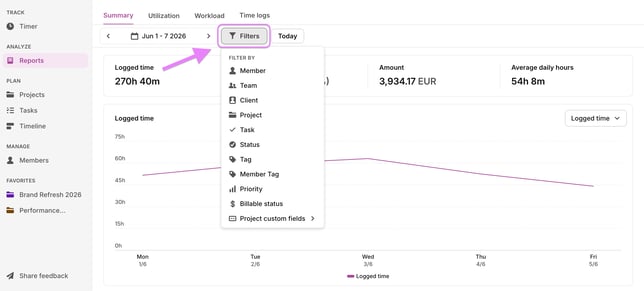
Filters
Start by narrowing down what you want to see. You can filter by:
- Time period — choose any date range
- Member, client, project, task, status, and priority — combine multiple filters to get to exactly the data you need
Overview metrics
At the top of the report, you'll see a summary for the selected filters:
- Total logged hours
- Billable time and amount
- Non-billable time
- Average daily hours
Charts
Use the dropdown above the main chart to switch between two views:
- Logged time — see total hours tracked across the selected period
- Billable vs. non-billable time — see how tracked hours break down between client work and internal work. Hover over any bar to see the exact split for that day.
This is especially useful for teams tracking profitability or reporting to clients.
Breakdown table
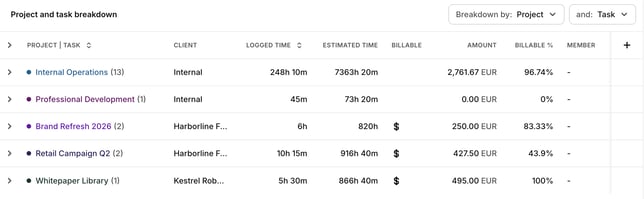
Scroll down to see a detailed breakdown table. You can sort by two dimensions at once for an in-depth view.
Breaking down by role: choose Role to see hours by role (for example Designer or Developer), on its own or together with project, member or task. Time tracked before roles were set up shows as Without role. Exports follow the same breakdown. Hours by role are available on Starter and above. To set up roles, see Overview of the Members page.
Each row's share of the total
The breakdown table can show how much of the current report each row accounts for. These columns are on every plan. Logged time % is on in the default layout. If you have rearranged the columns, turn it on from the column picker on the table. Billable time %, Amount % and Cost % stay off until you turn them on there.
The columns are saved with the view, so they show on reports you share inside the workspace and on a public link. CSV and XLSX include a column when it is turned on. The PDF breakdown keeps its own Duration, % and Amount columns.
- Logged time % — this row's logged time divided by the logged time in the report. Anyone who can open the Summary report can see it.
- Billable time % — this row's billable time divided by the billable time in the report. It shows when you can see billable rates, the same access as the Amount column. This is separate from Billable %, which is how much of that row's own logged time is billable.
- Amount % — this row's amount divided by the amount in the report. It shows when you can see the Amount column.
- Cost % — this row's cost divided by the cost in the report. It shows when you can see the Cost column.
The percentages use the report you are looking at, including its date range and filters. A nested row, such as a task under a project, is still a share of the whole report. Amount % and Cost % follow the currency the report is showing, including a currency you convert the report into.
When you break the report down by tag, or by a multi-select or users custom field, one time entry can sit in more than one row. Those rows can add up to more than 100%. The chart notes the same thing: entries with several values count toward each one.
If the report total for a column is zero, that percentage is left blank.
For each project or task, you'll see:
- Whether it's marked as billable
- Billable % — how much of that row's logged time is billable, separate from Billable time %
- Billable vs. total time
- Total project billable amount
- Project total estimated time
- Region
Note: If billable data isn't showing, check that time entries in your workspace are marked as billable.