
What are Custom Fields?
At its core, a custom field is a user-defined data point that you can attach to either a project or a task. This metadata helps in organizing information and generating accurate reports on various aspects of your work.
Why Use Custom Fields?
Custom fields enhance Toggl 2.0's capabilities by:
- Providing deeper insights: Understand where time, resources, and effort are being allocated.
- Improving reporting accuracy: Filter and group data in reports based on specific criteria relevant to your business.
- Standardizing data entry: Ensure consistent information across projects and tasks.
- Supporting compliance: Track specific details required for legal, financial, or operational audits.
⚡ Task-level custom fields are available on the Premium and Enterprise plans.
Who can use task-level custom fields?
- Admins create and manage the field definitions for the workspace, including the options inside Select and Multi-select fields, and control the order fields appear in.
- Anyone who can edit a task can fill in and update its custom field values.
- Anyone who can view a task sees the values and can filter by them.
Field types
| Type | What it stores | Example |
|---|---|---|
| Select | One value from a predefined list | P&L category: CTI, CTM, OpEx, G&A |
| Multi-select | One or more values from a predefined list | Compliance labels |
| Text | Free-form text | Billing code, external reference ID |
| Number | Whole numbers | PO number, cost factor |
| Date | A single date | Review deadline |
| Checkbox | A true / false toggle | Client-approved |
| Members | A reference to a workspace member | Reviewer, engagement lead |
Members field options
When a field’s type is Members, two extra options appear when you create or edit it:
-
Allow only one member: only one member can be picked in this field. If any task already has more than one member in the field, you have to remove the extra members before you can switch this on.
-
Allow only specific members: only the members you choose can be picked. You can select people one by one, or select a team to add all of its current members at once. You need to choose at least one member. Example: an “Executive owner” field that only lists your leadership team and holds exactly one person.
Custom fields can also be defined on projects, using the same field types. See Project-level custom fields.
Setting up task-level custom fields (admins)
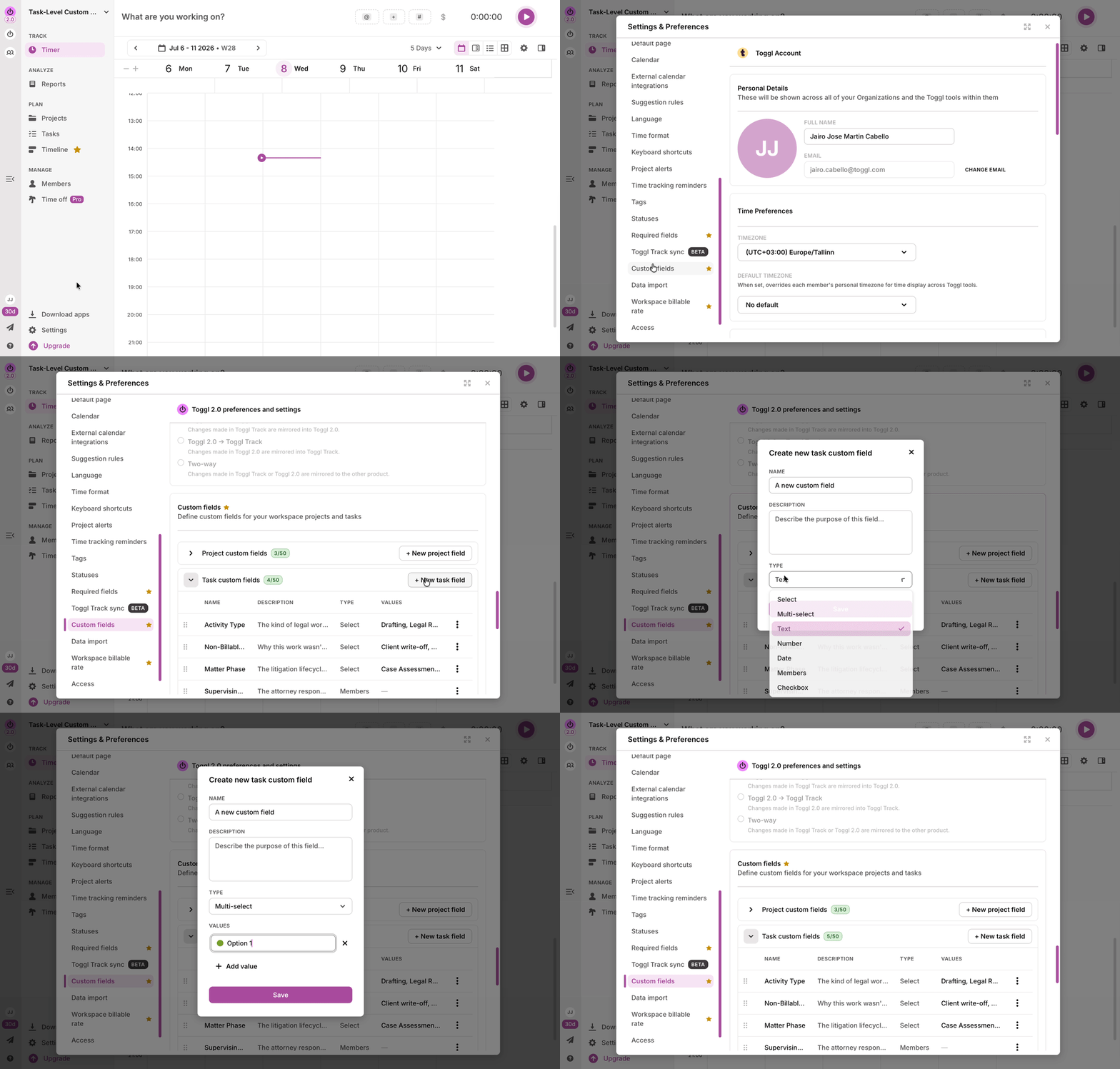
- Open Settings in Toggl.
- Go to Custom fields.
- Click New task field, name it and choose a type. For Select / Multi-select, add the values. For Members, set the member options above.
- Save. The field is immediately available on every task in the workspace.
- Search: Use the Search fields or values bar at the top of Custom fields settings to find a field or option quickly, which helps in larger workspaces.
- Ordering: drag and drop fields in settings to control the order they appear on tasks. Custom fields always appear after the built-in task properties.
- Editing or deleting: open a field to rename it or its options. Deleting a field removes its values from every task. This cannot be undone.
- Field limit: a workspace can define up to 50 custom fields. The limit is deliberate: beyond ~40, task creation becomes noisy and reporting harder to navigate.
Filling in values on a task
- Open a task from the task list, or via the task modal from Board, Timeline, or Timesheet views.
- Custom fields appear after the task's default properties.
- Pick the value(s). Changes save automatically.
Fields without a value are blank; nothing is required by default.
Filtering and reporting
Task-level custom field values are available as filters in the reports section.
- Filter task views to a subset (e.g. all tasks where P&L category = OpEx).
- In reports and exports, task field values appear alongside project fields, so time can be sliced by task-level business metadata.
If your workspace also uses custom fields on projects, keep in mind that a project field and a task field can share a name (e.g. "Region" on both) while being entirely separate fields. Check which one a filter or column refers to.
Tips for a good field set
- Only add fields you'll report on. If you wouldn't filter or group by it, it doesn't belong.
- Keep option lists admin-curated and short. That's what keeps reporting clean, and it's the advantage over encoding data in task names.
- One field, one purpose. Two small fields beat one overloaded one.
- Tags are not custom fields. Tags are applied freely by users; custom fields are admin-defined and structured for reporting and compliance. Use both, for different jobs.
FAQ
Can I make a custom field required?
Not yet. Custom fields are optional in this release. Admins can already require built-in fields (Project and Tags on tasks; Project, Task, Time log description and Tags on time logs) via Required Fields for Tasks and Time Logs; extending Required Fields to custom fields is on the roadmap.
Can different projects have different task fields?
No. Fields are defined at the workspace level and apply to all tasks. Per-project field sets are being considered for later.
What happens if I delete a field?
All its values are removed from every task, with no recovery. Prefer renaming/repurposing over deleting.
Do task fields work on mobile or the browser extension?
Not at launch. Task custom fields are visible and editable in the web app. Mobile support follows post-launch.