---
title: Tasks in Toggl
description: Tasks in Toggl 2.0
---
[Skip to content](https://docs.toggl.com/tasks-in-toggl-2-0#main-content)
English
Show submenu for translations
[](https://docs.toggl.com/?hsLang=en)
Open main navigation
Close main navigation
- English
Show submenu for translations
- [Go to Toggl](https://focus.toggl.com/)
[Go to Toggl](https://focus.toggl.com/)
How can we help you?
- There are no suggestions because the search field is empty.
1. [Toggl 2.0 Knowledge Base](https://docs.toggl.com/?hsLang=en)
2. [Using Toggl, page by page](https://docs.toggl.com/using-toggl-page-by-page?hsLang=en)
3. [Tasks](https://docs.toggl.com/using-toggl-page-by-page?hsLang=en#tasks)
# Tasks in Toggl
## This guide covers how to create and manage tasks in Toggl 2.0, including setting task details like name, project, priority, estimates, and dates. It explains subtasks, recurring tasks, privacy settings, and file attachments. It also introduces the AI task importer for quickly generating tasks from screenshots or text prompts, and outlines the five views available for organising tasks — Tasks, Board, Timer, Timeline, and Projects
### **Creating a task**
Create a task by clicking on the Calendar view under the Timer page or on the Timeline. In the Tasks and Board view, click on **Add task**. From here you can:
- Add a task name, project, priority, time estimate, and start/end dates
- Assign the task to yourself or a team member
- Add a color to make the task easier to spot on the Timeline (by default, tasks inherit the project color)
- Pin the task so it appears at the top of your task list
- Set the task as private or shared (if assigned to a project, tasks will inherit the project privacy)
- Attach files directly to the task — drag and drop or click to upload
- Add a subtask
Need to break a task's estimate down by day instead of entering a single total? See [Daily task estimates in Toggl 2.0](https://docs.toggl.com/daily-estimates-in-toggl-2.0?hsLang=en).
### **Subtasks**
Subtasks are full tasks in their own right. Each subtask can have its own assignee, priority, estimate, status, and tags — it just has a relationship to its parent task. A few things to keep in mind:
- Statuses don't roll up: marking a parent task as done doesn't change the status of its subtasks, and vice versa.
- Estimates don't roll up: a subtask's time estimate is tracked separately and doesn't affect the parent task's estimate.
- In the Board view, subtasks appear with the parent task name shown above them so you can tell at a glance which task they belong to.
- Subtasks contribute to capacity calculations on the Timeline independently, based on their own estimates and dates.
- **Jira sub-tasks sync as subtasks.** If your workspace uses the Jira integration, Jira sub-tasks appear as subtasks under their parent task, and Jira controls that relationship. If you move a sub-task to another parent in Jira, or convert it to or from a standard issue, the change carries over to Toggl. If you move a synced subtask to a different parent in Toggl, it goes back under its Jira parent the next time it changes in Jira. See [Jira Integration in Toggl](https://docs.toggl.com/jira-integration-in-toggl?hsLang=en).
Subtask estimates and time logs can be rolled up to the parent task. [Read more](https://docs.toggl.com/tasks-in-toggl-2-0#:~:text=or%20individual%20level.-,Sum%20subtask%20totals,-Combine%20a%20parent) about this setting at the end of this article.
### **Recurring tasks**
You can set any task to repeat on a schedule — daily, weekly (on specific days), monthly, or annually. You can choose when the recurrence ends: after a set number of occurrences, on a specific date, or not at all.
Recurring tasks appear as reminders at the top of your Calendar (in the **Timer** page) on each scheduled day. Drag one onto the calendar to turn it into a scheduled time block for that day.
**Completing a generated occurrence** — When you complete one of the individual occurrences in a series, you’ll be prompted to choose a scope:
- **This task** — marks only that occurrence complete.
- **This and all future tasks** — marks that occurrence and all upcoming ones complete.
- **All tasks** — marks every occurrence in the series complete, including past ones.
**Completing the main recurring task** — The original task that carries the repeat rule (rather than one of its generated occurrences) doesn’t show this prompt. Marking it complete marks the entire series as complete, with no option to complete just the parent on its own.
### **Private tasks**
All new tasks and projects are private by default. Private tasks are visible only to the assignee, project members, and workspace admins. Tasks assigned to a project inherit the project's privacy setting, and subtasks always inherit from their parent task. Private tasks still contribute to capacity calculations on the Timeline, but non-members see only anonymous blocks.
Private projects and tasks are available on all paid plans. For full details, see [Private Projects and Tasks in Toggl](https://support.toggl.com/focus/private-projects-and-tasks-in-toggl-focus?hsLang=en)2.0.
### Task estimates
Task estimates are one of the inputs to a member's capacity on the Timeline: capacity starts from their Work Hours, then subtracts time already spoken for — including hours from tasks with estimates assigned to them for the period. The more accurately estimates reflect real effort, the more useful capacity is as a planning signal.
Assign an estimate as a single total, or switch it to **daily** mode to spread hours across specific days instead — useful for work planned unevenly across the week. The total updates automatically as you adjust the daily allocations, and shows on the task and in reporting either way. See [Daily task estimates in Toggl 2.0](https://docs.toggl.com/daily-estimates-in-toggl-2.0?hsLang=en).
When a task has multiple assignees, its estimate can now be split across them too. By default it's an **even split** — divided between people, not multiplied — but you can switch to a **custom split** and give each person an exact share, in hours or percentages, with a running meter showing what's left as you type. Assigning a whole Team pulls every member into the split individually, and works with both total and daily estimates.
### **Task attachments**
You can attach files to any task directly from the task modal — drag and drop, or click to upload. This keeps all supporting materials in one place alongside the task details.
Free plan organizations have a total limit of 50MB.
### **AI task importer**
If you'd like to create a list of tasks quickly, use the AI importer:
- Take a screenshot of your existing to-do list or planner and upload it — the importer will generate tasks from it automatically.
- Or use a text prompt to describe a piece of work and let the importer break it down into tasks for you.
### **Viewing and organising tasks**
Tasks can be viewed and managed across five different surfaces:
- **Tasks (List & Board)** — your full task list with filtering, sorting, and status management. A Kanban view where you move tasks across custom statuses.
- **Grouping and sorting:** Group your task list by tag, assignee, billable status, status, priority, project, or date. You can stack multiple grouping levels. Sort by any of the same fields.
- **No assignee filter:** Filtering by **No assignee** shows only tasks with no people and no teams assigned. Tasks assigned to a team are not included.
- **Views and presets:** Use the view picker to switch between preset views of your task list.
- **Saved views:** you can save custom views on both List and Board. Click Save next to the view picker once you change filters, grouping or sort. Archived tasks are behind the Archived button in the header.
- **Timer** — drag tasks onto the calendar to schedule them as time blocks. Connect your Google or Outlook calendar to see external events alongside your planned work.
- **Timeline** — see tasks against the broader project schedule, manage capacity, and plan across your team.
- in **Projects** — open a project to view all tasks that are part of it in different views (Tasks, Board, and Timeline)
### Assigning teams and individuals to tasks
You can now assign both entire teams and individual people to a task.
When you assign a team to a task, the system keeps a connection between the team and the task. This means that if a new person is added to that team later, they’ll automatically be added to the task as well.
#### What you can do
- Assign an entire team to a task
- Remove an assigned team from a task
- Add individual people from within a team
- Use team assignments and individual assignments together
- Clear all assignees from a task
#### How it works
1. Open a task.
2. Choose the assignee field.
3. Select a whole team, individual people, or both.
4. Save or continue editing as usual.
Assignment also decides who can track time on a task. Anyone assigned directly or through a team can pick the task when tracking. A task with no assignees can be picked by anyone with access to its project.
If a team is assigned, future changes to team membership stay synced with the task automatically.
Example: If you assign the **Design team** to a task and later add a new designer to that team, that person will automatically appear as assigned to the task.
This helps keep assignments up to date without requiring manual changes every time team membership changes. It also gives you flexibility to assign work at either the team or individual level.
---
### Sum subtask totals
Combine a parent task's subtask estimates, logged time, and assignees in one place. Turn on **Sum subtask totals** for any parent task where you want Toggl to keep these combined values up to date automatically.
> **Availability:** You need manager permission to enable the setting.
#### How subtask totals work
- For now, subtask totalling needs to be enabled from the three dot menu in each task individually.
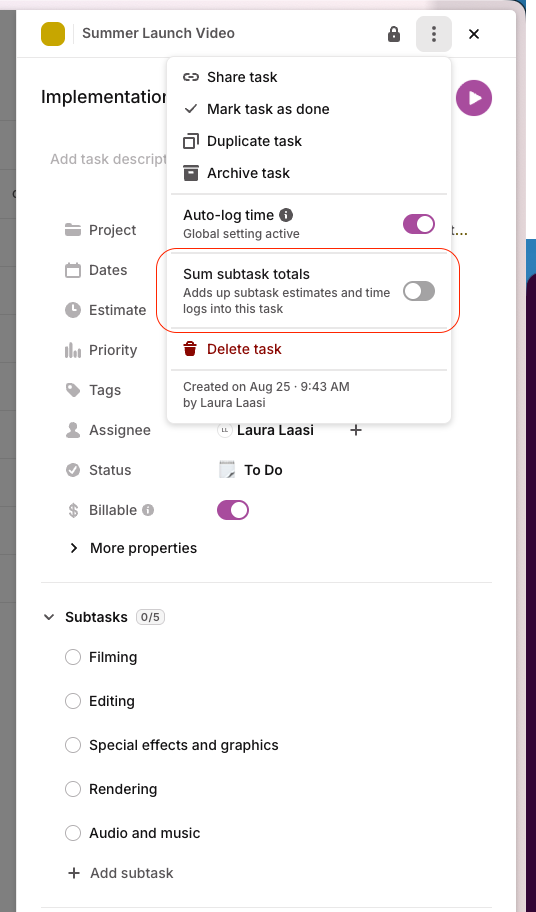
When **Sum subtask totals** is on, Toggl:
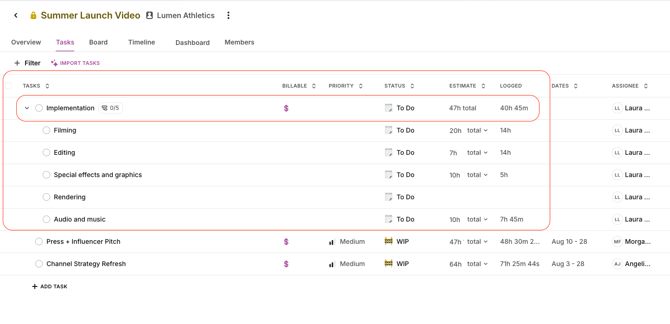
- Adds together the time estimates from the parent task's active, non-recurring direct subtasks that you can view.
- Shows the rolled-up estimate on the parent as a total estimate.
- Combines time logged directly to the parent with time logged to its subtasks, both in the parent’s Logged total and in the list of logged entries under it.
- Combines the subtasks' assignees on the parent task.
The rolled-up estimate and assignees are read-only on the parent. Update a subtask and the parent totals update automatically.
Archived, deleted, recurring, and hidden subtasks are not included. Logged time also follows your reporting permissions, so Toggl only includes time that you are allowed to view.
#### Turn on Sum subtask totals
1. Open a non-recurring parent task that you have permission to manage
2. Select the parent task's **three-dot menu**.
3. Turn on **Sum subtask totals**.
4. If prompted, select **Turn on** to confirm.
If the parent already has its own estimate, assignees, or custom assignee allocations, Toggl removes those values when you turn on subtask totals. They are replaced by the values derived from the subtasks. Existing time entries logged directly to the parent are not deleted and remain included in its logged time.
#### How estimates are calculated
- Total estimates are added together as entered.
- Daily estimates are converted to totals using the working days in each subtask's date range.
- Daily and total estimates can be mixed. The parent estimate is always displayed as a total.
- If none of the included subtasks has an estimate, the parent shows **0h total**.
Hover over the parent task's estimate to see a breakdown of the subtasks that make up the total.
#### **See subtask time in the parent’s logged entries**
With Sum subtask totals on, open the parent task’s time panel and select **View entries → Logged**. The list holds the same entries as the parent’s Logged total: time logged directly to the parent and time logged to its subtasks.
- Each subtask entry has a badge naming its subtask. Entries logged directly to the parent have no badge.
- If you edit or duplicate a subtask’s entry from this list, it stays on that subtask.
- **Add logged time** logs to the task you have open, which is the parent.
- The **Planned** tab still shows only planned time on the parent itself.
- An entry from an archived subtask shows the badge **Subtask** instead of the subtask’s name.
Available on the web app and desktop app.
#### Turn off Sum subtask totals
Open the parent task's **three-dot menu** and turn off **Sum subtask totals**.
The subtasks keep their estimates, time entries, and assignees. The parent stops showing the derived estimate and assignees, and the parent’s Logged time and its list of logged entries return to showing only time logged directly to the parent. Any estimate or assignees the parent had before you enabled the setting are not restored, so add new parent values if needed.
#### Things to know
- The setting is off by default and is changed separately for each parent task. There is no workspace-wide default.
- Only direct subtasks are included. Toggl 2.0 supports one level of subtasks.
- While the setting is on, the parent task is labelled **Sums subtasks** in the project/task picker and can’t be selected there. Track time on one of its subtasks instead. Time already logged directly to the parent stays and is still included in the parent’s Logged time.
- Time entries are not moved or duplicated. They remain attached to the task they were logged against. The parent’s Logged list shows them with a badge naming the subtask.
- Planned time and time blocks do not roll up. The parent’s Planned tab lists only the parent’s own planned time.
- The parent roll-up uses each subtask's task estimate. If a custom estimate split across assignees adds up to a different amount, the parent still uses the task estimate.
- In the timer and calendar project/task picker, subtasks are listed under their parent task, so you can find and select a subtask without opening the parent first.
- [Getting started](https://docs.toggl.com/getting-started?hsLang=en#main-content)
- [Start here](https://docs.toggl.com/getting-started?hsLang=en#start-here)
- [Quickstart Guides](https://docs.toggl.com/getting-started?hsLang=en#quickstart-guides)
- [Set up your Workspace](https://docs.toggl.com/getting-started?hsLang=en#set-up-your-workspace)
- [Toggl Guides for Toggl Track and Toggl Plan users](https://docs.toggl.com/getting-started?hsLang=en#toggl-guides-for-toggl-track-and-toggl-plan-users)
- [Using Toggl, page by page](https://docs.toggl.com/using-toggl-page-by-page?hsLang=en#main-content)
- [Timer](https://docs.toggl.com/using-toggl-page-by-page?hsLang=en#timer)
- [Reports](https://docs.toggl.com/using-toggl-page-by-page?hsLang=en#reports)
- [Projects](https://docs.toggl.com/using-toggl-page-by-page?hsLang=en#projects)
- [Tasks](https://docs.toggl.com/using-toggl-page-by-page?hsLang=en#tasks)
- [Timeline](https://docs.toggl.com/using-toggl-page-by-page?hsLang=en#timeline)
- [Members](https://docs.toggl.com/using-toggl-page-by-page?hsLang=en#members)
- [Approvals](https://docs.toggl.com/using-toggl-page-by-page?hsLang=en#approvals)
- [Time Off](https://docs.toggl.com/using-toggl-page-by-page?hsLang=en#time-off)
- [Profile Settings](https://docs.toggl.com/using-toggl-page-by-page?hsLang=en#profile-settings)
- [Admin Settings & Security](https://docs.toggl.com/admin-settings-security?hsLang=en#main-content)
- [Workspace Setup](https://docs.toggl.com/admin-settings-security?hsLang=en#workspace-setup)
- [Tracking & Rates](https://docs.toggl.com/admin-settings-security?hsLang=en#tracking-rates)
- [Single Sign-on](https://docs.toggl.com/admin-settings-security?hsLang=en#single-sign-on)
- [Subscription & Billing](https://docs.toggl.com/subscription-billing?hsLang=en)
- [Toggl Apps](https://docs.toggl.com/toggl-apps?hsLang=en#main-content)
- [Mobile](https://docs.toggl.com/toggl-apps?hsLang=en#mobile)
- [Desktop](https://docs.toggl.com/toggl-apps?hsLang=en#desktop)
- [Browser Extension](https://docs.toggl.com/toggl-apps?hsLang=en#browser-extension)
- [API & Integrations](https://docs.toggl.com/api-integrations?hsLang=en)
- [Troubleshooting & FAQs](https://docs.toggl.com/troubleshooting-faqs?hsLang=en#main-content)
- [My Toggl Acount](https://docs.toggl.com/troubleshooting-faqs?hsLang=en#my-toggl-acount)
- [Common Questions](https://docs.toggl.com/troubleshooting-faqs?hsLang=en#common-questions)
Copyright © 2026. Toggl. [Privacy Policy](https://toggl.com/legal/focus/privacy/)