Whose time can you see?
Admins see everyone’s time. Team Leads see their team’s time, and Project Managers see everyone’s time on the projects they manage, including sub-projects. Everyone else sees only their own time. Team Leads and Project Managers can also filter and group by Member.
Time Entries Table
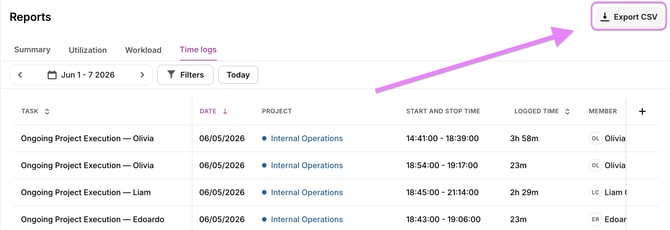
In the table, you can get an in-depth overview every time entry in Toggl 2.0, apply filters and adjust the time period.
Totals
A Total row appears under the entries. It adds up every result that matches the current filters and date range, not only the entries on the current page.
- Logged time is available to everyone who can view the report.
- Billable time, its share of total time, and Amount appear only if you have permission to view billable rates.
The Total row uses the same rounding, timezone and grouping rules as the Summary report, so both reports match when the same filters are applied.
How short entries are shown
Entries shorter than one minute show seconds instead of 0h (for example, 24s). Start and stop times in the table do not show seconds, but CSV exports keep them.
Sorting
You can sort entries by clicking on a column header. The Tags column can’t be sorted.
Filtering
You can modify filters by clicking on the filter selector. Filtering on time log description is also available.
Customizing Columns
You can move columns around and hide or unhide columns.
Bulk edit
- In the Time Log Report, select the entries you want to update.
- Use the bulk edit panel to apply changes.
- You can bulk edit:
- project
- task
- billable / non-billable
- tags
- duration
- description
- start date
- end date
Time logs without a task can’t inherit tags. If your workspace requires tags on time logs, a bulk edit that would leave any selected time log with no tags (its own or its task’s) can’t be saved.
Exporting
You can export the Time Logs report as PDF on all plans, and as CSV or XLSX on Starter and above. Click the Export button at the top of the report and choose your preferred format. Tags are included in the export when the Tags column is visible in the report.