---
title: Time Off Management Add-on
description: This guide explains the Time Off Management Add-on — what it adds on top of the Time Off already included with your plan, how to start a trial or subscribe, who can do what, and how billing works.
---
[Skip to content](https://docs.toggl.com/time-off-management#main-content)
English
Show submenu for translations
[](https://docs.toggl.com/?hsLang=en)
Open main navigation
Close main navigation
- English
Show submenu for translations
- [Go to Toggl](https://focus.toggl.com/)
[Go to Toggl](https://focus.toggl.com/)
How can we help you?
- There are no suggestions because the search field is empty.
1. [Toggl 2.0 Knowledge Base](https://docs.toggl.com/?hsLang=en)
2. [Using Toggl, page by page](https://docs.toggl.com/using-toggl-page-by-page?hsLang=en)
3. [Time Off](https://docs.toggl.com/using-toggl-page-by-page?hsLang=en#time-off)
# Time Off Management Add-on
## This guide explains the Time Off Management Add-on — what it adds on top of the Time Off already included with your plan, how to use the Time Off page, how to log time off for a teammate, how to start a trial or subscribe, who can do what, and how billing works.
Time Off in Toggl lets you log days off. That personal log is included on paid plans. The Time Off Management Add-on is a paid add-on that turns it into a managed, team-wide system with approvals, balances, and policies.
### Overview
Every Toggl workspace on a paid plan includes a personal way to record time off. Open **Time off** in the sidebar to:
- Log your own time off
- See **Who’s out this week**
- Jump to the [holiday calendar](https://docs.toggl.com/organizational-holiday-calendar?hsLang=en)
**The Time Off Management Add-on adds:**
- **Approvals** — requests can require sign-off from a Team Lead or Admin
- **Balances** — track how much time off each person has accrued, taken, and scheduled
- **Types and policies** — define vacation, sick leave, parental leave, and other rules
- **Team time off** — view, approve, and log time off for your team
- **Reports** — Time Accounting, and Absence & balances
The module is organization-wide. If you use Toggl Track and Toggl 2.0, one the Time Off Management Add-on subscription covers both.
### Paid plan vs the Time Off Management Add-on
| Capability | Paid plan (no module) | Time Off Management Add-on |
| --- | --- | --- |
| Log your own time off | Yes | Yes |
| See your own entries | Yes | Yes |
| See who’s out this week | Yes | Yes |
| Open the holiday calendar from Time Off | Yes | Yes |
| Admins log time off for a member | Yes — dates only, from Members | Yes — with type, amount, note, and a notification to the member |
| Approval workflow | No | Yes |
| Balances (accrued / taken / scheduled) | No | Yes |
| Time-off types and policies | No | Yes |
| View and approve team requests | No | Yes |
| Time Accounting and Absence & balances reports | No | Yes |
**Native Time Off isn’t available on the Free plan.** Free organizations still see **Time off** in the sidebar: it opens a preview of the paid Time Off page, with options to upgrade the plan or start a Time Off Management Add-on trial.
A Time Off Management Add-on trial can be started without a paid plan. Keeping the Time Off Management Add-on after the trial needs an active paid Toggl plan.
### The Time Off page
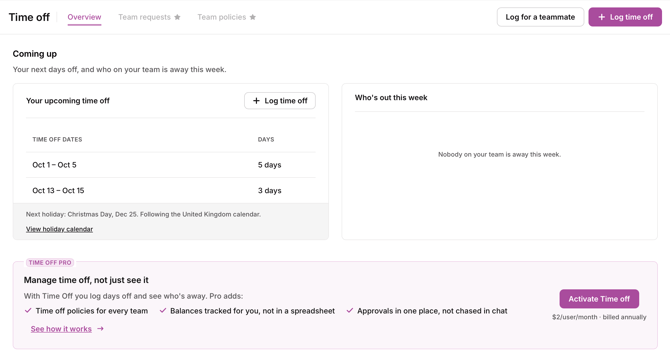
Open **Time off** from the sidebar. Paid plans — with or without the Time Off Management Add-on — land on the same **Overview**.
**Coming up**
- **Your upcoming time off** — your next dates, with a **Log time off** (paid plan) or **Request time off** (Time Off Management Add-on) button
- **Who’s out this week** — who is away, and on which dates
- **Next holiday** — the next public holiday, with a **View holiday calendar** link
**Time Off Management Add-on extras on Overview**
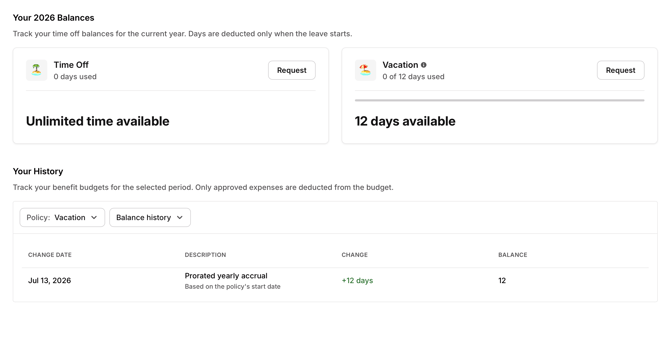
With the Time Off Management Add-on, Overview also shows your balances for the current year and your balance history. Days come off a balance when the leave starts.
Without the Time Off Management Add-on, Overview shows a **Time Off Management Add-on** banner and sample balance / history cards, so you can see what the module adds. Use **Activate Time Off** or **See how it works** to start a trial or learn more.
**On the Free plan**
Opening **Time off** shows a preview: “See who’s away before you plan the week.” It uses sample data. From there you can **Stay on Free**, **Upgrade to Starter**, or **Try Time Off Management free for 30 days**.
**During a Time Off Management Add-on trial**
The Time off item in the sidebar keeps its star. Subscription managers also see how many trial days remain.
### Access levels and permissions
These permissions work the same way whether your organization uses Track, Toggl 2.0, or both.
**Owner / Admin**
Create and manage types and policies, manage balances, log time off for any member, approve or reject any request, view everyone’s time off, and manage the Time Off Management Add-on subscription and seat assignments.
**Team Lead**
Approve or reject requests from their own teams, and log time off for members they lead. Team Leads log time off from the Time Off page. The Time off column on the Members page is available to Owners and Admins.
**Member**
Request their own time off, view their own entries and balance, and view available types. When someone logs Time Off Management leave for them, they get an in-app notification and an email. They can cancel an upcoming entry from **Your time off**.
Without an assigned Time Off Management Add-on seat, a member keeps the personal Time Off included with a paid plan.
### Log time off for a member
An Owner or Admin can log Time Off Management leave for any member. A Team Lead can do this for members of their teams.
Time off you log for a member is approved immediately and does not enter the approval queue. It counts against the selected balance even when that takes the balance below zero.
#### From the Time Off page
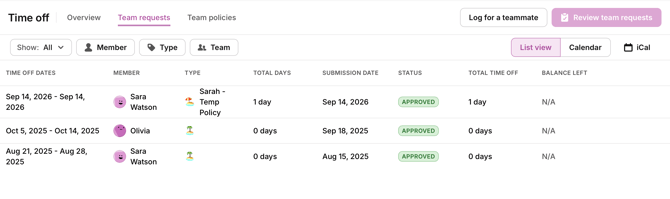
1. Open **Time off** from the sidebar.
2. Select **Team requests**, or **Team time off** if approvals are turned off. From Overview you can also click **Log for a teammate**.
3. Click **Log member time off**.
4. Select the member.
5. Select the time-off type.
6. Select the dates.
7. Adjust the amount for each date if the person isn’t taking a full day.
8. Add a note if needed.
9. Click **Add time off**. The member receives an in-app notification and an email.
#### From the Members page
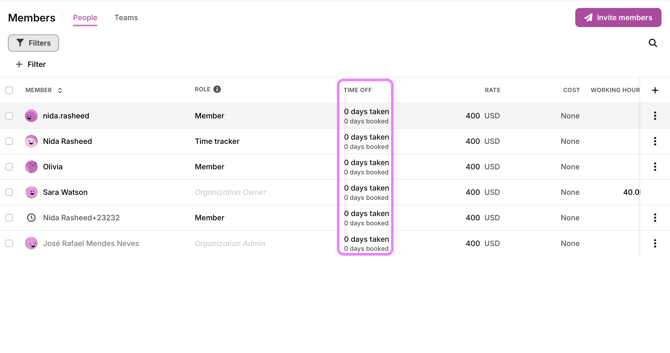The Members page has a **Time off** column for Owners and Admins. It shows each member’s time taken through today and time booked for later in the current calendar year.
1. Open **Members** from the sidebar.
2. Find the member.
3. Click their **Time off** cell.
4. Select the time-off type.
5. Select the dates.
6. Adjust the amount for each date if needed.
7. Add a note if needed.
8. Click **Add time off**. The member receives an in-app notification and an email.
This opens the same dialog as the Time Off page, with the member already selected.
Without the Time Off Management Add-on, the same column opens the date-only flow and the member is not notified — see [Availability settings: time off, work hours, and public holidays](https://docs.toggl.com/availability-settings-time-off-work-hours-and-public-holidays?hsLang=en).
#### What the member sees
When someone logs Time Off Management leave for a member:
- A notification appears in their notification tray
- They receive an email
- The entry appears under **Your time off** and on their calendar
- Their available capacity is reduced for those dates
- They can open and cancel an upcoming entry
You can’t edit or cancel an entry after logging it. If an upcoming entry is wrong, ask the member to cancel it from **Your time off**, then log the corrected entry.
### Getting the Time Off Management Add-on
There are two ways for an admin to turn on the Time Off Management Add-on.
**1. Start a free 30-day trial**
- No credit card required
- The trial runs for 30 days
- Each organization gets one trial across Toggl Track and Toggl 2.0. Once it’s been used — even if it expired or was cancelled early — that organization can’t start another
- When the trial ends, approvals, balances, types, and team views turn off. Everyone on a paid plan keeps native Time Off
- To get the Time Off Management Add-on back after a trial, subscribe
**2. Subscribe**
- An admin can add the Time Off Management Add-on as a paid add-on at any time
- It appears as a separate line on your existing Toggl invoice
- Your organization needs an active paid Toggl plan (or an active trial) to keep the Time Off Management Add-on after the trial. If you’re on the Free plan, upgrade the core plan before you subscribe. The 30-day trial itself does not require a paid plan
### Pricing and billing
- **Per seat** — you pay for the users you assign to the module, not the whole organization
- **Annual billing** is 12× the monthly price — there is no annual discount
- Time Off Management Add-on charges appear as a separate line item on your existing subscription invoice
- If a user uses the Time Off Management Add-on in both Toggl Track and Toggl 2.0, you’re billed once for that person
Subscribing gives the organization access to the module; it does not assign it to every person automatically. An admin assigns members from Admin settings → Organization → Overview → Modules → Time Off → Manage access (the same Modules card is on Billing and Explore plans). Access can also be changed per member from their member page. Add someone and the charge goes up; remove them and it goes down.
### Troubleshooting
**Time off I didn’t book appeared on my calendar.** An Owner, Admin, or Team Lead logged it for you. You should also receive an in-app notification and email. For an upcoming entry, open it under **Your time off** to cancel it if it’s incorrect.
**I can’t see the Log member time off button.** Open **Team requests** or **Team time off**. Owners and Admins can use the button for any member. Team Leads can use it for members of their teams. Members don’t see it.
**I can’t see the Time off column on the Members page.** The column is for Owners and Admins, on the in-product Members page — not in the Admin Console.
**I logged the wrong time off for a member.** There is no admin-side edit or cancel action. For an upcoming entry, ask the member to cancel it under **Your time off**, then log the corrected entry.
**I can’t see approvals, balances, or policies.** Your organization hasn’t enabled the Time Off Management Add-on yet, or you haven’t been assigned a seat. Ask an admin to start a trial or subscribe, and to assign you.
**I’m on the Free plan. What do I see under Time off?** Native Time Off is included on paid plans. On Free, **Time off** opens a preview of the paid page. Upgrade to Starter (or above) to log your own time off, or ask an admin about a Time Off Management Add-on trial.
**Some people can see approvals and balances, but I can’t.** You likely haven’t been assigned a seat yet. Ask an admin to assign you to the Time Off Management Add-on.
**These features used to work, but stopped for everyone.** The organization’s trial probably ended without a subscription. An admin can subscribe to restore access. Personal time off stays available on paid plans.
**I don’t see the option to start a trial.** Your organization has already used its one-time trial. Subscribe to get the Time Off Management Add-on.
**The Time Off Management Add-on stopped working after a billing change.** The Time Off Management Add-on subscription was likely cancelled. Re-subscribing restores it. Cancelling the Time Off Management Add-on never affects your core Toggl plan.
**I only see my own time off, nothing for my team.** That’s expected without an assigned Time Off Management Add-on seat. Team management requires the Time Off Management Add-on plus Owner, Admin, or Team Lead access.
- [Getting started](https://docs.toggl.com/getting-started?hsLang=en#main-content)
- [Start here](https://docs.toggl.com/getting-started?hsLang=en#start-here)
- [Quickstart Guides](https://docs.toggl.com/getting-started?hsLang=en#quickstart-guides)
- [Set up your Workspace](https://docs.toggl.com/getting-started?hsLang=en#set-up-your-workspace)
- [Toggl Guides for Toggl Track and Toggl Plan users](https://docs.toggl.com/getting-started?hsLang=en#toggl-guides-for-toggl-track-and-toggl-plan-users)
- [Using Toggl, page by page](https://docs.toggl.com/using-toggl-page-by-page?hsLang=en#main-content)
- [Timer](https://docs.toggl.com/using-toggl-page-by-page?hsLang=en#timer)
- [Reports](https://docs.toggl.com/using-toggl-page-by-page?hsLang=en#reports)
- [Projects](https://docs.toggl.com/using-toggl-page-by-page?hsLang=en#projects)
- [Tasks](https://docs.toggl.com/using-toggl-page-by-page?hsLang=en#tasks)
- [Timeline](https://docs.toggl.com/using-toggl-page-by-page?hsLang=en#timeline)
- [Members](https://docs.toggl.com/using-toggl-page-by-page?hsLang=en#members)
- [Approvals](https://docs.toggl.com/using-toggl-page-by-page?hsLang=en#approvals)
- [Time Off](https://docs.toggl.com/using-toggl-page-by-page?hsLang=en#time-off)
- [Profile Settings](https://docs.toggl.com/using-toggl-page-by-page?hsLang=en#profile-settings)
- [Admin Settings & Security](https://docs.toggl.com/admin-settings-security?hsLang=en#main-content)
- [Workspace Setup](https://docs.toggl.com/admin-settings-security?hsLang=en#workspace-setup)
- [Tracking & Rates](https://docs.toggl.com/admin-settings-security?hsLang=en#tracking-rates)
- [Single Sign-on](https://docs.toggl.com/admin-settings-security?hsLang=en#single-sign-on)
- [Subscription & Billing](https://docs.toggl.com/subscription-billing?hsLang=en)
- [Toggl Apps](https://docs.toggl.com/toggl-apps?hsLang=en#main-content)
- [Mobile](https://docs.toggl.com/toggl-apps?hsLang=en#mobile)
- [Desktop](https://docs.toggl.com/toggl-apps?hsLang=en#desktop)
- [Browser Extension](https://docs.toggl.com/toggl-apps?hsLang=en#browser-extension)
- [API & Integrations](https://docs.toggl.com/api-integrations?hsLang=en)
- [Troubleshooting & FAQs](https://docs.toggl.com/troubleshooting-faqs?hsLang=en#main-content)
- [My Toggl Acount](https://docs.toggl.com/troubleshooting-faqs?hsLang=en#my-toggl-acount)
- [Common Questions](https://docs.toggl.com/troubleshooting-faqs?hsLang=en#common-questions)
Copyright © 2026. Toggl. [Privacy Policy](https://toggl.com/legal/focus/privacy/)