
What are Timesheet Approvals?
Timesheet Approvals add a formal submission and review workflow to Toggl 2.0. Members submit their tracked time for a period; an approver reviews it against expected hours and approves it, requests changes, or declines it. Once a period is submitted or approved, it locks, so the numbers behind billing, payroll, and reporting don't shift after the fact.
Timesheet Approvals is available on the Premium plan and above, on the Webapp only.
When should you use Timesheet Approvals?
Turn it on if any of this sounds familiar:
- You bill clients by the hour. Approval is the checkpoint that catches missing or misattributed time before it turns into an invoice.
- Time data feeds payroll. A locked, approved period means payroll runs off numbers everyone has already signed off on, not a moving target.
- You need a record for compliance or client audits. Approved and declined timesheets, with comments attached, give you a trail to point to.
- People forget to log time until it's too late to remember accurately. A submission deadline and reminders turn tracking from optional into part of the routine.
If you're mainly using Toggl for personal time awareness and nobody downstream depends on the data being locked down, you probably don't need this.
Who's involved?
- Admins create one or more approval setups: who's included, who approves, and on what schedule.
- Approvers (the assigned team lead, manager, or admin) review submitted timesheets and approve, request changes, or decline them.
- Members submit their timesheet for the period and see feedback if changes are requested.
A member can also be their own setup's approver, and a workspace admin can act as approver for any setup.
Setting up Timesheet Approvals (Admins)
- Click Approvals in the left sidebar, then + New timesheet setup.
- Add the members this setup applies to. A member can belong to only one active setup at a time; members already in another setup are hidden from the picker.
- Choose the approver: the person who reviews and approves this group's timesheets. A member can be an approver too.
- Set the period. Timesheet Approvals run weekly in this release; Monthly is marked "Coming soon" directly in the setup screen.
- Confirm the period start date. Each timesheet runs Monday through Sunday from that date. Past or future dates are allowed; picking a date more than one period back warns you how many overdue periods members will see.
- Optionally turn on the reminder to nudge members who haven't submitted (defaults to Fridays at 09:00). Reminders are sent by email.
- Click Add timesheet setup.
From the gear icon on the Approvals page, open Manage timesheet setups to edit a setup, manage its members, discontinue it from a chosen period onward, or delete it outright.
Submitting your timesheet (Members)
Submit from the Timesheet view on the Timer page:
- Review your logged time for the period.
- Add an optional comment.
- Click Submit for approval.
Once submitted, that period becomes read-only, you can't add, edit, or delete time entries in it until your approver takes action. If your approver declines your timesheet, it goes back to Not Submitted with no comment attached. If they request changes, you'll see their comment, and can edit and resubmit.
Reviewing timesheets (Approvers)
Open the Approvals page to see everyone in your setup, split into four tabs: Pending review, Changes requested, Approved, and Not submitted.
Each row shows the member, period, hours logged against their expected weekly hours, and their approver. Use the ⋮ menu on a row to Approve directly or View in reports.
Click into a member's row to see their full timesheet: total hours and billable percentage for the period (with an Edit expected hours link), and a day-by-day breakdown by task. From there you can:
- Approve: you can do this even before the member submits, if you've already reviewed the hours and they're correct.
- Decline: sends it back to Not Submitted with no comment attached.
- Request changes: add a comment describing what needs fixing; the member sees it and can resubmit.
- Withdraw approval: available once a timesheet is approved; moves it back to Not Submitted, and the member is notified they need to resubmit.
What locking means
- Members can't add, edit, or delete time entries in a submitted or approved period.
- Admins and roles with approval permissions can still edit entries in a locked period if needed, with a warning that the change affects an already-submitted or approved timesheet.
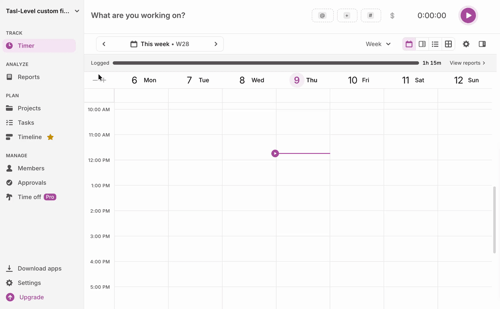
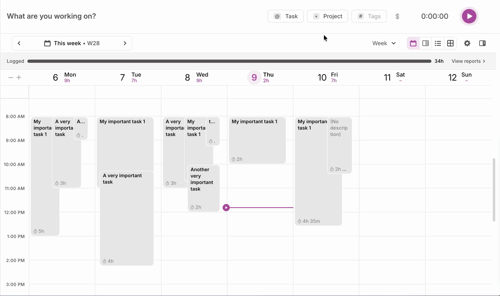
- On the Timer page's Timesheet view (the grid icon next to Calendar), the period is labeled "Approval week" and shows its current status, with a "Why?" link explaining that approval weeks run Monday to Sunday.
- On the Calendar view, locked weeks show a lock icon on their time blocks; logging new time there is disabled, though planning ahead is still allowed.
Notifications
Timesheet Approvals send email notifications (in-app notifications are planned for later) for:
- A reminder when a submission is due and hasn't happened yet.
- A member's timesheet being sent back with requested changes.
- A member's timesheet being declined.
- An approver withdrawing an approval (the member is told to resubmit).
Reminders and due dates respect each person's own timezone, and the timesheet view always displays in the submitter's timezone, for both the submitter and the approver.
Tips for a good approvals setup
- Turn reminders on. It's built in, and it's the difference between chasing people manually and letting Toggl do it.
- Pick a submission day and stick to it. A consistent weekly deadline is easier for people to build into a routine than a moving target.
- Encourage logging as you go, not end-of-week reconstruction. A timesheet is only as accurate as what's in it — approving a week someone just tried to remember doesn't catch much.
- Review promptly. The faster an approver acts, the faster a flagged entry gets fixed while it's still fresh for the person who logged it.
FAQ
- Can I require monthly instead of weekly approvals? Not in this release. Weekly is the only supported cadence; monthly is planned.
- Can more than one person approve the same timesheet? Not yet. Each setup has a single approver. Multi-layer approval (e.g. manager, then finance) is planned for a later release.
- What happens if I need to edit a time entry after it's approved? Members can't. Admins or roles with the approvals permission can edit locked entries, with a warning shown first.
- Can I stop using an approval setup? Yes. Discontinue a setup from a chosen period onward if your team no longer needs it.
- My team lead should approve, but I don't want to make them a workspace admin. Is that possible? Yes, any member can be assigned as an approver; they don't need admin access.