
Open Admin Settings from the sidebar or your profile menu. Here you can setup workspace rules, rates, alerts and app connections. You can also go to the Settings by clicking here.
Workspace Setup
Access
Control which workspace roles are permitted to manage clients, tags, and statuses.
Three permissions are available:
- Allow members to manage clients
- Allow members to manage tags
- Allow members to manage statuses
For each permission, choose one of the following access levels:
| Access level | What it allows |
|---|---|
| Full access | All roles can create, rename, archive, and delete |
| Edit access | All roles can create and rename |
| Restricted access | Only admins and managers can manage |
| Custom access | Set custom access per role |
Click the ▶ arrow next to any permission row to expand it and configure which roles are allowed.
Audit Log
Click Audit Log to go to the Audit Log page and view a complete history of changes in their organization — who changed what, and when.
Tags
Tags let you filter and organize tasks and projects across your workspace.
- Click + New tag to create a tag.
- Click the ⋮ menu next to any tag to edit or delete it.
Tags created here are available to assign to any task or project in the workspace.
Statuses
Statuses let you track where each task is in your workflow. Four statuses are included by default: 🗒️ Todo, 🚧 In Progress, 🚫 Blocked, and ✅ Done.
- Click + New status to add a custom status.
- Click the ⋮ menu next to any status to edit or delete it.
Required Fields
Make specific fields mandatory when creating or editing tasks or time logs, ensuring consistent data across the workspace. Here is what can be made mandatory for each item.
-
Tasks: Project and Tag
-
Time Logs: Project, Task and Time Log Description.
Check the box next to a field to make it required.
Lock billable status to the task: Time logs always inherit billable status from their task; members can't change it per time log.
Custom Fields
Define custom fields for your workspace's projects and tasks. You can add up to 50 fields per item.
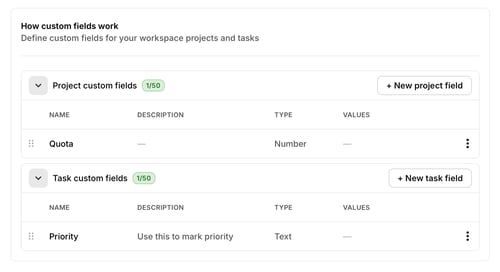
- Click + New to add a custom field.
- Click expand to see the full list, or use the ⋮ menu to edit or delete a field.
When creating a custom field, you can set a name, a description, and a type (number, text, multi-select, etc.).
Tracking & Rates
Alerts and Reminders
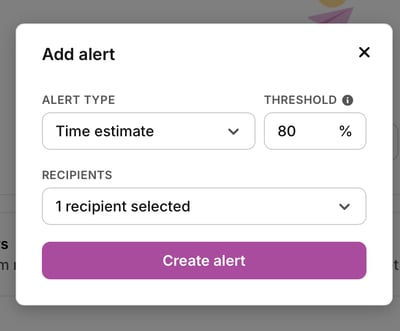
- Alerts — Set a default on projects based on time estimate or fixed fee, and get alerted by email when thresholds are reached. Project managers can customize this under the project overview.
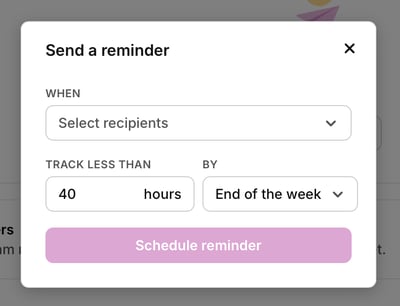
- Reminders — Email team members when their tracked time falls below the target.
Targets
- Utilization target — The minimum percentage of billable time expected from each team member.
- Margin target — The minimum profit margin expected from each project.
Billable rates
You can set hourly billable rates at four levels, listed from lowest to highest priority:
- Workspace — Default rate for all projects and members
- Member — Overrides the workspace rate
- Project — Overrides the workspace and member rates
- Project member — Overrides everything else
When setting a rate, you can specify:
- Hourly rate
- Currency
- The date the rate applies from
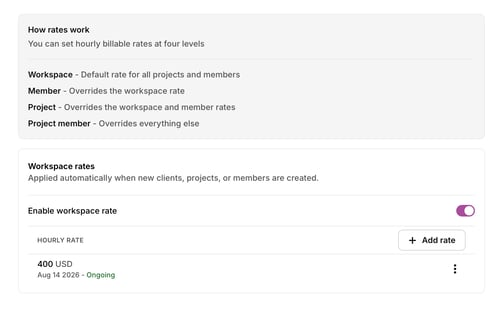
A list of existing rates will be displayed as well, and you can edit or delete them as needed.
Default Currency
New clients, projects, and rates use your workspace's default currency, and reports consolidate into it.
Changing the default currency does not convert existing amounts.
Connections
Data Import
Import data from Track, Plan or other apps.
Toggl Importer
Import your data from Toggl Track and Toggl Plan.
A list of import runs shows the source, the date it was started, its status, and a download log option.
You can also choose whether Toggl 2.0 or Toggl Plan is your primary planning and scheduling tool for each Toggl Plan workspace — this choice can be changed later.
Each workspace is listed with a Migrated indicator showing whether it has been moved to Toggl 2.0. To move a workspace back to Toggl Plan, click Switch back to Toggl Plan next to that workspace. You can switch again at any time.
Universal CSV Importer
Map columns from any CSV file to import data from tools like Harvest, Clockify, ClickUp, Asana, Teamwork, or another time-tracking tool.
Toggl Track Sync (Beta)
Keep projects in sync between a Toggl 2.0 workspace and a linked Toggl Track workspace.
Choose a sync direction for each linked workspace:
| Sync setting | Behavior |
|---|---|
| No sync | Toggl Track and Toggl 2.0 stay independent |
| Toggl Track → Toggl 2.0 | Changes in Toggl Track are mirrored into Toggl 2.0 |
| Toggl 2.0 → Toggl Track | Changes in Toggl 2.0 are mirrored into Toggl Track |
| Two-way | Changes in either product are mirrored to the other |