What is the Shown in switcher?
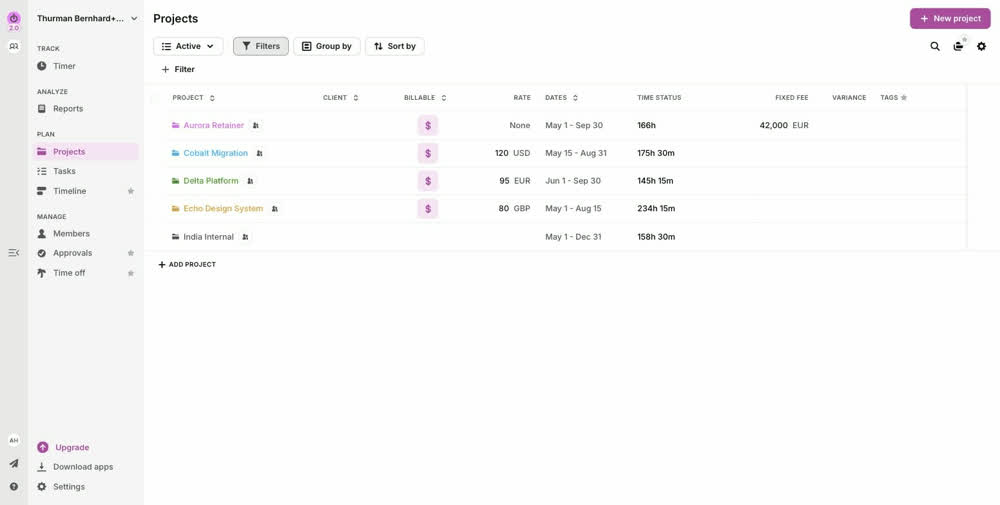
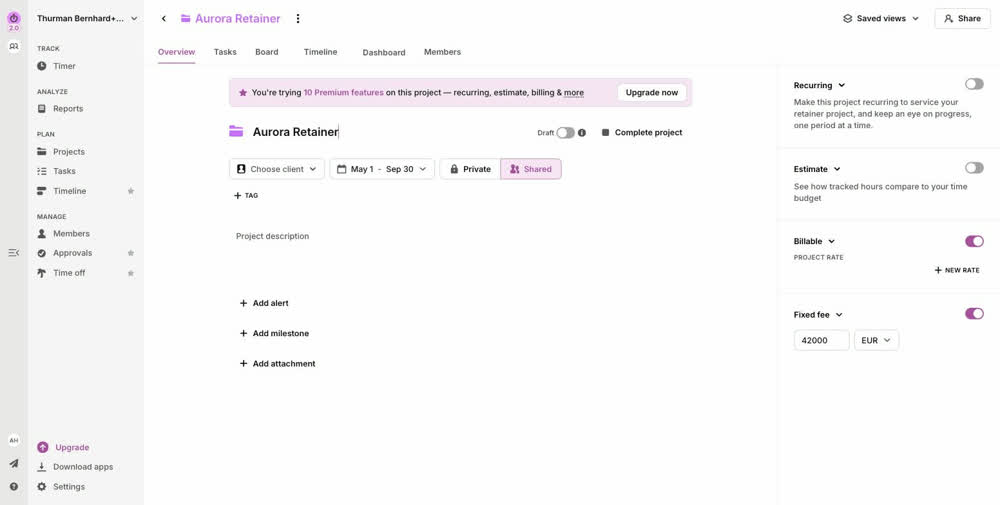
If your projects or member rates are set up in different currencies, your reports can contain a mix — some amounts in EUR, some in USD, some in GBP. Mixed currencies can't be added up into one total.
The Shown in switcher converts every amount in a report into one currency of your choice, so totals across projects, clients, and team members add up to a single, meaningful number.
✅ Note: This is a display setting. It does not change your billable rates, labor costs, or any saved data — every amount is always stored in its original currency, and switching it back is instant.
The workspace currency
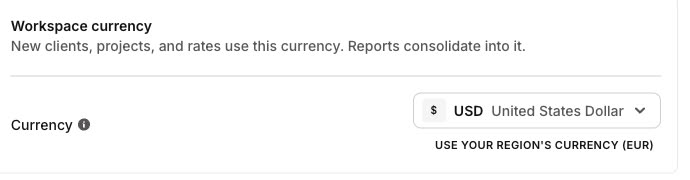
Every workspace has a workspace currency — the baseline the switcher builds on. You'll find it under Settings → Toggl 2.0 settings → Workspace currency (visible to admins), and you can change it there at any time. New workspaces start in USD; if your region uses a different currency (Toggl checks your device's timezone), the setting offers a one-click Use your region's currency button — nothing changes unless you choose it.
The workspace currency does two things:
- It's the default for new money you enter. New billable rates, labor costs, and fixed fees start in this currency — you can still pick a different currency every time.
- It's what reports consolidate into. Reports and project dashboards convert mixed-currency amounts into the workspace currency by default — the Shown in switcher simply starts there, and picking another display currency never changes the workspace currency itself.
✅ Note: Changing the workspace currency won't convert existing amounts — past rates and reports keep their recorded values.
Where you'll find the switcher
The switcher is available in the Toggl web app:
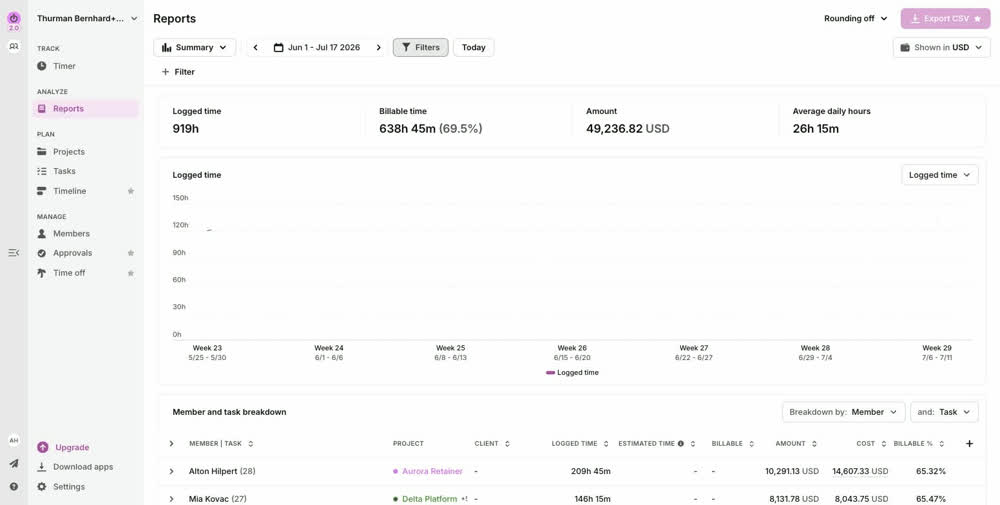
- In the Reports section, on every report that shows monetary amounts
- On project dashboards
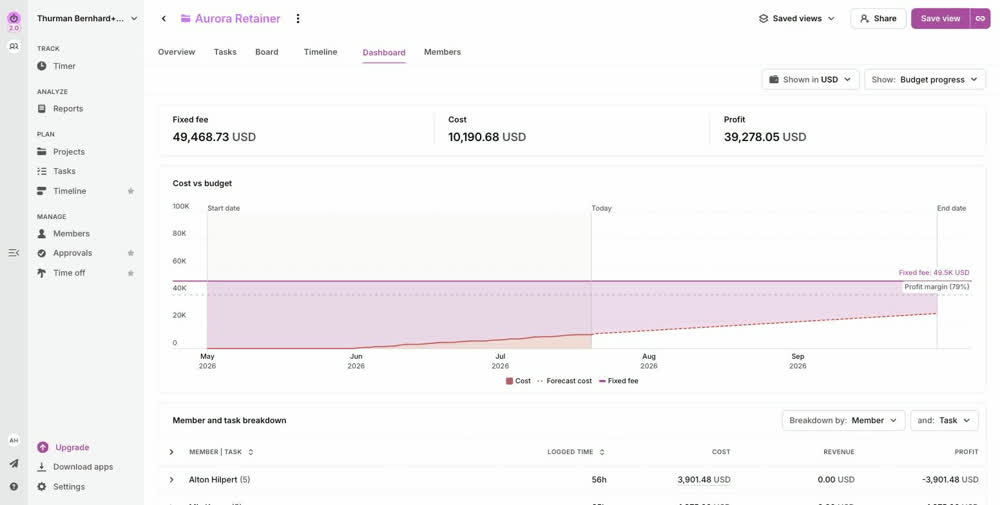
Changing the display currency
- Open a report or a project dashboard.
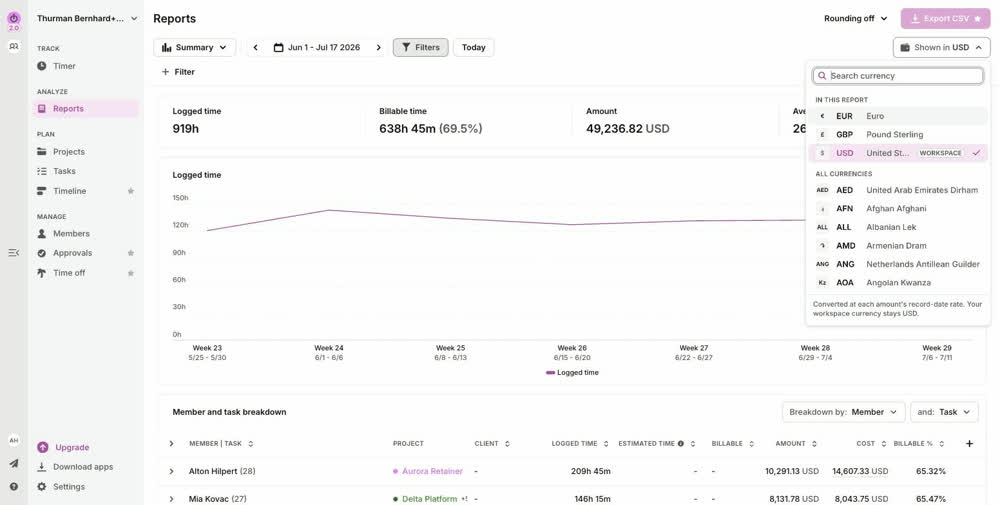
- Click the Shown in switcher.
- Pick a currency. The currencies already present in your report are listed at the top of the picker, followed by all other available currencies.
The report updates immediately: every amount is converted into the selected currency, and totals are recalculated from the converted values.
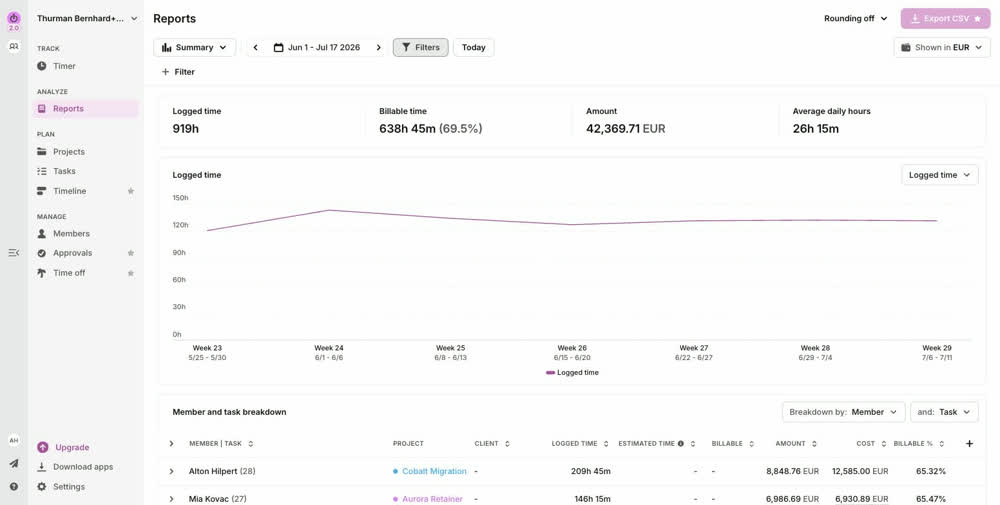
How amounts are converted
Each amount is converted individually, using the exchange rate for the date that amount belongs to — and only then summed into totals. Different kinds of amounts use different dates:
- Logged time (billable amounts and labor costs) — each time log converts at the exchange rate of the log's create date. Past exchange rates are fixed, so these converted amounts stay the same no matter when you open the report.
- Fixed fees — while a project is open, its fixed fee converts at today's exchange rate, so the converted value can move slightly from day to day. Once the project is completed, the fee converts at the rate of the completion date.
- Forecasted work — amounts for future work always convert at today's exchange rate, since that work has no date of its own yet.
Reading the tooltips
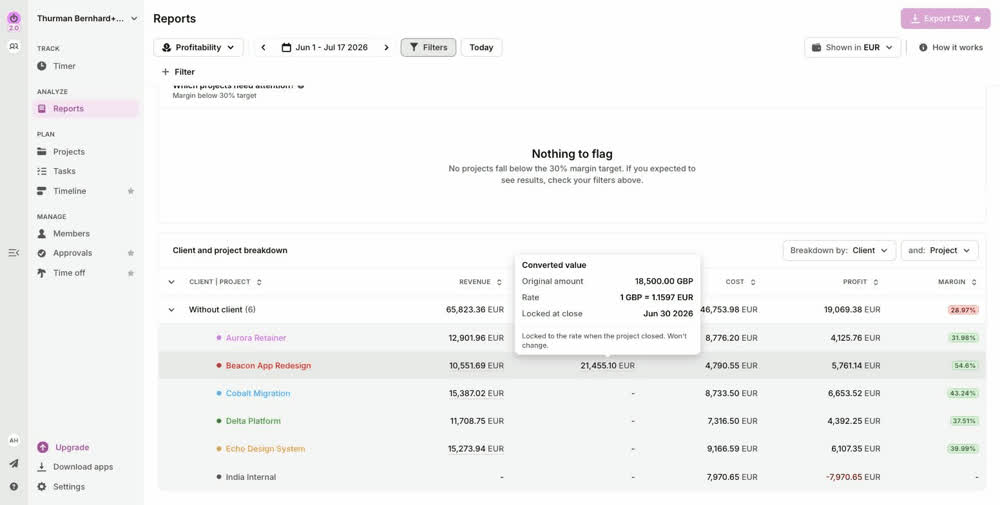
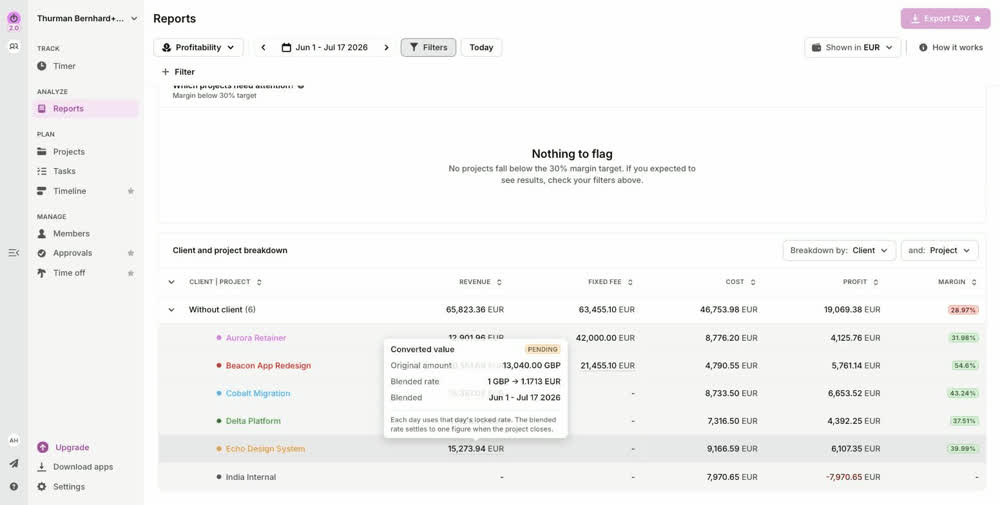
Hover over a converted amount in the report breakdown to see the full story behind it: the original amount and currency, the exchange rate used, and the date of that rate. The Profit column and the totals cards at the top intentionally don't show these tooltips.
- Amounts from a single day show that day's exact rate.
- Totals spanning several days on an open project show a blended rate — the average implied by the converted total — with a Pending badge: "Each day uses that day's locked rate. The blended rate settles to one figure when the project closes."
- Amounts on a completed project show Locked at close with the completion date: "Locked to the rate when the project closed. Won't change."
Good to know
- In the Time logs report, individual time entries keep their original amount and currency — conversion applies to reports that aggregate amounts.
- The switcher changes how amounts are displayed only. Fixed fees, billable rates and labor costs keep their original currencies.
- Currency conversion is powered by Frankfurter. Toggl uses Frankfurter's blended daily rates from central-bank sources, with EUR as the internal base for cross-currency conversion. If no rate is published for a date, Toggl uses the most recently published rate. Rates for today and the preceding seven days may refresh as new provider data arrives; older rates remain fixed.
- Past rates never change, so converted historical amounts are stable.
- Each project keeps its own money: billable rates and fixed fees are set per project, in any currency — new ones simply start pre-set to the workspace currency.
- Switching the currency is also reflected in report exports.