---
title: Your Profile Settings in Toggl
description: Manage your Toggl Account settings in Toggl 2.0 — personal details, appearance, language, API tokens, password, availability, time off, and calendars.
---
[Skip to content](https://docs.toggl.com/your-profile-settings-in-toggl#main-content)
English
Show submenu for translations
[](https://docs.toggl.com/?hsLang=en)
Open main navigation
Close main navigation
- English
Show submenu for translations
- [Go to Toggl](https://focus.toggl.com/)
[Go to Toggl](https://focus.toggl.com/)
How can we help you?
- There are no suggestions because the search field is empty.
1. [Toggl 2.0 Knowledge Base](https://docs.toggl.com/?hsLang=en)
2. [Using Toggl, page by page](https://docs.toggl.com/using-toggl-page-by-page?hsLang=en)
3. [Profile Settings](https://docs.toggl.com/using-toggl-page-by-page?hsLang=en#profile-settings)
# Your Profile Settings in Toggl
## This article is for every Toggl user. It covers the personal settings in your profile: your name, theme, language, API token and password, and the preferences, working hours, calendars and sign-in options that apply to you. Use it to change one of those, and to see which settings follow you across Toggl and which apply only to the organization you’re in.
Manage your Profile Settings by going to [this link.](https://focus.toggl.com/settings)
Profile settings are separate from Admin settings, which control the workspace and the organization. A search box above the list on the left finds a setting by name. **Toggl account** applies across your organizations and Toggl tools. **Availability** applies to the organization shown at the top left of the screen.
### Toggl Account
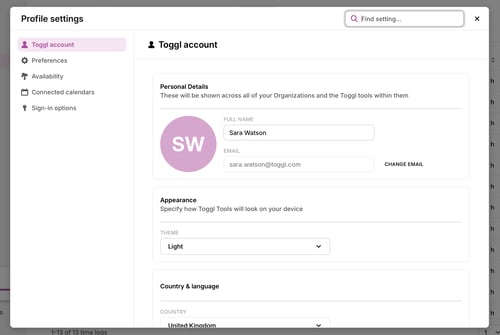
Your Toggl Account settings apply across all of your organisations and Toggl tools, not just Toggl Focus.
---
#### Personal Details
These details are shared across all of your Toggl tools and organisations.
- **Full name:** Your display name shown to teammates.
- **Email:** Your login email — click **Change email** to update it. A verification code will be sent to you to confirm the change.
---
#### Appearance
Specify how Toggl tools will look on your device. The **Theme** dropdown currently allows:
- System: Uses your system setting.
- Light
- Dark
---
#### Country & Language
- **Country:** Determines the national-holiday source when your organization’s Holiday calendar is set to **Each member’s own country**. It does not control your holidays when the organization uses **One country for everyone**.
- **Language:** Toggl 2.0 will be translated into this language for you.
---
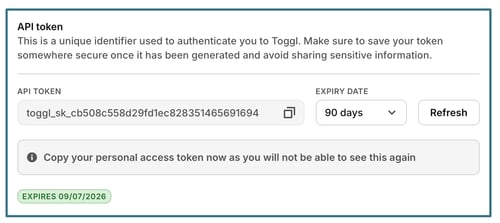
#### API token
Your API token is a unique identifier used to authenticate you to Toggl via the API. Keep it private — sharing it gives others access to your account data. The token is masked by default, and the **Expiry date** field shows how long it is valid (e.g. 90 days). Click **Generate** to create a new token. Generating a new token immediately invalidates the previous one.
---
#### Password Actions
- **Two-Factor Authentication** adds an extra layer of login security and shows as **Disabled** until configured.
- **Change Password** lets you update your account password.
---
#### Account Actions
This section lets you manage your membership across organisations and workspaces. You can:
- Leave a specific organisation
- Permanently **Close Account**.
⚠️ Closing your account is irreversible. Export any data you need before proceeding.
---
---
### Preferences
Customize how Toggl 2.0 looks and behaves for you.
---
#### Default page
Choose which page to show when you open Toggl 2.0. Your options are:
- Last Opened
- My Time
- Tasks
- Board
- Timeline
- Reports
---
#### Time Preferences
- **Account Timezone:** Your local timezone.
---
#### Calendar
Customize the behavior of the Toggl 2.0 Calendar by enabling or disabling:
- Project color as planned time background
**Planned time length for tasks without an estimate:** how much time Toggl plans when you drag a task without an estimate onto the calendar or add planned time from the task editor. Choose from 15 minutes to 4 hours; 1 hour is the default, and choosing it again resets the setting. The setting follows you across devices. Tasks with an estimate still plan their estimate, up to 4 hours.
If you keep resizing planned time to the same length, Toggl may offer it as your default from a card on the calendar. That card appears once per organization. See [Planned vs logged time in Toggl’s calendar](https://docs.toggl.com/planned-vs-logged-time-in-toggls-calendar?hsLang=en).
---
#### **Language**
Toggl 2.0 will be translated into this language for you. We currently support: German, English, Spanish, Estonian, French, Italian, Japanese, Portuguese (Brazil), Slovenian, Filipino, Chinese.
---
#### Time format
12-hour or 24-hour time format, a variety of duration formats to choose from and more.
- Time display format: **12-hour** or **24-hour**.
- Date display format: **DD/MM/YYYY**, **MM/DD/YYYY** or **YYYY-MM-DD**.
- Duration display format: **Classic** (47m 6s), **Improved** (0:47:06) or **Decimal** (0.79 h)
- **Start week on** — the first day of the week in the **Week** calendar view and in date pickers. It doesn't change the **5 Days** view, which follows your working hours (see **Working hours** below).
---
#### Keyboard shortcuts
Choose whether you want to use keyboard shortcuts in Toggl 2.0.
---
#### Email notifications
Choose which reminder emails Toggl 2.0 sends you.
- Email me when a timer runs over 8 hours
- [Email me a daily brief every weekday morning](https://docs.toggl.com/what-is-the-daily-brief-email-?hsLang=en)
This is separate from the reminders admins can set up for a team — see [Time Tracking Reminders and Project Alerts](https://docs.toggl.com/time-tracking-reminders-and-project-alerts?hsLang=en) for those.
#### In-app notifications
Choose which updates appear in your notifications tray
- Notify me about task assignments
- Notify me when I'm added to projects
- Notify me about in-app project alerts
#### Set as default organization
Choose which organization opens when you sign in. This section only appears when you belong to more than one organization.
#### Toggl upgrade
If your account is in a move from Toggl Track, **Toggl upgrade** shows which product opens by default and whether the Track workspace has been copied. **Switch back to Toggl Track** makes Track the default again. Data already copied to Toggl stays, and the subscription and billing date don’t change. The section is not shown for accounts that aren’t in that move.
---
### Availability
[Availability](https://docs.toggl.com/availability-settings-time-off-work-hours-and-public-holidays?hsLang=en) settings are scoped to a specific organisation. You can see which Organization by looking at the top-left corner of your screen.
They communicate to your team when you are and aren't working.
---
### Working hours
Set your regular schedule so the team knows your availability. There are three options:
- **Total weekly hours:** Set a total number of hours per week
- **Total daily hours:**
- **No schedule:** Removes any working time restrictions.
- **Standard 8-hour schedule:** Applies a preset 8-hour workday.
- **Custom schedule:** Allows you to define your own unique hours for each day. Click + to add a new time block.
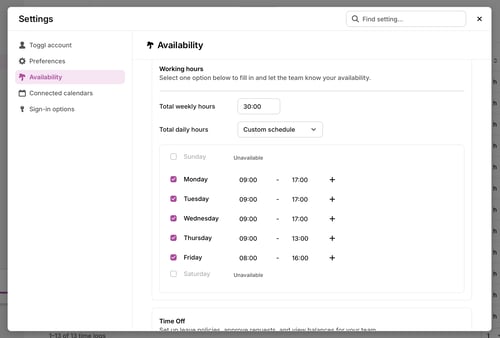
Once set, your non-working hours will appear greyed out on your calendar.
Your working days also decide what the **5 Days** calendar view shows: Sunday to Thursday if you work Sundays and not Fridays, and Monday to Friday otherwise. See [Availability Settings](https://docs.toggl.com/availability-settings-time-off-work-hours-and-public-holidays?hsLang=en).
---
### Time Off
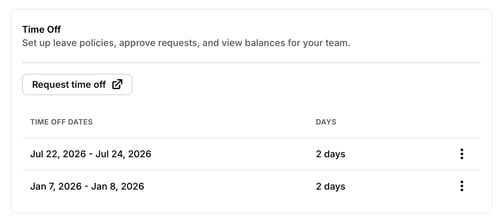
On a paid plan you can record vacations, leave, and any other time away. Entries show on the Timeline and calendar for your team.
Click **Request Time Off** / **Log time off** to open the Time Off page, where you can add dates, see **Who’s out this week**, and open the holiday calendar. Existing entries show the date range and number of days. Click the ⋮ menu next to an entry to delete it.
With [the Time Off Management Add-on](https://docs.toggl.com/time-off-pro?hsLang=en), this is a request against a policy and balance, and may need approval. Without the Time Off Management Add-on, it is a date-based entry that reduces capacity.
---
### Public Holidays
Your observed holidays come from your organization’s Holiday calendar. If the organization uses **Each member’s own country**, the country in **Country & Language** determines the national holidays shown. If it uses **One country for everyone**, the country selected by an organization admin applies instead. Under **Availability**, you can see the dates you observe, the dates you do not observe, and why each date applies. Holidays reduce available capacity and do not need a Time Off request. See [Organizational Holiday Calendar](https://docs.toggl.com/organizational-holiday-calendar?hsLang=en).
---
---
### Connected Calendars
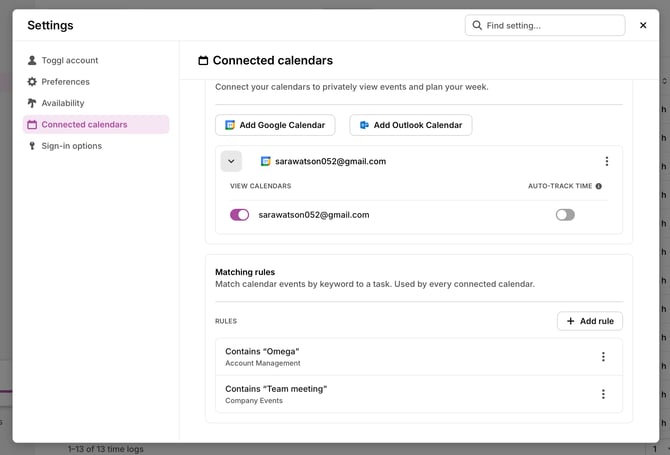
Connect [external calendars](https://docs.toggl.com/managing-calendar-events?hsLang=en) to privately view your events alongside your planned work. Events are visible only to you.
---
#### External calendar integrations
Click **Add Google Calendar** or **Add Outlook Calendar** and complete the sign-in flow to connect a calendar. Once connected, the account email appears in the list.
Each connection opens expanded, so you can see every calendar’s **Auto-track time** switch straight away.
For each one, use **View calendars** to show or hide its events on your calendar, and **Auto-track time** to log its events automatically. Hiding a calendar also hides its past planned events; time you’ve logged stays.
To turn auto-track on or off for all your calendars at once, use **Auto-track time from all enabled calendars** above your connections. A calendar’s own switch overrides it. If only some calendars auto-track, the checkbox shows how many, for example **On for 2 of 3 calendars**. More in [Using the calendar integration in Toggl 2.0](https://docs.toggl.com/managing-calendar-events?hsLang=en).
Click the **⋮ menu** to Delete a calendar at any time.
---
#### Matching rules
Match calendar events by keyword to a task, project, tags or billable status. Rules apply across all your connected calendars. A rule can be saved without a task or project if it only sets tags or billable status. [More here](https://docs.toggl.com/managing-calendar-events?hsLang=en)
---
---
Sign-in options
Enable or disable alternative sign-in methods for your account. Three options are available:
- **Google Sign In**
- **Apple Sign In**
- **Passkey Sign In**.
Each shows as **Disabled** until you connect it.
**Desktop**
The desktop app adds a **Desktop** group that the web app doesn’t show. It covers that app’s own behavior, such as startup and the menu bar. [Learn more about these settings here](https://docs.toggl.com/toggl-2-0-desktop-app?hsLang=en).
**Next step:** Tour of the Toggl web app (coming soon)
- [Getting started](https://docs.toggl.com/getting-started?hsLang=en#main-content)
- [Start here](https://docs.toggl.com/getting-started?hsLang=en#start-here)
- [Quickstart Guides](https://docs.toggl.com/getting-started?hsLang=en#quickstart-guides)
- [Set up your Workspace](https://docs.toggl.com/getting-started?hsLang=en#set-up-your-workspace)
- [Toggl Guides for Toggl Track and Toggl Plan users](https://docs.toggl.com/getting-started?hsLang=en#toggl-guides-for-toggl-track-and-toggl-plan-users)
- [Using Toggl, page by page](https://docs.toggl.com/using-toggl-page-by-page?hsLang=en#main-content)
- [Timer](https://docs.toggl.com/using-toggl-page-by-page?hsLang=en#timer)
- [Reports](https://docs.toggl.com/using-toggl-page-by-page?hsLang=en#reports)
- [Projects](https://docs.toggl.com/using-toggl-page-by-page?hsLang=en#projects)
- [Tasks](https://docs.toggl.com/using-toggl-page-by-page?hsLang=en#tasks)
- [Timeline](https://docs.toggl.com/using-toggl-page-by-page?hsLang=en#timeline)
- [Members](https://docs.toggl.com/using-toggl-page-by-page?hsLang=en#members)
- [Approvals](https://docs.toggl.com/using-toggl-page-by-page?hsLang=en#approvals)
- [Time Off](https://docs.toggl.com/using-toggl-page-by-page?hsLang=en#time-off)
- [Profile Settings](https://docs.toggl.com/using-toggl-page-by-page?hsLang=en#profile-settings)
- [Admin Settings & Security](https://docs.toggl.com/admin-settings-security?hsLang=en#main-content)
- [Workspace Setup](https://docs.toggl.com/admin-settings-security?hsLang=en#workspace-setup)
- [Tracking & Rates](https://docs.toggl.com/admin-settings-security?hsLang=en#tracking-rates)
- [Single Sign-on](https://docs.toggl.com/admin-settings-security?hsLang=en#single-sign-on)
- [Subscription & Billing](https://docs.toggl.com/subscription-billing?hsLang=en)
- [Toggl Apps](https://docs.toggl.com/toggl-apps?hsLang=en#main-content)
- [Mobile](https://docs.toggl.com/toggl-apps?hsLang=en#mobile)
- [Desktop](https://docs.toggl.com/toggl-apps?hsLang=en#desktop)
- [Browser Extension](https://docs.toggl.com/toggl-apps?hsLang=en#browser-extension)
- [API & Integrations](https://docs.toggl.com/api-integrations?hsLang=en)
- [Troubleshooting & FAQs](https://docs.toggl.com/troubleshooting-faqs?hsLang=en#main-content)
- [My Toggl Acount](https://docs.toggl.com/troubleshooting-faqs?hsLang=en#my-toggl-acount)
- [Common Questions](https://docs.toggl.com/troubleshooting-faqs?hsLang=en#common-questions)
Copyright © 2026. Toggl. [Privacy Policy](https://toggl.com/legal/focus/privacy/)