
Manage your Profile Settings by going to this link.
Toggl Account
Your Toggl Account settings apply across all of your organisations and Toggl tools, not just Toggl Focus.
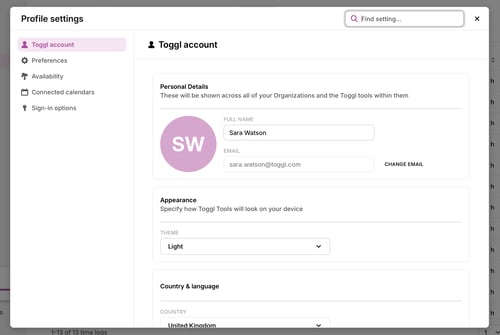
Personal Details
These details are shared across all of your Toggl tools and organisations.
-
Full name: Your display name shown to teammates.
-
Email: Your login email — click Change email to update it. A verification code will be sent to you to confirm the change.
Appearance
Specify how Toggl tools will look on your device. The Theme dropdown currently allows:
-
System: Uses your system setting.
-
Light
-
Dark
Country & Language
-
Country: Used for automatic public holiday detection where supported.
- Language: Toggl 2.0 will be translated into this language for you.
API token
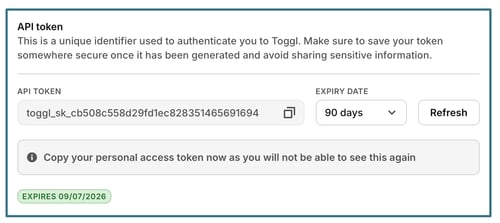
Your API token is a unique identifier used to authenticate you to Toggl via the API. Keep it private — sharing it gives others access to your account data. The token is masked by default, and the Expiry date field shows how long it is valid (e.g. 90 days). Click Generate to create a new token. Generating a new token immediately invalidates the previous one.
Password Actions
-
Two-Factor Authentication adds an extra layer of login security and shows as Disabled until configured.
-
Change Password lets you update your account password.
Account Actions
This section lets you manage your membership across organisations and workspaces. You can:
-
Leave a specific organisation
-
Permanently Close Account.
⚠️ Closing your account is irreversible. Export any data you need before proceeding.
Preferences
Customize how Toggl 2.0 looks and behaves for you.
Default page
Choose which page to show when you open Toggl 2.0. Your options are:
- Last Opened
- My Time
- Tasks
- Board
- Timeline
- Reports
Time Preferences
- Account Timezone: Your local timezone.
Calendar
Customize the behavior of the Toggl 2.0 Calendar by enabling or disabling:
-
Project color as planned time background
Language
Toggl 2.0 will be translated into this language for you. We currently support: German, English, Spanish, Estonian, French, Italian, Japanese, Portuguese (Brazil), Slovenian, Filipino, Chinese.
Time format
12-hour or 24-hour time format, a variety of duration formats to choose from and more.
- Time display format
- Date display format
- Duration display format
- Start week on.
Keyboard shortcuts
Email notifications
- Email me when a timer runs over 8 hours
- Email me a daily brief every weekday morning
This is separate from the reminders admins can set up for a team — see Time Tracking Reminders and Project Alerts for those.
Availability
Availability settings are scoped to a specific organisation. You can see which Organization by looking at the top-left corner of your screen.
They communicate to your team when you are and aren't working.
Working hours
Set your regular schedule so the team knows your availability. There are two options:
- Total weekly hours: Set a total number of hours per week
- Total daily hours:
- No schedule: Removes any working time restrictions.
- Standard 8-hour schedule: Applies a preset 8-hour workday.
- Custom schedule: Allows you to define your own unique hours for each day. Click + to add a new time block.
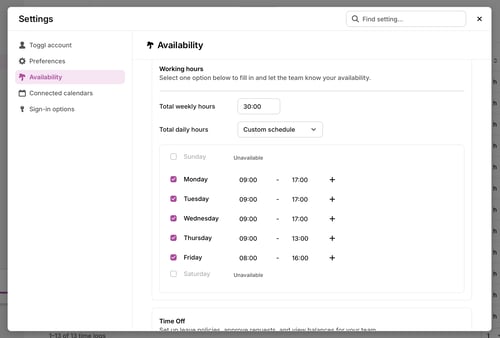
Once set, your non-working hours will appear greyed out on your calendar.
Time Off
If your team has the Time Off module enabled, you can record vacations, leave, and any other time away. Entries are shown to your team on the calendar.
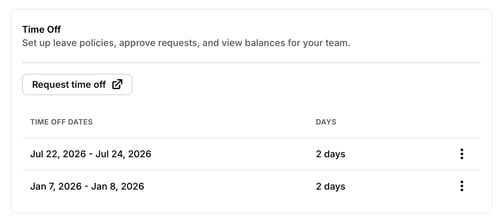
Click Request Time Off to go directly to the Time Off Module. Existing entries show the date range and number of days. Click the ⋮ menu next to an entry to delete it.
Public Holidays
Public holidays are automatically detected and shown on your calendar based on your country selection (originally set using your IP). No manual setup is required.
If you change the country you are working from, the public holidays shown on your calendar will automatically update to reflect your new location.
Please Note: Improvements to allow for more customization of public holidays are already planned for a future update.
Connected Calendars
Connect external calendars to privately view your events alongside your planned work. Events are visible only to you.
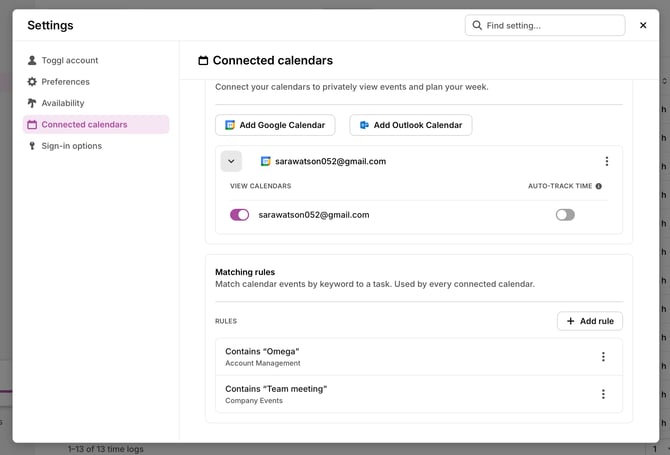
External calendar integrations
Click Add Google Calendar or Add Outlook Calendar and complete the sign-in flow to connect a calendar. Once connected, the account email appears in the list.
Click the downward chevron to expand the individual calendars where you can enable auto-tracking for it.
Click the ⋮ menu to Delete a calendar at any time.
Matching rules
Sign-in options
Enable or disable alternative sign-in methods for your account. Three options are available:
-
Google Sign In
-
Apple Sign In
-
Passkey Sign In.
Each shows as Disabled until you connect it.