---
title: Your Profile Settings in Toggl
description: Manage your Toggl Account settings in Toggl 2.0 — personal details, appearance, language, API tokens, password, availability, time off, and calendars.
---
[Skip to content](https://docs.toggl.com/your-profile-settings-in-toggl#main-content)
English
Show submenu for translations
[](https://docs.toggl.com/?hsLang=en)
Open main navigation
Close main navigation
- English
Show submenu for translations
- [Go to Toggl](https://focus.toggl.com/)
[Go to Toggl](https://focus.toggl.com/)
How can we help you?
- There are no suggestions because the search field is empty.
1. [Toggl 2.0 Knowledge Base](https://docs.toggl.com/?hsLang=en)
2. [Getting started](https://docs.toggl.com/getting-started?hsLang=en)
# Your Profile Settings in Toggl
## This article covers the full range of personal Toggl Account settings in Toggl — from profile details, appearance, and language, to API tokens, password/2FA, and account closure.
Manage your Profile Settings by going to [this link.](https://focus.toggl.com/settings)
### Toggl Account
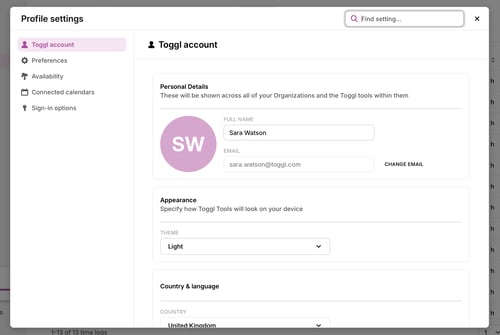
Your Toggl Account settings apply across all of your organisations and Toggl tools, not just Toggl Focus.
---
#### Personal Details
These details are shared across all of your Toggl tools and organisations.
- **Full name:** Your display name shown to teammates.
- **Email:** Your login email — click **Change email** to update it. A verification code will be sent to you to confirm the change.
---
#### Appearance
Specify how Toggl tools will look on your device. The **Theme** dropdown currently allows:
- System: Uses your system setting.
- Light
- Dark
---
#### Country & Language
- **Country:** Determines the national-holiday source when your organization’s Holiday calendar is set to **Each member’s own country**. It does not control your holidays when the organization uses **One country for everyone**.
- **Language:** Toggl 2.0 will be translated into this language for you.
---
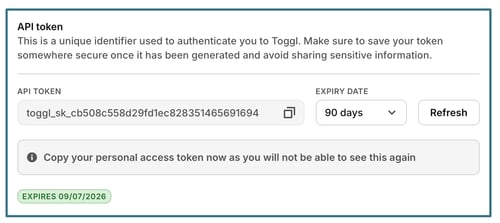
#### API token
Your API token is a unique identifier used to authenticate you to Toggl via the API. Keep it private — sharing it gives others access to your account data. The token is masked by default, and the **Expiry date** field shows how long it is valid (e.g. 90 days). Click **Generate** to create a new token. Generating a new token immediately invalidates the previous one.
---
#### Password Actions
- **Two-Factor Authentication** adds an extra layer of login security and shows as **Disabled** until configured.
- **Change Password** lets you update your account password.
---
#### Account Actions
This section lets you manage your membership across organisations and workspaces. You can:
- Leave a specific organisation
- Permanently **Close Account**.
⚠️ Closing your account is irreversible. Export any data you need before proceeding.
---
---
### Preferences
Customize how Toggl 2.0 looks and behaves for you.
---
#### Default page
Choose which page to show when you open Toggl 2.0. Your options are:
- Last Opened
- My Time
- Tasks
- Board
- Timeline
- Reports
---
#### Time Preferences
- **Account Timezone:** Your local timezone.
---
#### Calendar
Customize the behavior of the Toggl 2.0 Calendar by enabling or disabling:
- Project color as planned time background
---
#### **Language**
Toggl 2.0 will be translated into this language for you. We currently support: German, English, Spanish, Estonian, French, Italian, Japanese, Portuguese (Brazil), Slovenian, Filipino, Chinese.
---
#### Time format
12-hour or 24-hour time format, a variety of duration formats to choose from and more.
- Time display format
- Date display format
- Duration display format
- **Start week on** — the first day of the week in the **Week** calendar view and in date pickers. It doesn't change the **5 Days** view, which follows your working hours (see **Working hours** below).
---
#### Keyboard shortcuts
Choose whether you want to use keyboard shortcuts in Toggl 2.0.
---
#### Email notifications
Choose which reminder emails Toggl 2.0 sends you.
- Email me when a timer runs over 8 hours
- [Email me a daily brief every weekday morning](https://docs.toggl.com/what-is-the-daily-brief-email-?hsLang=en)
This is separate from the reminders admins can set up for a team — see [Time Tracking Reminders and Project Alerts](https://docs.toggl.com/time-tracking-reminders-and-project-alerts?hsLang=en) for those.
#### In-app notifications
Choose which updates appear in your notifications tray
- Notify me about task assignments
- Notify me when I'm added to projects
- Notify me about in-app project alerts
---
### Availability
[Availability](https://docs.toggl.com/availability-settings-time-off-work-hours-and-public-holidays?hsLang=en) settings are scoped to a specific organisation. You can see which Organization by looking at the top-left corner of your screen.
They communicate to your team when you are and aren't working.
---
### Working hours
Set your regular schedule so the team knows your availability. There are three options:
- **Total weekly hours:** Set a total number of hours per week
- **Total daily hours:**
- **No schedule:** Removes any working time restrictions.
- **Standard 8-hour schedule:** Applies a preset 8-hour workday.
- **Custom schedule:** Allows you to define your own unique hours for each day. Click + to add a new time block.
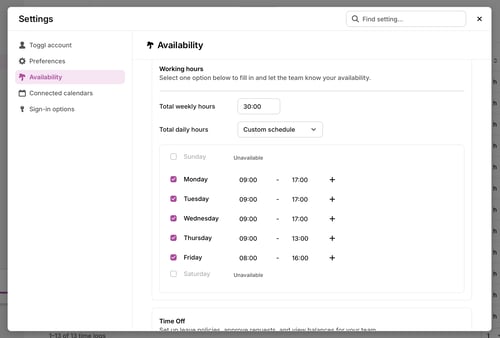
Once set, your non-working hours will appear greyed out on your calendar.
Your working days also decide what the **5 Days** calendar view shows: Sunday to Thursday if you work Sundays and not Fridays, and Monday to Friday otherwise. See [Availability Settings](https://docs.toggl.com/availability-settings-time-off-work-hours-and-public-holidays?hsLang=en).
---
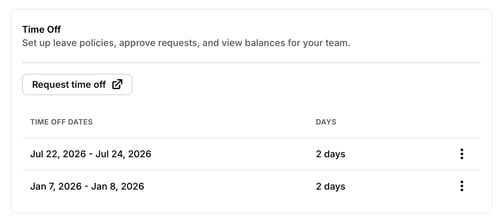
### Time Off
On a paid plan you can record vacations, leave, and any other time away. Entries show on the Timeline and calendar for your team.
Click **Request Time Off** / **Log time off** to open the Time Off page, where you can add dates, see **Who’s out this week**, and open the holiday calendar. Existing entries show the date range and number of days. Click the ⋮ menu next to an entry to delete it.
With [Time Off Pro](https://docs.toggl.com/time-off-pro?hsLang=en), this is a request against a policy and balance, and may need approval. Without Time Off Pro, it is a date-based entry that reduces capacity.
---
### Public Holidays
Your observed holidays come from your organization’s Holiday calendar. If the organization uses **Each member’s own country**, the country in **Country & Language** determines the national holidays shown. If it uses **One country for everyone**, the country selected by an organization admin applies instead. Under **Availability**, you can see the dates you observe, the dates you do not observe, and why each date applies. Holidays reduce available capacity and do not need a Time Off request. See [Organizational Holiday Calendar](https://docs.toggl.com/organizational-holiday-calendar?hsLang=en).
---
---
### Connected Calendars
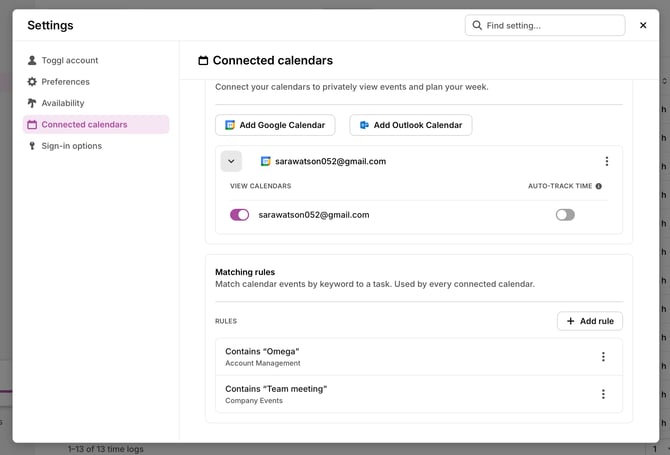
Connect [external calendars](https://docs.toggl.com/managing-calendar-events?hsLang=en) to privately view your events alongside your planned work. Events are visible only to you.
---
#### External calendar integrations
Click **Add Google Calendar** or **Add Outlook Calendar** and complete the sign-in flow to connect a calendar. Once connected, the account email appears in the list.
Click the downward chevron to expand the individual calendars where you can enable auto-tracking for it.
Click the **⋮ menu** to Delete a calendar at any time.
---
#### Matching rules
Match calendar events by keyword to a task, project, tags or billable status. Rules apply across all your connected calendars. A rule can be saved without a task or project if it only sets tags or billable status. [More here](https://docs.toggl.com/managing-calendar-events?hsLang=en)
---
---
Sign-in options
Enable or disable alternative sign-in methods for your account. Three options are available:
- **Google Sign In**
- **Apple Sign In**
- **Passkey Sign In**.
Each shows as **Disabled** until you connect it.
- [Getting started](https://docs.toggl.com/getting-started?hsLang=en#main-content)
- [Quickstart Guides](https://docs.toggl.com/getting-started?hsLang=en#quickstart-guides)
- [Set up your Workspace](https://docs.toggl.com/getting-started?hsLang=en#set-up-your-workspace)
- [Toggl Guides for Toggl Track and Toggl Plan users](https://docs.toggl.com/getting-started?hsLang=en#toggl-guides-for-toggl-track-and-toggl-plan-users)
- [Using Toggl, page by page](https://docs.toggl.com/using-toggl-page-by-page?hsLang=en#main-content)
- [Timer](https://docs.toggl.com/using-toggl-page-by-page?hsLang=en#timer)
- [Features](https://docs.toggl.com/features?hsLang=en#main-content)
- [Single Sign On](https://docs.toggl.com/features?hsLang=en#single-sign-on)
- [Analyze](https://docs.toggl.com/features?hsLang=en#analyze)
- [Time Off](https://docs.toggl.com/features?hsLang=en#time-off)
- [Settings](https://docs.toggl.com/features?hsLang=en#settings)
- [Toggl Apps](https://docs.toggl.com/toggl-apps?hsLang=en#main-content)
- [Desktop](https://docs.toggl.com/toggl-apps?hsLang=en#desktop)
- [Browser Extension](https://docs.toggl.com/toggl-apps?hsLang=en#browser-extension)
- [Account & Billing](https://docs.toggl.com/account-billing?hsLang=en)
- [API & Integrations](https://docs.toggl.com/api-integrations?hsLang=en)
- [Troubleshooting & FAQs](https://docs.toggl.com/troubleshooting-faqs?hsLang=en#main-content)
- [My Toggl Acount](https://docs.toggl.com/troubleshooting-faqs?hsLang=en#my-toggl-acount)
- [Members](https://docs.toggl.com/troubleshooting-faqs?hsLang=en#members)
Copyright © 2026. Toggl. [Privacy Policy](https://toggl.com/legal/focus/privacy/)