
Capacity planning shows how many hours each person on your team has free, and who has too much work. You see this on the Timeline, a page in Toggl that shows each person's planned work day by day. Use it to decide who does what, and to check whether your team has time for new work.
After reading this guide, you'll know which setup fits the way your team works and how much effort it takes. The Timeline requires Starter, Premium or Enterprise. Some features also need the Capacity Management Add-on, an extra you can add to your plan. They're listed in "Plans and add-ons" near the end.
How Toggl works out capacity
Toggl compares two numbers for each person:
- Available hours are their working hours, minus public holidays for their country and any time off. If someone's working hours aren't set, Toggl uses 8 hours a day, Monday to Friday.
- Planned hours are the hours you expect their tasks to take (the estimate), for tasks given to them (assigned). Meetings from their connected Google or Outlook calendar count too.
On the Timeline, you see each person's free time for the period and for each day. If someone has more planned than they have time for, the extra hours show in red.
A few things to know about calendar meetings:
- To hide meetings from the Timeline, click the gear icon on the Timeline and turn off Calendar events.
- All-day events don't count.
- Events marked Free or Out of office count, unless the person turns them off in the settings for their connected calendar.
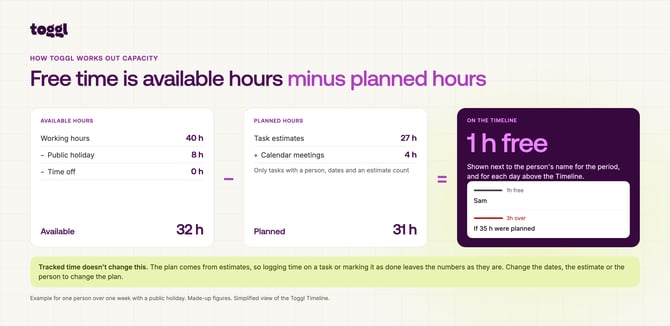
What shows on the Timeline
A task only shows on someone's Timeline when it's assigned to them and has a start date, an end date and an estimate. Dates or an estimate on the project alone aren't enough.
An estimate can be a Total estimate, for example 6 hours for the whole task, or a Per day estimate, for example 1 hour every day. Toggl spreads a Total estimate evenly over the working days between the dates. It skips weekends and public holidays, but not time off. If someone is off during a task, move the dates or assign the work to someone else.
The Timeline shows what's planned, not what's been tracked. Logging 3 hours on a 6-hour task, or marking it as done, won't change the plan. To free up the time, shorten the dates or lower the estimate. If work is late, its hours stay on the old dates until you move them.
Holidays and time off
Public holidays and time off take hours away from each person's available time, on every plan.
Public holidays come from your organization's holiday calendar. By default, each person gets the national holidays for the country in their profile. If your team works in one country, an admin can choose one country for everyone instead. Admins manage this in the Holiday calendar settings, where they can also:
- Add company closures, for a full day or a half day
- Remove or rename national holidays
- Import dates from a CSV file
- Set exceptions, for example when a team doesn't observe a holiday
Time off is logged from Time off in the sidebar. On paid plans, each person can log their own time off, and admins can log dates for a team member from the Members page. The Time Off Management Add-on turns this into a team-wide system, with requests and approvals, balances, time-off types and policies, and time off reports.
Four questions to pick a setup
Go through these in order:
- Is the work confirmed? If it is, set it up in a normal project. If it's work you haven't won yet, such as a proposal for a new client, use a draft project.
- Do you know who will do the work and roughly when? If you do, staff by person, which means assigning each task to the person doing it. If you only know how many hours a type of job needs (for example, 20 hours of design), plan by role and choose people later. Role hours show in reports, not on the Timeline.
- How is the work done?
- In stages by different people, such as design then build, or preparation then review: one task with a subtask for each stage. A subtask is a smaller task inside a task.
- By several people at the same time: one shared task, with the hours split between them.
- By one person: one task.
- Does the same set of work repeat, for example every month or quarter? If every round has the same tasks, stages and people, use a recurring project. If dates or people change between rounds, import the year's work as dated tasks. If the work doesn't repeat, add each piece of work as a task with its own dates when it arrives.
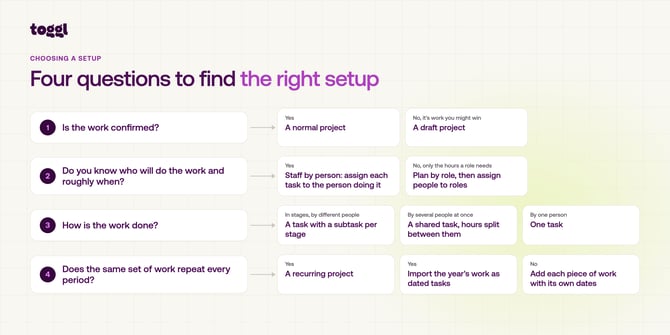
The setups at a glance
Low effort fits into normal weekly work. Medium means preparing it over a few sessions.
| Setup | Suits work that… | Effort to set up | Ongoing effort | What you see on the Timeline |
|---|---|---|---|---|
| One task, staffed by one person | has a known person and timing | Low | Low | Each person's free and overbooked time |
| A task with a subtask per stage | passes between people, such as design then build | Medium | Low to medium | Each person's hours in the right weeks |
| A shared task | several people do together over the same dates | Low | Low | Each person's share, spread across the whole task |
| A recurring project | repeats with the same tasks, stages and people every month or quarter | Medium, once | Low | Upcoming months or quarters already in the plan |
| The year's work imported as dated tasks | repeats, but dates or people change each time | Medium, once a year | Low | The whole year in the plan from the start |
| Plan by role | needs a known number of hours for a type of job before you know who will do it | Medium | Low | Nothing. Role hours show in reports. |
| A draft project (add-on) | you haven't won yet, such as a proposal for a new client | Low | Low | Its hours added to the plan when you switch on Show drafts |
Most teams combine setups. For example, a team might assign client work to people in normal projects, keep possible new clients in draft projects, and run monthly retainers as a recurring project.
Work done in stages
If work passes from one person to another, give each stage its own subtask so each person's hours show in the right weeks. For example, a quarterly report for a client could look like this:
- Project: Client A Ltd
- Task: Quarterly report – Q1 2027, 12–23 April
- Subtask: Preparation, assigned to Anna, 12–16 April, 6 hours
- Subtask: Review, assigned to Sam, 19–20 April, 2 hours
- Task: Quarterly report – Q1 2027, 12–23 April
The same works for design then build, draft then edit, or development then testing. The image below is a simplified version of the Timeline.
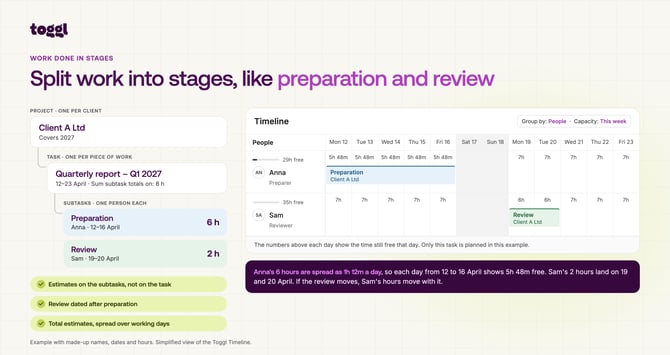
To set it up:
- In the project, create one task for each piece of work, with dates covering all its stages.
- Add a subtask for each stage. Give each one its own person, dates and Total estimate, and date later stages after earlier ones. Don't add an estimate to the task itself, or the hours count twice.
- If you want the task to show the total of its subtasks, open the task's ⋯ menu and switch on Sum subtask totals. This shows the total without adding hours to anyone's plan.
- If one stage moves, move the later subtasks too. They don't move together.
Use Total estimates here, not Per day. A Per day estimate counts the full amount on every working day, so 5 hours per day over a week adds up to 25 hours.
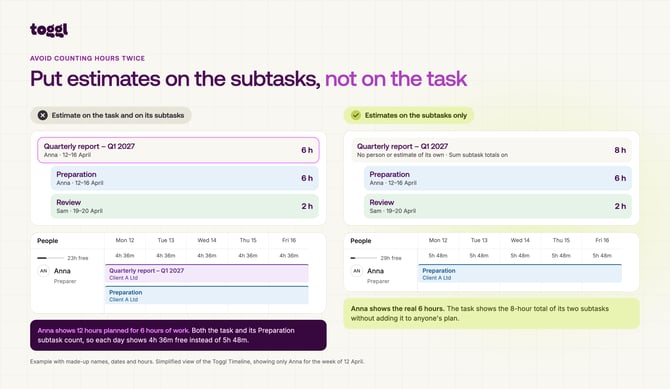
Shared work
If several people work on the same thing over the same dates, assign them all to one task. The estimate is split evenly between them by default. To split it by hours or percentage instead, open the task and set a custom split in its Allocation section. Custom splits work for up to 6 people. See Tasks in Toggl.
Repeating work
For work that comes back every month or quarter, like reports, filings or retainers, you have two options:
- A recurring project. Each round of the work, for example each month, is called a period. The project's template holds the tasks, subtasks, estimates and people, and Toggl copies it into each new period. The Timeline shows hours for future periods even before they're created. When a period is done, a manager or admin starts the next one, or it starts by itself after the end date. Unfinished tasks stay in the old period. Changes to the template only affect periods that haven't started.
- The year's work imported as dated tasks with the CSV importer. The import can set dates, people, Total estimates and subtasks, and it can update tasks that already exist. The whole year shows on the Timeline, and you can change each month or quarter on its own.
Toggl can also repeat a single task, which suits simple repeating work done by one person. A repeating task can't have subtasks, so it doesn't suit work done in stages.
Planning by role
If you know how many hours a type of job needs before you know who will do it, plan by role:
- Create roles for the jobs in your team, such as designer or developer, and give each member a role. These roles describe the work people do. They don't change what people can see or edit in Toggl.
- On the project, set the estimate source to Roles. This means the project's estimate comes from hours per role, not from its tasks. Then enter the hours for each role.
- Assign members to those roles on the project.
When someone tracks time on that project, Toggl records it against their role, and the Summary report can break tracked hours down by role. Role estimates don't show on the Timeline. To see who is busy, you still need to assign tasks to people. If someone is planned both by role and by task, their Timeline shows only the task hours.
One-off work and work you haven't won yet
Add one-off work as a dated task with an estimate when it arrives. It shows on the person's Timeline immediately.
Work you haven't won yet, such as a proposal for a new client, can go in a draft project with dated, estimated tasks. To add its hours to the plan, click the gear icon on the Timeline and switch on Show drafts. This shows how the extra work would affect your team before you say yes. Only the person who created the draft and admins can see it.
Reviewing capacity in reports
Use the Timeline to plan and assign work day to day. To review the whole team each week, or look further ahead, use the reports:
- The Workload report compares each person's tracked time with their available hours and shows overtime in red. You can break each person's row down by client or project. Team insights shows who is over capacity and who is on leave.
- The Utilization report shows how much of your team's available time goes on billable work, against a target you set.
- With the add-on: forecasts in reports
- With the Capacity Management Add-on, the Workload and Utilization reports also show planned work (Scheduled) and draft projects (Draft), using the full estimates on their planned dates. They also show Forecast capacity and Forecast utilization. These subtract the time already tracked from each estimate and spread the rest from today to the task's end date. Use them to check whether unfinished work still fits before its deadline. The Timeline can't show this, because it keeps each estimate on its original dates.
Example: one person's week
This is how a week could look for Anna, a designer who works 35 hours (7 a day) and has 1 hour of meetings a day. The clients and figures are made up, and the image is a simplified version of the Timeline.
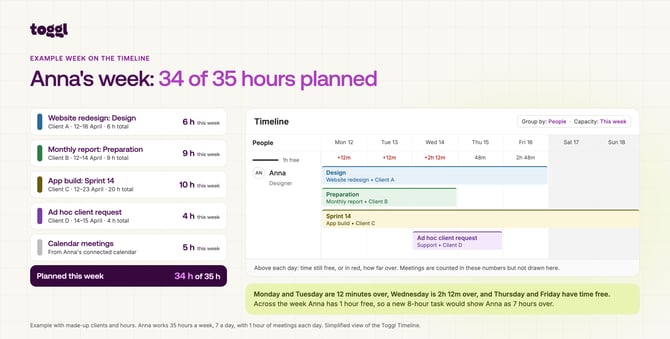
| Work | Dates | Estimate | Hours this week |
|---|---|---|---|
| Website redesign, Client A: Design | 12–16 April | 6 hours | 6 |
| Monthly report, Client B: Preparation | 12–14 April | 9 hours | 9 |
| App build, Client C: Sprint 14 | 12–23 April | 20 hours | 10 |
| Ad hoc client request, Client D | 14–15 April | 4 hours | 4 |
| Calendar meetings | 5 | ||
| Planned | 34 | ||
| Available | 35 |
Across the week Anna has 1 hour free. Day by day, Monday to Wednesday are overbooked (most on Wednesday), and Thursday and Friday have free time. If a new 8-hour task is added with dates inside this week, Anna shows as 7 hours overbooked, and the Timeline shows who else has free time for it.
The Capacity Management Add-on
Every paid plan shows each person's capacity for this week and this month. The Capacity Management Add-on is for teams that plan further ahead. It adds:
- Capacity beyond this month, for future periods
- Capacity by team: group the Timeline by team to see each team's total and who has free time
- Draft projects, for work you haven't won yet
- Forecasts in the Workload and Utilization reports (Premium and Enterprise)
- Project roles on the Starter plan (Premium and Enterprise already include them)
- Adding or removing dates in the holiday calendar on the Starter plan
It works with the estimates, tasks and projects you already have. Owners and admins can try it free for 30 days from the Capacity Management page in Toggl.
Plans and add-ons
| Feature | Available on |
|---|---|
| Your own capacity on the Timeline for this week or this month | Starter, Premium and Enterprise |
| Everyone's capacity on the Timeline for this week or this month | Starter, Premium and Enterprise |
| Recurring projects | Starter, Premium and Enterprise |
| Future periods, grouping the Timeline by team, and draft projects | Capacity Management Add-on |
| Estimating and assigning people by role on projects | Premium and Enterprise, or Starter with the Capacity Management Add-on |
| Workload and Utilization reports | Premium and Enterprise |
| Forecasts in the Workload and Utilization reports | Premium and Enterprise, with the Capacity Management Add-on |
| Importing tasks with the CSV importer | All plans, for workspace admins |
| Logging your own time off | Starter, Premium and Enterprise |
| Adding or removing dates in the holiday calendar, and importing them from CSV | Premium and Enterprise, or Starter with the Capacity Management Add-on |
| Holiday exceptions for teams or people | Premium and Enterprise |
| Time off requests, approvals, balances and policies | Time Off Management Add-on |
Setup and upkeep checklist
| When | What | Effort |
|---|---|---|
| Once | Ask each team member to check their working hours, country and calendar settings in their profile. Each person sets these themselves. | Low |
| Once, then each year | Set up the holiday calendar: choose each person's own country or one country for everyone, and add company closures | Low |
| Once | Agree a standard estimate for each type of work you plan | Medium |
| Once, then each month, quarter or year | Set up the work with its subtasks, people and estimates: a recurring project template, an import, or tasks added by hand | Medium at first, then low |
| Weekly | Review the Timeline and the Workload report. Add one-off work, move dates that slipped, shorten work that finished early, and reassign work when someone is off or overbooked. | Low |
| Each month or quarter | Compare estimates with tracked hours and adjust your standard estimates | Low |
Your first estimates won't be exact. Compare them with tracked hours and adjust them over time.