
Our browser extension for Chrome and other chromium browsers lets you track time in your favourite web tools and wherever you are on the web.
Installing the extension
- Open the extension in the Chrome Web Store
- Click Add to Chrome
- Click the Toggl icon next to your address bar and log in with your Toggl account
Note: Microsoft Edge (as well as other Chromium-based browsers) have support for Chromium extensions, so you can use the Toggl browser extension on those browsers by downloading it from the Chrome Store.
Toggl extension icon
Once you install the add-on, a Toggl icon will be added to the right of the address bar.
Dropdown timer
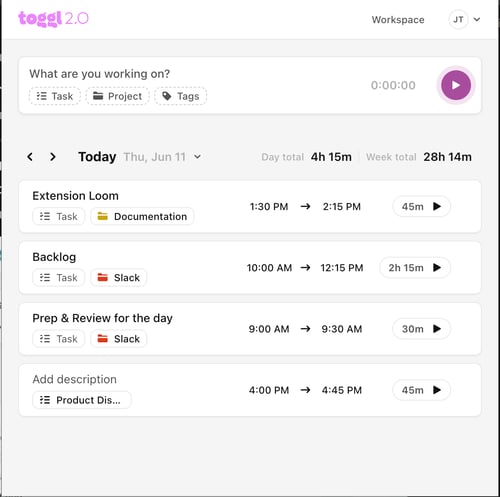
Click on the Toggl browser extension to reveal the timer's dropdown. Here you can:
- Create a new time log in timer mode
- See total time tracked for the day and week
- See existing time entries for the past few days, and edit or delete them by clicking on them
- Click on the Toggl icon on the top left to visit our WebApp
- Change your Workspace
- Go to your Settings & Integrations by clicking on your initials
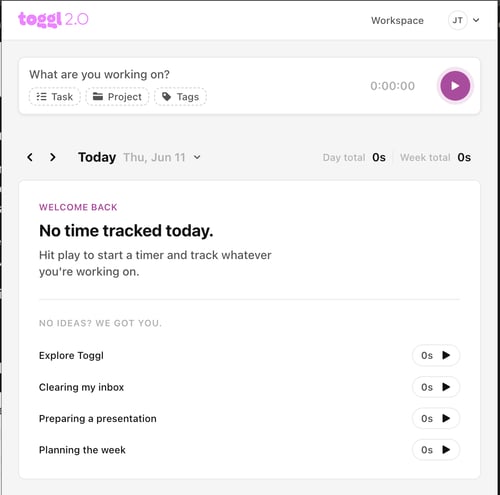
Suggested entries
When you open the extension, you'll see a set of suggested time entries. For newer accounts, these are proposed entries to help you get started quickly. They are not saved until you actively start and stop a timer.
Once you have enough tracked history, these proposals are replaced by recently tracked items — entries you've logged before that you can quickly reuse without typing anything.
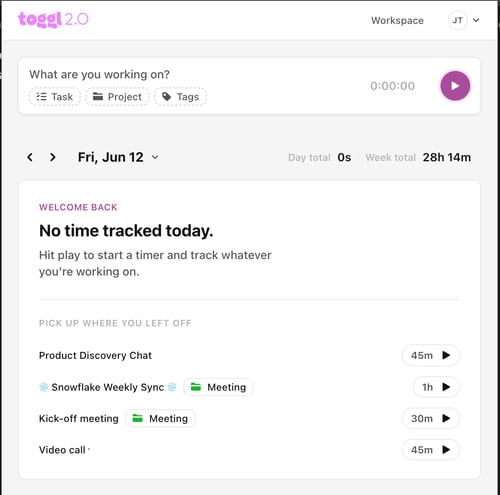
- We look at everything you tracked in the last 7 days.
- We pull out your 4 most recent tasks. If you worked on the same task several times, it only shows up once (with the latest version), so the list stays clean.
- We only include real, finished tasks, nothing still running, and nothing that wasn't tied to a task (so there are no blank rows).
All time entry fields available in the web app (task, project, tags) are supported in the extension as well. The extension’s task picker lists the same tasks as the web app: tasks assigned to you, tasks assigned to your teams, and unassigned tasks. If you don’t see team or unassigned tasks, update the extension to the latest version.
General
The General tab has a number of basic settings.
Profile Settings
- Access your profile quickly. Here you can select your timezone preferences, country and other profile information.
Appearance
- Select how the Toggl extension will appear on your device. Choose between Dark and Light modes.
Start timer behaviour
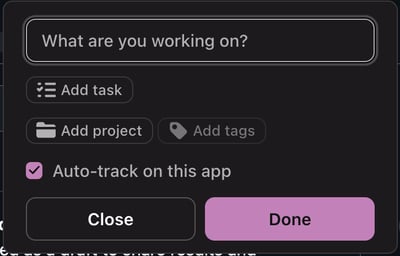
Choose what appears after you click Start timer on a supported page: Full screen, Small pop-up, or Nothing. Starting a timer and logging time you’ve already spent use the same popup, so the layout you choose applies to both.
Activity Timeline
Track browsing activity
Record the sites you visit in the background to help you track time. Your activity stays on this device.
Timeline grouping
How browsing activity is grouped into blocks.
-
Smart groups related visits into sessions;
-
Fixed uses 15-minute slots.
Learn more about Activity Timeline here.
Help us improve
Share usage data: Help improve Toggl 2.0 by sharing usage data. We collect feature usage and performance data only.
Integrations
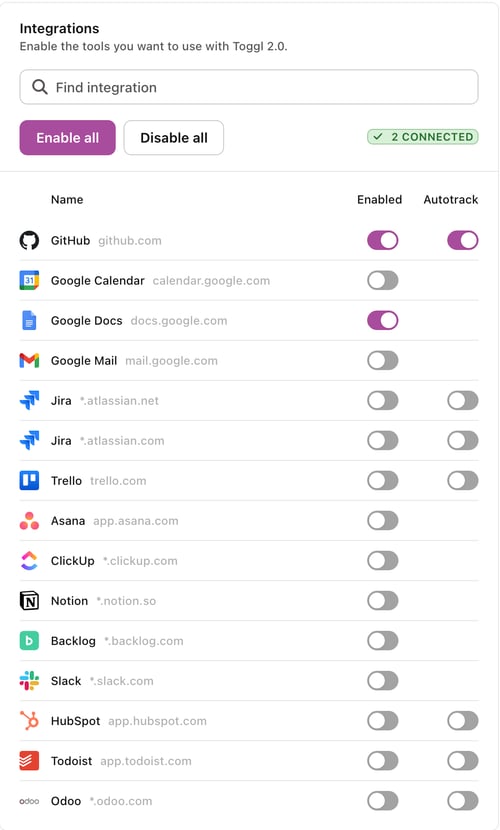
The extension has a built-in integrations panel that surfaces your available native integrations directly inside the dropdown. A curated list of popular integrations is shown by default (e.g. GitHub, Google Calendar, Notion).
- Enable an integration by toggling it on directly from the panel
- See all integrations by pressing "See all" — this shows every available native integration
- Hide the panel if you don't need it — you can bring it back at any time
You can also enable or disable all integrations with one click from the Integrations settings.
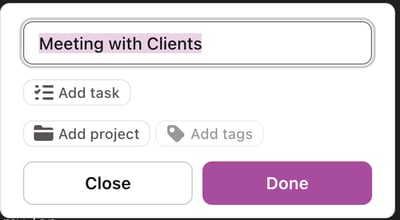
When tracking time by clicking the Toggl button in another app, the extension will match the item name as a suggestion, which you can confirm. For example, if you have a calendar event called "Meeting with Clients" and press the play button, the extension will automatically populate your Time Log with that name. Press "Done" to confirm and start tracking.
-1.png?width=400&height=111&name=Screenshot%202025-12-15%20at%2011_15_07%20PM%20(1)-1.png)
Currently supported integrations:
- Asana
- Backlog
- ClickUp
- GitHub
- Gmail
- Google Calendar
- Google Docs
- HubSpot
- Jira — see below
- Notion
- Odoo
- Slack
- Todoist
- Trello
- Zendesk
Using a tool that isn’t listed? You can add your own integration from the extension’s side panel. See Mapping Page Data Into Toggl.
Jira integration (available on the Premium plan)
The Jira integration connects Toggl directly to your Jira workspace, and the browser extension adds a timer button inside every Jira task — so your team can log time without switching tabs or manually recreating project structure.
What the integration does:
- Syncs your Jira projects, issues, sub-tasks, labels, and assignees into Toggl automatically. Sub-tasks appear as subtasks nested under their parent task.
- Shows a preview of what will sync before the first import
- Displays a success log of what came through
- Reflects subsequent Jira changes in Toggl automatically
- Maps assignees via email — missing users can be invited with one click
What the browser extension adds for Jira:
- Autofills the task title, project, and tags when you start a timer from inside a Jira task
- Supports manual time logging (not just the play button) — log time directly from the Jira issue without starting a live timer
- Quick-log presets: 15 min, 30 min, 1h, 2h
- Drag the play button to log a custom duration
To connect Jira, go to Settings > Integrations in the web app and select Jira.
The sync is one-way (Jira → Toggl), and custom field mapping is not included in the current version. You can limit what gets imported with a JQL filter during setup. See Jira Integration in Toggl.
Starting a timer with nothing set up in Toggl
You don’t need a task, project or tags in Toggl before the extension is useful. Start a timer from a supported tool, such as a Jira ticket, a Zendesk ticket, a GitHub issue or a Notion page. Toggl matches or creates what it needs, so the entry is ready for reporting.
What happens when you start a timer
The extension doesn’t create anything itself. It reads the page and sends the names it found to Toggl, which does the matching and creating in one step:
- Match first. Toggl looks for an existing task by name. If the page also gave a project or tags, those narrow the search, so “Fix login” in Project A won’t match “Fix login” in Project B.
- Create what’s missing. If nothing matched, Toggl creates the missing task, project or tags, as far as your organization’s Page data settings allow (see below).
- Fall back cleanly. If something can’t be created, you still get a normal time entry with your description, the billable flag, and the project if it already exists and you can see it. Only the task is left off.
Tracking never fails because of this. At worst you get a plainer entry, and you never lose the timer.
Page data settings (admins only)
Admins decide how far the extension may go with what it finds on a page. Open the extension, click the chevron in the top-right corner, choose Integrations, then expand Page data → Show what the extension may attach. Tasks, projects and tags each have their own setting:
- Attach or create (default): match what exists and create what’s missing.
- Attach existing: match only. A value with no match is skipped.
- Ignore: don’t use the page value at all, even if it already exists in Toggl.
Each setting is independent, so an organization can allow new tasks but only ever match existing projects. The choice applies to everyone in the organization. Members can see it, but only admins can change it.
Page data settings are separate from mapping. Mapping decides what the extension reads from the page. Page data decides what it may do with what it read. To change what a tool reads, see Mapping Page Data Into Toggl.
What each tool maps
Every integration maps a task name. Projects and tags are mapped only where the page shows them:
- Asana, Todoist: task, project, tags
- Backlog, ClickUp, Jira, Slack, Trello: task, project
- GitHub: task, tags (issue labels)
- Google Calendar, Google Docs, Gmail, HubSpot, Notion, Odoo, Zendesk: task name only
None of this is fixed. Each integration’s mapping is a JSON definition you can edit from the extension’s side panel. A tool that only maps a name today can be set up to map a project or tags from anything else on the page. You can also define a mapping for a tool Toggl doesn’t have a native integration for. See Mapping Page Data Into Toggl for the full walkthrough.
Contextual tracking prompts
When you navigate to a site with an enabled native integration, the extension surfaces a Track time button directly on the page — no need to open the extension manually. Press it, select what you want to track, press "Done", and the timer starts.
What happens when you start a timer?
The extension doesn’t create anything itself. It reads the page, sends the names it found to Toggl, and the matching and creating happen in one step.
- Match first. Toggl looks for an existing task by name. If the page also gave it a project or tags, those narrow the search — “Fix login” in Project A won’t match “Fix login” in Project B.
- Create what’s missing. If nothing matched, the missing task, project or tags are created — subject to the Page data settings below.
- Fall back cleanly. If something can’t be created, you still get a time entry with your description, the project (where it already exists and you can see it) and the billable flag. Only the task is missing. This is new: the fallback used to be a bare entry, so entries now report properly even when nothing was created.
Auto-track
For select integrations, you can enable auto-track. When active, the extension automatically starts a timer as soon as you visit a supported site. The timer stops automatically when you close the tab.
To enable auto-track:
- Open the integrations panel in the extension
- Find the integration you want to enable it for
- Toggle auto-track on
Auto-track is currently available for a limited set of integrations. Support for additional integrations will be added over time.
Integration discovery prompts
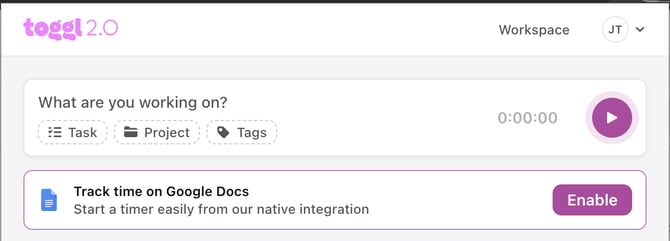
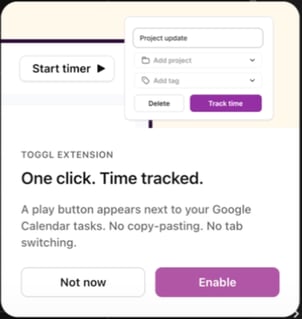
From time to time, when you visit a site that has a compatible native integration available but not yet enabled, the extension will show a small prompt asking if you'd like to enable it. Press Enable to turn it on, or Not now to dismiss it. This prompt appears a limited number of times per integration to avoid being intrusive.
Real-time sync
The extension stays in sync with the web app in real time. Changes made in the web app — new tasks, updated entries, workspace changes — are reflected in the extension without needing a manual refresh.