
Open Admin Settings from the sidebar or your profile menu. Here you can set up workspace rules, PDF report branding, rates, alerts and app connections. You can also go to the Settings by clicking here.
A search box above the section list finds a setting by its name. Older names still match: searching for Utilization or Margin target opens Targets.
Organization
Only organization admins see this group. Organization settings apply to every workspace in the organization.
Overview
- Organization name and image: rename the organization and upload its image. The image is also your logo on invoices and PDF exports. See Custom Logo and PDF Watermark on Report Exports.
- Owner: shows the organization owner. Use Request ownership transfer to hand ownership to another organization admin. The organization needs at least one other admin first, and everyone involved is asked to confirm.
- Organization security and compliance:
- Enforce 2FA requires every member who logs in with email and password to use two-factor authentication. It takes effect the next time they log in.
- AI features is on by default. Turning it off disables Toggl AI for everyone in the organization.
- Modules: start a trial, subscribe, or manage who has access to add-on modules such as Time Off.
- Actions → Delete Organization: only the owner can do this, and only once they are the organization’s last remaining member.
Deleting the organization permanently deletes its data in every Toggl product it uses (Toggl Track, Toggl Plan, Toggl Work and Toggl 2.0).
Single sign-on
Set up SAML single sign-on for your email domain. See Setting up and managing single sign-on (SSO).
Available on the Premium and Enterprise plans.
Holiday calendar
See Organizational Holiday Calendar.
Billing
For admins who manage the subscription. It has three tabs:
- Overview: your plans, licenses (with Manage licenses), billing cycle and modules.
- Details: billing details and payment method.
- History: invoices.
See Understanding licenses in Toggl 2.0.
Explore plans
Compare plans (monthly or yearly), see the full feature comparison, upgrade, and browse modules.
Workspace Setup
Access
Control which workspace access levels are permitted to manage clients, tags, and statuses.
Three permissions are available:
- Allow members to manage clients
- Allow members to manage tags
- Allow members to manage statuses
For each permission, choose one of the following access levels:
| Access level | What it allows |
|---|---|
| Full access | All access levels can create, rename, archive, and delete |
| Edit access | All access levels can create and rename |
| Restricted access | Only admins and managers can manage |
| Custom access | Set custom access per access level |
Click the ▶ arrow next to any permission row to expand it and configure which access levels are allowed.
Audit Log
Click Audit Log to go to the Audit Log page and view a complete history of changes in their organization — who changed what, and when.
Tags
Tags are flexible labels you can add to tasks, projects, and time logs that allow you to filter across your views.
The Tags table in Admin settings → Tags is where you manage the workspace list:
- Search by name with Find tag…
- Sort by name
- Click New tag to create one, or enter several names separated by commas
- Click a tag’s name to rename it inline
- Use the ⋮ menu to edit its color and name or delete it
- Select several tags to delete them in bulk
- Undo a deletion from the toast that appears
Tags created here are available to assign to any task, project, or time log in the workspace.
Deleting a tag removes it from every task, project, and time log it’s on. Reports and saved filters that use it will change.
For the full walkthrough, see Tags in Toggl 2.0.
Statuses
Statuses let you track where each task is in your workflow. Four statuses are included by default: 🗒️ Todo, 🚧 In Progress, 🚫 Blocked, and ✅ Done.
- Click + New status to add a custom status.
- Click the ⋮ menu next to any status to edit or delete it.
Required Fields
Make specific fields mandatory when creating or editing tasks or time logs, ensuring consistent data across the workspace. Here is what can be made mandatory for each item.
-
Tasks: Project and Tag
-
Time Logs: Project, Task, Time Log Description and Tags. A time log on a tagged task already counts as tagged.
Check the box next to a field to make it required.
Lock billable status to the task: Time logs always inherit billable status from their task; members can't change it per time log.
Custom Fields
Define custom fields for your workspace's projects, tasks and members. You can add up to 50 fields per item.
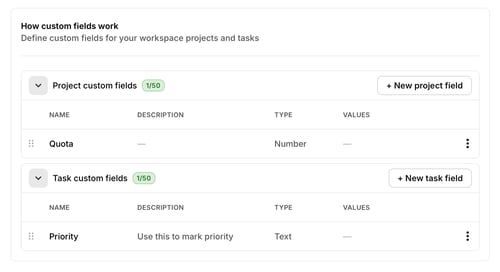
- Click + New to add a custom field.
- Click expand to see the full list, or use the ⋮ menu to edit or delete a field.
When creating a custom field, you can set a name, a description, and a type (number, text, multi-select, etc.).
PDF Reports
Choose how your Summary and Time logs reports look when you export them as PDF. These settings only change the header and footer of the PDF. CSV and XLSX exports aren't affected.
- Organization logo on the top right corner: click Upload logo in Organization Overview (or Edit logo in Organization Overview if a logo is already set) to add or change your organization's logo. Every workspace in the organization uses the same logo. Only organization admins see this option.
- Show "Report generated by Toggl" footer note: switch this off to remove the footer note from exported PDFs. This setting is per workspace, so if you have several workspaces, change it in each one.
For the full walkthrough, see Custom Logo and PDF Watermark on Report Exports
PDF report branding is available on Starter, Premium and Enterprise. On the Free plan the section is visible but locked, and exported PDFs always show the Toggl mark and the footer note.
Tracking & Rates
Alerts and Reminders
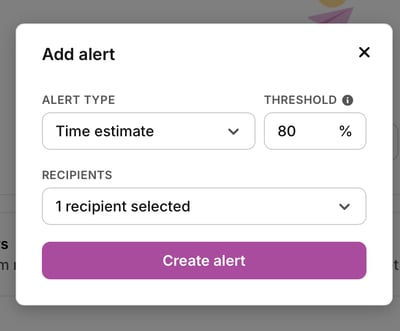
- Alerts — Set a default on projects based on time estimate or fixed fee, and get alerted by email when thresholds are reached. Project managers can customize this under the project overview.
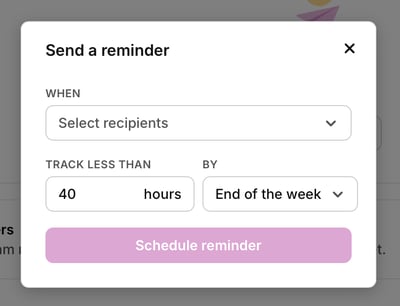
- Reminders — Email team members when their tracked time falls below the target.
Targets
- Utilization target — The minimum percentage of billable time expected from each team member.
- Margin target — The minimum profit margin expected from each project.
Billable rates
You can set hourly billable rates at four levels, listed from lowest to highest priority:
- Workspace — Default rate for all projects and members
- Member — Overrides the workspace rate
- Project — Overrides the workspace and member rates
- Project member — Overrides everything else
When setting a rate, you can specify:
- Hourly rate
- Currency
- The date the rate applies from
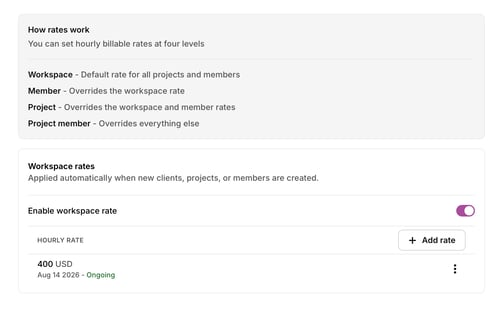
A list of existing rates will be displayed as well, and you can edit or delete them as needed.
Default Currency
New clients, projects, and rates use your workspace's default currency, and reports consolidate into it.
Changing the default currency does not convert existing amounts.
Connections
Data Import
Import data from Track, Plan or other apps.
Toggl Importer
Import your data from Toggl Track and Toggl Plan.
A list of import runs shows the source, the date it was started, its status, and a download log option.
You can also choose whether Toggl or Toggl Plan is your primary planning and scheduling tool for each Toggl Plan workspace — this choice can be changed later.
Each workspace is listed with a Migrated indicator showing whether it has been moved to Toggl. To move a workspace back to Toggl Plan/Track, click Switch back to Toggl Plan/Track next to that workspace. You can switch again at any time.
Universal CSV Importer
Map columns from any CSV file to import data from tools like Harvest, Clockify, ClickUp, Asana, Teamwork, or another time-tracking tool. More on the importer here.
Toggl Track Sync (Beta)
Keep projects in sync between a Toggl workspace and a linked Toggl Track workspace. Read more here.
Choose a sync direction for each linked workspace:
| Sync setting | Behavior |
|---|---|
| No sync | Toggl Track and Toggl stay independent |
| Toggl Track → Toggl | Changes in Toggl Track are mirrored into Toggl |
| Toggl → Toggl Track | Changes in Toggl are mirrored into Toggl Track |
| Two-way | Changes in either product are mirrored to the other |
Integrations
Connect and manage Jira and Asana, including sync setup. Every admin sees this section. Connecting an integration requires the Premium plan or above. See Jira Integration in Toggl and Asana Integration in Toggl.
Next step: Overview of Profile Settings